
How to Automate Real Android Devices with Appilot and Proxies
Published: ≈ 10 min read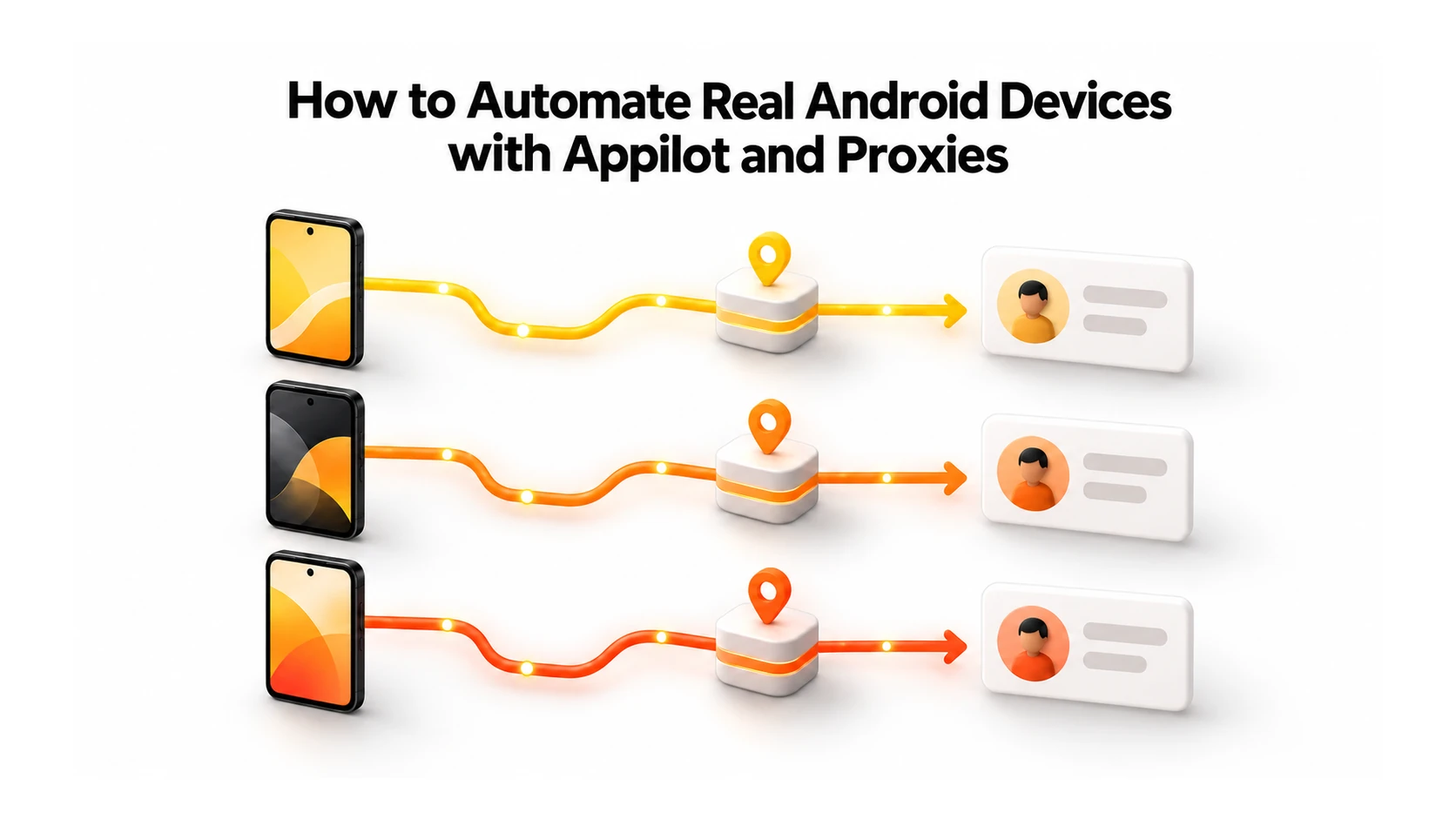
A scheduled task can stop because a phone went offline, or run on a handset with the wrong account signed in. Before trying again, the team needs to know which phone had the task and where the previous attempt ended. The network adds one more clue: which public IP did the app use? Without those answers, adding more devices can make a small failure hard to investigate.
Appilot handles the device side of this work. Its site describes physical Android phones, scheduled workflows, and a dashboard for watching runs. A proxy can give selected traffic a particular exit IP. The two pieces need to be checked together: a task may run correctly on a phone while its app still uses a different network route from the one the team expected.
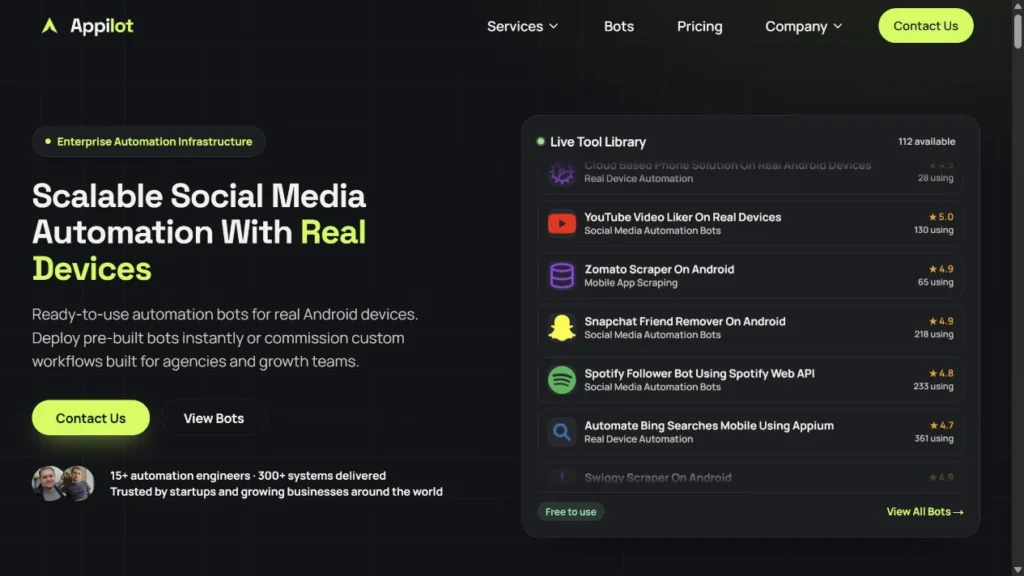
Real Android device automation with Appilot
Appilot’s real-device offering is built around physical phones rather than an emulator farm. Operators can assign work, see device status, and review logs from a central interface. There are ready-made bots in its catalogue, and Appilot also builds workflows for individual clients. In mobile automation, that shared view saves an operator from checking handsets one by one when a scheduled run needs attention.
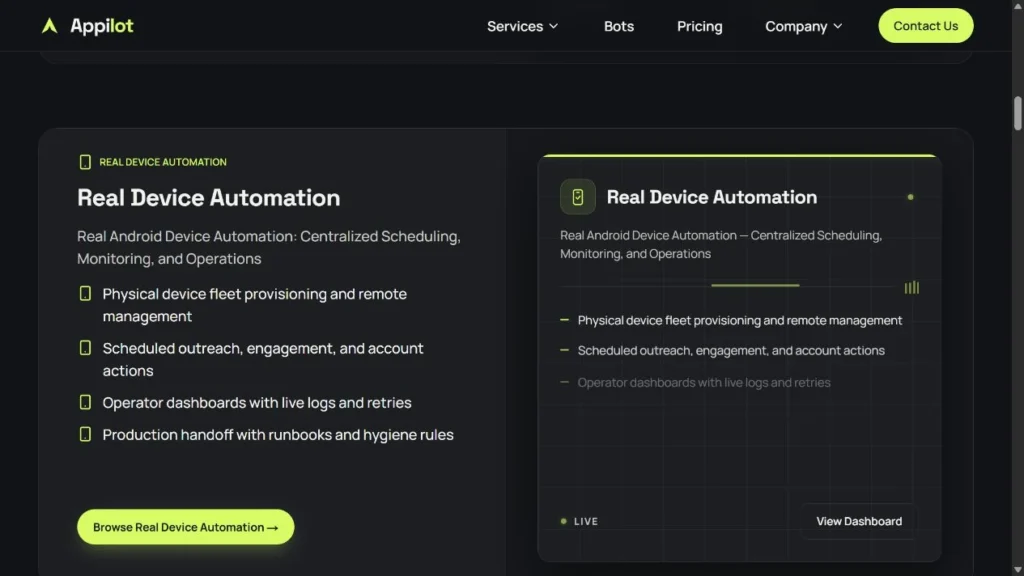
A physical phone retains its own Android installation and app state. An emulator reproduces that environment in software. Neither distinction tells you what IP a service will see. The answer depends on the phone’s connection and on whether the app’s traffic actually passes through the route you configured. Platform rules still apply to activity performed on a real phone.
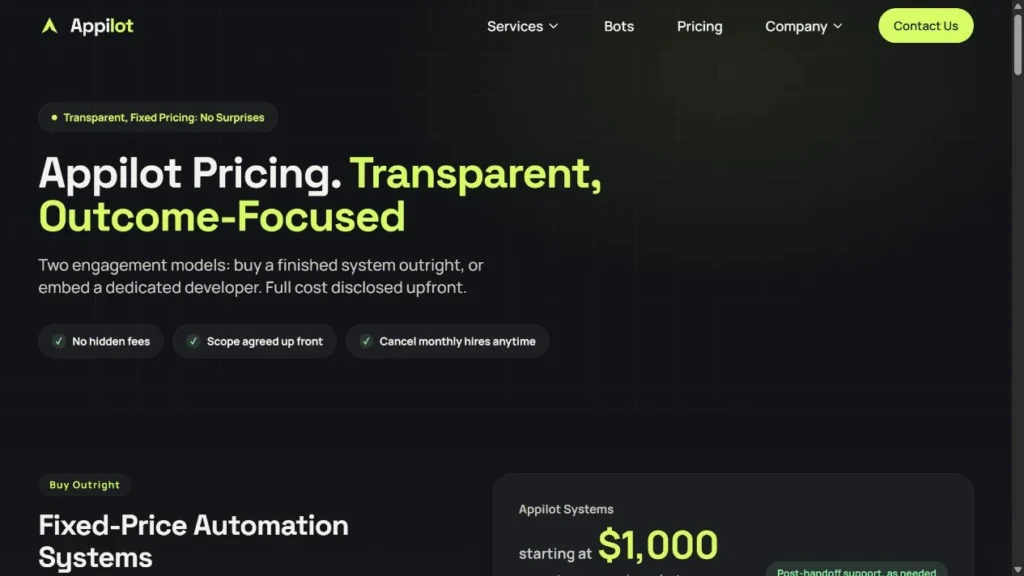
There is also no reason to assume that every Appilot project has identical controls. The company’s pricing page distinguishes between fixed-price systems and work by a dedicated developer. If a team needs proxy routing, it should establish how that particular deployment connects devices to the network before documenting the procedure.
Why the network route matters
Consider a regional test of a team’s own mobile app. The tester may need a phone whose requests exit from the country being checked. If the test involves a long signed-in session, the team may also need the IP to remain stable until the run ends. These are requirements for the connection, not for the sequence of taps on the phone. A proxy can provide the exit route; Appilot can run and monitor the device workflow.
The working map is simple: device or isolated session → assigned route and IP → account. Write down the mapping before the first scheduled run. It will help when an operator has to answer questions such as “Did this task run on the right phone?” or “Did the IP change between attempts?” An account can still face restrictions. The app may retain an old session, the platform may reject the activity, or some requests may leave outside the proxy.
A fleet log needs more than a device name. Put the operator and account beside it, along with the proxy type, expected IP, country, routing method, and the last time someone checked them. When a run fails, compare what the phone is doing now with that record. A current value is more useful than an old “working” label.
Choosing between residential, ISP, and mobile proxies
Start with the session. How long must the account stay connected? Is a particular country required? Can the public IP change between tasks, or must it hold until the work finishes? Those questions narrow the choice of proxies for Android automation more effectively than a generic ranking of proxy types.
MangoProxy’s residential proxies, static ISP proxies, and mobile proxies serve different needs. Before choosing a plan, look up its available countries and the protocol, login method, and connection format it provides. A proxy advertised for one use case is not automatically suitable for the app or routing method in your deployment.
| Type | When to consider it | What to check first |
|---|---|---|
| Residential | A broad pool of locations is useful, and short independent jobs can tolerate an IP change | Check how long a sticky session lasts and when rotation occurs. An address may change too early for a long account session. |
| Static ISP | An account or device needs the same public IP over an extended period | Confirm the required country is available and that the protocol works with your routing method. |
| Mobile | The workflow requires an exit address from a mobile carrier | Check the country, how the address is assigned, and the rotation rules of the selected plan. |
| Datacenter | An authorized test or less sensitive process prioritizes cost and speed | Confirm that this network type suits the target app and that the session does not require a more persistent IP. |
For a session that must stay on one address, a static ISP proxy is a straightforward option. Residential proxies allow a choice of locations and rotation settings; the session duration matters if an account must remain signed in. Mobile proxies are relevant when the exit needs to come from a mobile carrier. Rotation can work well for separate requests, but a mid-session IP change may disrupt a longer job. None of these options guarantees that an app will accept the activity.
Preparing the proxy route for an Appilot device
Appilot’s public pages show device management and automation services. They do not show a universal proxy setup screen or a verified menu path that would apply to every client. The steps here cover what a team can prepare and test without pretending that a specific button exists in Appilot. Whoever owns the deployment will need to confirm how the target app’s traffic is routed.
1. Match the phone to the session
Before changing network settings, decide which phone will run the task and which account it will use. List the apps involved. Does the proxy need to carry every relevant request, or only a specific part of the workflow? If two accounts share a phone, check their app state as well as their IP assignments. A new IP does not create a separate sign-in session inside an app.
2. Collect the connection details
In the MangoProxy dashboard, select the proxy type and country that fit the job. Copy the host and port, plus the credentials required by that plan. Decide whether the device should keep the IP for the session, and write down any rotation rule. Store the password outside the fleet register and leave it out of screenshots.
3. Connect the route where the app can use it
The right place to enter Android proxy details depends on the deployment. It may be configured on the phone, on the network, in a routing tool, or in custom code. Whoever maintains the integration should confirm that the proxy protocol and login work and that the app’s requests actually follow the route. A valid host and port do not establish that the Android app is using them. This is the practical issue behind searches for “Appilot proxies”: the route must reach the app, whatever the project’s interface looks like.
4. Check the IP from the phone
Open MangoProxy’s “What Is My IP” page on the handset using the planned connection. Compare the address and country it reports with the assignment record. Then check the target app’s traffic. Some apps may not follow the same path as the browser, so a correct browser result is only the first check. If the app uses another route, hold the scheduled run until the network configuration is corrected.
5. Try one short run
Use one phone and a small, permitted task. Record the account, start time, result, and any error message. If the task completes and the network checks are consistent, move on to another handset. Repeat the app and IP checks there; do not treat the first phone’s result as proof for the rest of the fleet.
Keeping a larger device fleet organized
Give each phone one row in an assignment register: device, account, proxy, country, operator, and current status. Add the expiry date for a fixed proxy or the rotation rule for a changing one. For multi-account automation, include the task or run ID so an operator can connect a failure to the phone and route that handled it.
It is easy to reuse one proxy across a fleet because it reduces setup work. Whether that is acceptable depends on the accounts and the application. A team might deliberately share a route between certain accounts. For others, a fixed route per account may make troubleshooting easier. If one proxy for multiple accounts is chosen, note the accounts and the reason in the register; otherwise the shared IP may come as a surprise later.
A phone that drops offline mid-run should not simply receive the same job again. Check its last task result and its network route first; a fresh sign-in prompt may mean the app session needs attention. Until the cause is clear, hold retries on that phone. Repeating an unexplained failure across several devices only makes the logs harder to untangle.
Where this approach can help
An agency can assign permitted publishing work to named devices and accounts. A developer can repeat a mobile-app test from a chosen region. An SMM team can see which device queue stopped and inspect its log. Appilot lists workflows for Instagram, TikTok, Reddit, and other apps. Those examples are not blanket permission: each platform sets its own limits on automation.
If an official API covers the job, adding a phone and proxy may add work without helping. For tasks that do require a physical handset and a particular exit location, verify the task result and the app’s IP separately; one does not prove the other.
Mistakes worth catching before launch
- The IP check was run on the operator’s laptop. Check from the handset itself and confirm that the target app takes the expected route.
- The selected country was never verified. Compare the phone’s actual exit country with the one in the assignment record.
- The IP rotates while an account session is still active. Find out when it changes; if the account needs an uninterrupted session, choose a route that holds its IP.
- The phone or account changed hands, but the register still shows the old assignment. Record the new pairing before the next run.
- A browser test was treated as proof for every app. The target app may take a different path.
Before adding more phones
Appilot can help a team schedule and monitor tasks on physical Android devices. Before adding phones to a working setup, write down which account and proxy route belongs to each one. Check the public IP on the handset, then check the app’s connection. Repeat both checks when another device joins the fleet.
Frequently asked questions
Here we answered the most frequently asked questions.
Are the Android devices physical phones?
Its real-device automation is described as running on physical Android hardware. The supported models and connection method should be confirmed for the project being deployed.
Can Appilot be used with proxies and IP rotation?
Yes. Proxy routes can be included in Appilot automation workflows running on physical Android devices. Depending on the deployment, the network setup may use mobile or residential proxies and can include IP rotation controls. The exact configuration depends on the proxy provider, network requirements, and architecture of the specific project.
Which proxy type should I use for several accounts?
If the account must keep one IP for hours, start by looking at static ISP proxies. If the task calls for a pool of locations and controlled rotation, compare residential proxies. A mobile-carrier exit calls for mobile proxies. Whichever type you choose, test the app’s route on one phone first.
Is a browser IP check enough?
No. The browser only shows its own route. Confirm the connection used by the app as well.
Will a proxy keep an account safe from restrictions?
No. It only changes the path taken by traffic sent through it. App state, workflow errors, and platform policies remain separate issues.