


CosLogin Proxy Setup with MangoProxy: A Practical Walkthrough
Published: ≈ 13 min read
Quick Answer
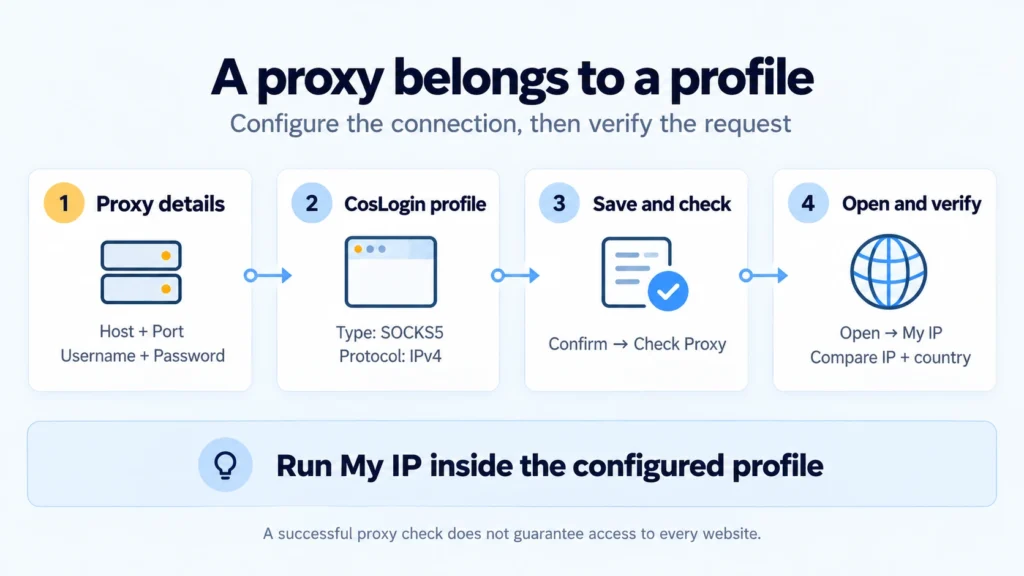
To put a CosLogin profile on your MangoProxy address, choose Custom Proxy in that profile’s Proxy section. Use the server address, port and credentials issued with the proxy. Save the entry, run Check Proxy, then open the profile and compare its My IP result with the assigned address.
The example follows Browser Test, a profile using a static ISP connection. Its settings pair SOCKS5 under Type with IPv4 under Protocol. The screenshots use English controls.
Key Takeaways
- A proxy is assigned to a specific profile. A new profile still needs its own network configuration if it is to use a different address.
- In this interface, SOCKS5/HTTP belong in Type; the IPv4/IPv6 choice is labelled Protocol.
- Copy the proxy’s own login record; do not fill these fields with your dashboard sign-in.
- For extended work through one address, use a static IP. If you need changing addresses, configure rotation separately where the product supports it.
Why Use a Proxy in CosLogin?
Give a profile a proxy when its work calls for a particular country or a consistent public address. Regional workspaces can use separate connections, while a recurring session can stay on one static IP.
The profiles in CosLogin’s antidetect browser each keep their own cookies, stored site data and browser preferences. The proxy handles the network route. Give two profiles the same static proxy and websites still receive their requests from that address, even though the profiles keep separate data.
The website still decides whether a session is acceptable. Its account rules, limits and activity checks apply whichever proxy you select; profile separation does not remove them.
Where to Get a Proxy in MangoProxy
Our example uses MangoProxy static ISP proxies: the address belongs to an internet service provider network and stays assigned to the customer for the paid rental period. The same address is available when you come back to that profile during the rental.
Under Static proxies → ISP, Pricing contains the order form. Work through the available pool, country/provider and rental options, then read back the quantity and total in the order summary. If you already rent a suitable address, use its existing record; this walkthrough does not require a second purchase.
Your issued addresses are listed on Proxy list; use one whose status is Active. Below the table, you can select the protocol and output format, then copy the connection string. Note which protocol you selected: you will need it in CosLogin. Our example uses SOCKS5.
Have these five details ready:
- Host – the server’s IP address or domain name.
- Port – the connection port for the selected protocol.
- Username – the proxy username.
- Password – the proxy password.
- Connection type – SOCKS5 in this example.
If the exported string uses protocol://login:pass@ip:port, its components correspond to these details. Enter only the address in the separate Host field, without the protocol prefix, username, or port.
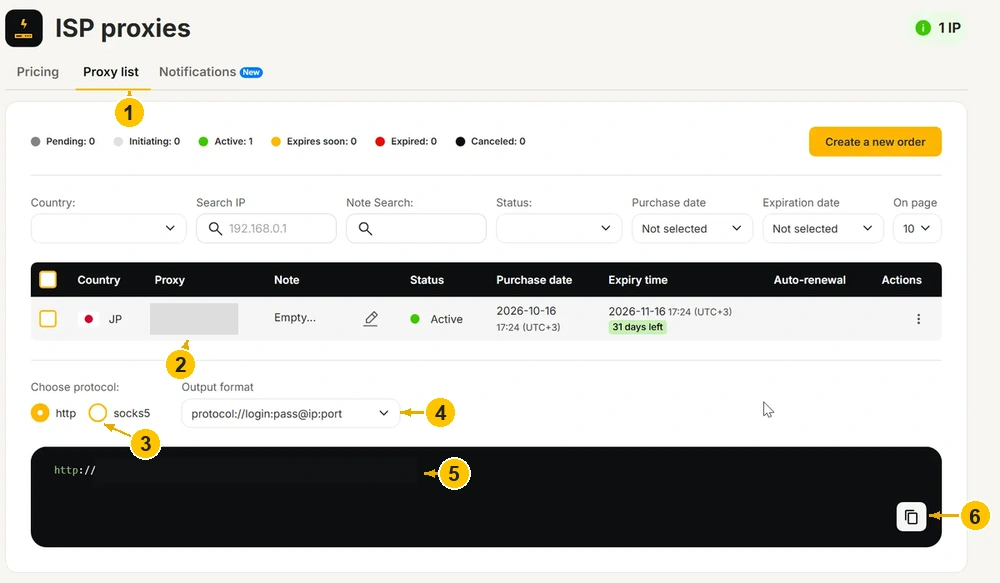
2. Find an issued proxy marked Active. Its address is hidden for publication.
3. Select socks5 for this walkthrough. The source screenshot has http selected; its interface has not been altered.
4. Choose protocol://login:pass@ip:port as the output format.
5. Read the connection string; actual credentials are hidden in the screenshot.
6. Copy the string. For the separate CosLogin fields, map ip → Host, port → Port, login → Username, pass → Password. Host takes only the address.
Which Proxy Protocol Should You Choose in CosLogin?
Choose a connection type supported by your issued proxy. MangoProxy static ISP proxies support HTTP and SOCKS5; the configuration shown here uses SOCKS5.
In CosLogin, Type selects the proxy type. Use the separate Protocol controls for the address family: IPv4 for the address used here, or IPv6 when that is what your proxy supplies. The https in a destination URL describes that website’s connection; it is not an instruction to change the proxy’s Type.
CosLogin also documents pasting a proxy string in IP:port:username:password format. In this guide, we enter the four values separately. This makes it easier to spot a username pasted into the port field or extra text copied with the address.
Step-by-Step Proxy Setup in CosLogin
Step 1. Open the Profile Creation Panel
Launch the CosLogin application and sign in. Select Browsers in the left menu, then click Create Browser. The setup panel opens on the right (Free Trial Available).
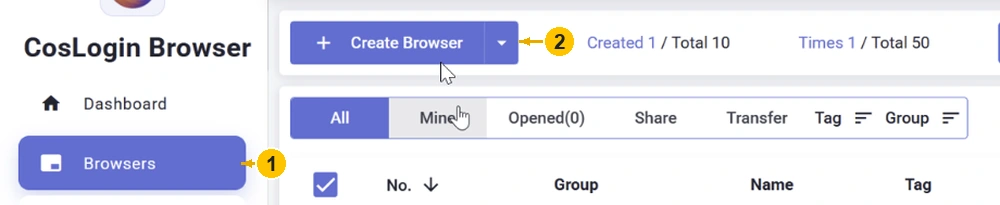
2. Click Create Browser.
Step 2. Name the Profile
In Basic, fill in Name. Our example profile is called Browser Test. We will use this name to find it in the browser list later.
Step 3. Select Custom Proxy
Scroll down to Proxy. Under Method, select Custom Proxy. This is the setting for a proxy you bring from MangoProxy.
Step 4. Match the Two Connection Settings
Use Type: SOCKS5 and Protocol: IPv4 for Browser Test. With another proxy, match these choices to its supplied connection details. Lookup Channel concerns the IP-information lookup performed by Check Proxy; our screenshot has IP234 selected.
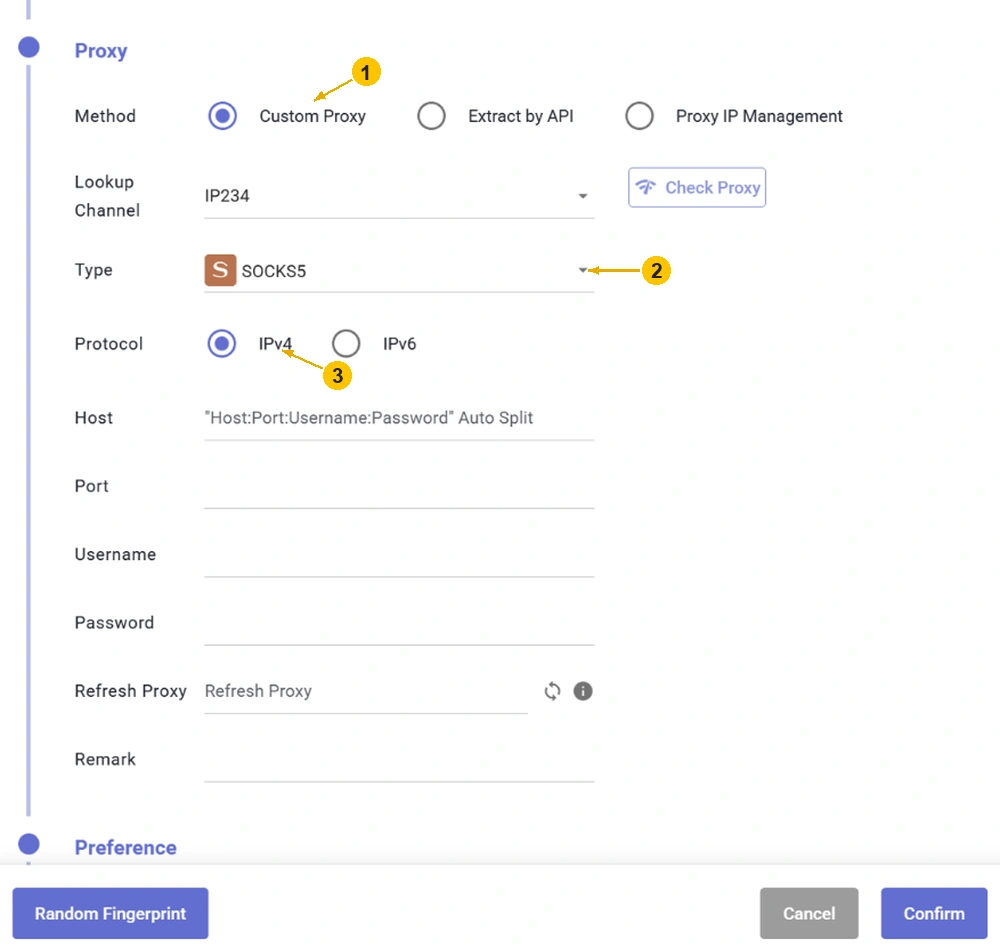
2. Set Type to SOCKS5 for this example.
3. Keep Protocol at IPv4 for the issued IPv4 address.
Step 5. Enter the Connection Details
Host takes the server address and Port its connection port. Username and Password complete the proxy authentication pair. Use details from the same proxy throughout. Inspect the start and end of each pasted value for stray spaces or a carried-over line break.
Keep the authentication fields in view under Proxy. The similarly named boxes in Basic are not where this connection’s login and password go.
Step 6. Save the Profile
Click Confirm. Browser Test will appear in Browsers, with its configured proxy shown on the same row.
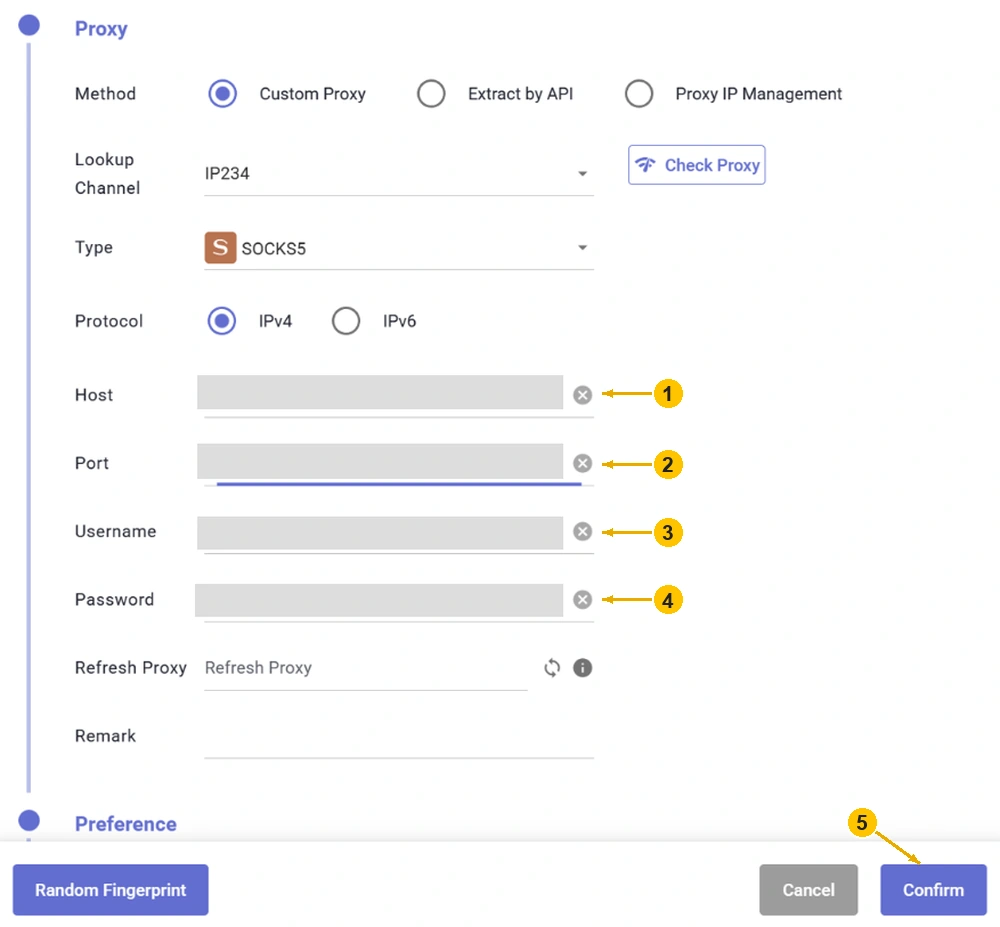
2. Port takes the port for that connection.
3. Username takes the proxy username.
4. Password takes the proxy password. Enter both credentials under Proxy, rather than Basic.
5. Click Confirm to save the profile.
Step 7. Check the Connection
Open the saved profile’s proxy settings using the icon in the Proxy IP column, then click Check Proxy. This follows the sequence shown in the check screenshot: Browser Test is already present in the list.
The expected response is the green Proxy check successful banner. Read the detected address and Country/Region in the results on the right, comparing them with your assigned proxy record. Then use Confirm to retain any edits as you leave the panel.
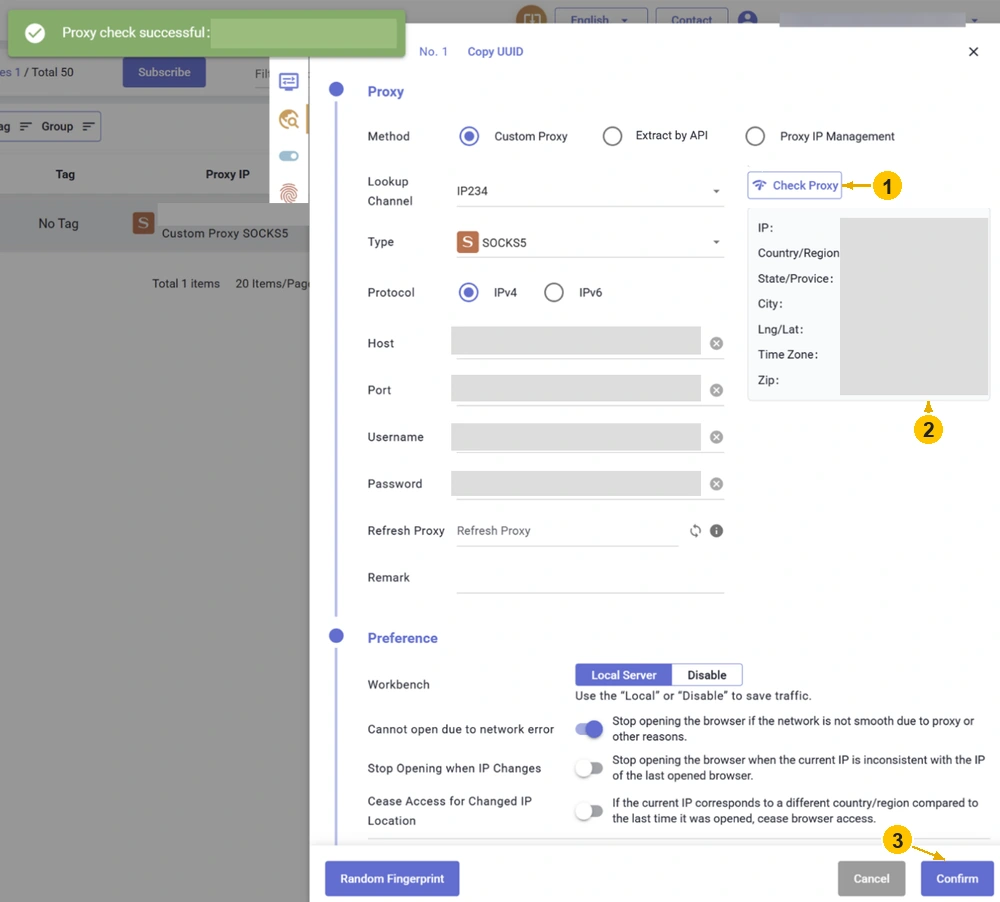
2. Compare IP and Country/Region with the issued proxy. Values are hidden in the publication copy.
3. Click Confirm to retain changes and close the panel.
Step 8. Launch the Profile
Find Browser Test in Browsers and click Open on its row. Wait for the browser window to launch. Run the next check in that window.

2. Click Open on the same row.
How to Check the IP After Setup
Open MangoProxy’s My IP tool in the running profile. It shows the address used for that page request, along with reference information about the country and provider.
First, compare the IP with the address of your issued static proxy. Then check the country. If you are checking a dynamic product, account for its current exit address and rotation mode: the connection endpoint and public exit IP may differ.
For the check in this guide, the page was opened in Browser Test. The tool showed Sweden and Ownit Broadband; the public IP and country matched the MangoProxy connection being used. The address is hidden in the publication screenshot.
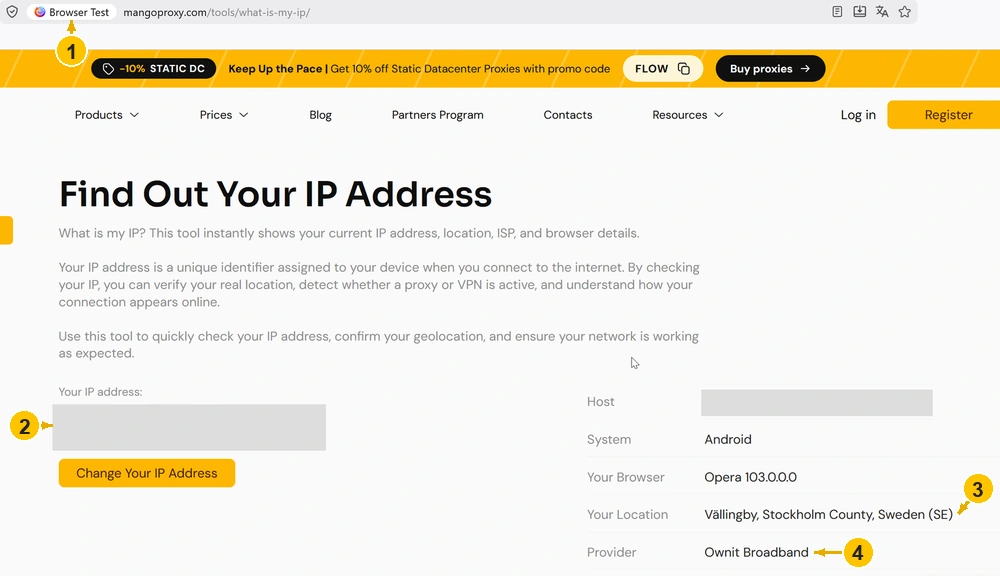
2. Compare the public IP with the address of your static proxy. The address is hidden here.
3. Check the country in Your Location: this result shows Sweden (SE).
4. Provider shows Ownit Broadband. This is reference information about the address, not a separate access test for your working website.
This confirms the result of that browser request. Check access to your working website separately: loading an IP page does not establish that another service will accept the connection or allow an account sign-in.
Which Proxy Types Suit CosLogin?
Choose a proxy for CosLogin based on the profile’s task: whether it needs one address over time, which countries are available, and whether the IP can change while you work. Assess the network type and the address rotation policy separately.
| Proxy type | When it fits | Static IP or rotation | What to consider |
|---|---|---|---|
| Residential | Checking content across regions or using addresses from a pool | Depends on the session mode and rotation settings | Check how long the IP is retained: the connection server address may stay the same while exit IPs change. |
| Static ISP | Extended work in a profile that needs an address from an ISP network | The same address for the paid rental period | Monitor the rental expiry and use the details assigned to that IP. |
| Static datacenter | Testing and repeatable tasks where a datacenter network is suitable | The same address for the paid rental period | The target website determines whether it accepts the connection; evaluate it for your own workflow. |
| Mobile | Checking how a website behaves for addresses from mobile carriers | Depends on the product and IP rotation mode | Check the country, carrier, and rotation conditions; a mobile IP alone does not turn the device into a phone. |
A static address is usually easier to keep track of during one long session. If the task requires different exit IPs, decide in advance when they can change. Rotating an IP during a signed-in session may trigger an additional check by the website.
When Are Proxy-Configured Profiles Useful?
Different locations. A team might check local versions of a website in several countries, with a profile and a matching proxy for each region. Browser language and time zone are configured separately from the IP.
Extended sessions. For regular sign-ins to the same work account, the profile retains session data while the static proxy retains the network address. Account for the proxy’s rental period when planning this work.
Local content testing. Proxies for browser profiles help compare pages available in different network regions. Cookies, language choices and the site’s own settings can affect the comparison too. A different IP is only one possible reason for a different page.
Team workflows. Keep track of the proxy used by a shared profile. A teammate can switch that connection without renaming the profile or removing its saved data, so the address seen on the next visit may differ.
What to Check When the Connection Fails
Check Proxy Fails
Check the three connection values together: the server in Host, its assigned Port and the selected proxy type. The port must belong to that endpoint and support the chosen connection type. Next, use the dashboard record to rule out an expired rental or inactive proxy.
Authentication Error
Copy Username and Password again from the proxy details. Check those values against the proxy record, rather than the dashboard sign-in, and look for the Proxy section heading above the fields. Retest after correcting one setting; changing several at once hides which correction mattered.
The Proxy Check Passes, but the Site Fails
Use the profile’s My IP result to narrow this down. With the expected address there, inspect the target site’s own message, availability and regional requirements next. Investigate those details before paying for a replacement proxy.
The Profile Shows the Previous IP
Locate the browser window belonging to Browser Test before comparing addresses. Reopen that entry’s configuration, retain any corrections with Confirm, then close and relaunch the profile. With several entries in the list, use the name and assigned connection together to identify the one you are checking.
The Country Differs from What You Expected
Compare the IP itself first. For an address that matches the assigned proxy, IP Lookup offers another geolocation reading; its source may disagree with the first tool. A city mismatch alone does not establish a configuration error. Record a country discrepancy and ask support to review the check results and address assignment.
A Previously Working Connection Has Stopped
Review the rented proxy’s status, expiry and current login details in the dashboard. For a rotating product, check whether the exit address has changed too. Once corrected, repeat Check Proxy and load a page from the profile to see the new result.
Try One Profile First
If your profile needs a fixed address from an ISP network, start with one static ISP proxy. Complete the setup and check your working scenario before applying it to the rest of your profiles.
Glossary
Profile: a separate browser environment with its own data and settings.
IP: a network address; in this guide, the public IP is the address a website sees in a request from the profile.
ISP: internet service provider; in a proxy name, it identifies the address’s network affiliation.
HTTP and SOCKS5: proxy connection types selected according to the provider’s connection details.
IPv4 and IPv6: versions of IP addressing.
Host: the server address or domain name used to connect.
GEO: the country or region associated with an IP in the geolocation database being used.
Rotation: a change of exit IP according to a configured rule.
Cookies: data a website stores in the browser, including data used to maintain a session.
User-Agent: the request’s description of the browser and operating system.
Final Thoughts
The completed setup leaves you with a saved profile, a successful CosLogin check and a public address verified in the launched browser. Once the address matches your issued proxy, check your working website. Use your own sign-in and the pages you need to judge whether that profile supports the session you plan to run.
Frequently asked questions
Here we answered the most frequently asked questions.
Can I Add a Proxy to an Existing Profile?
Yes. Open Browsers and access the relevant profile’s proxy settings through the Proxy IP column. Enter the new connection, run Check Proxy, and save the changes. Reopen the profile to apply the revised connection.
Does This Setup Require Windows Proxy Changes?
For this method, the settings inside CosLogin are sufficient. Configuring the Windows system proxy is not a step in this guide. A check made in another app can tell you about that app’s connection. Use the configured CosLogin window for this result.
Why Are the Browser and System Labels Unexpected?
The tool derives those labels from the request it receives, including the User-Agent text. They do not establish the operating system actually running on the device. Our screenshot displays Android and Opera while a CosLogin profile is open. To check the network connection here, compare the public IP and country; assess the browser profile parameters separately.