


DNS Through a Proxy: Where Names Are Resolved and Which Mode to Choose
Published: ≈ 10 min read
Quick Answer
Your application can look up a website’s IP address itself or pass the domain name to the proxy and let it arrange the lookup. The application, protocol, and settings determine which happens. Enabling a proxy does not automatically move name resolution to that server.
Choose proxy-side resolution when the website’s name must stay out of DNS queries made by your device. Also check that the application does not look up the same name separately. Local resolution may be necessary for an internal service known only to your organization’s DNS. Either way, the proxy needs to be able to reach the resulting IP address.
Key Takeaways
- A website sees the public IP from which the web request arrived. That address does not reveal who resolved its name.
- Two programs can handle destination names differently with the same proxy settings. Chrome and curl are one example.
- Looking up the proxy’s own address and looking up the website are separate requests. Keep those names distinct when investigating.
Who Needs to Check This, and When?
This check helps developers and testers moving a task to another environment, employees accessing internal services, and anyone who needs control over where DNS queries go.
Suppose a developer moves a script to another computer. The proxy settings stay the same, but a website stops opening. Checking name resolution helps establish whether the failure occurs during the lookup before investigating access to the returned IP.
What Changes When the Proxy Resolves the Name?
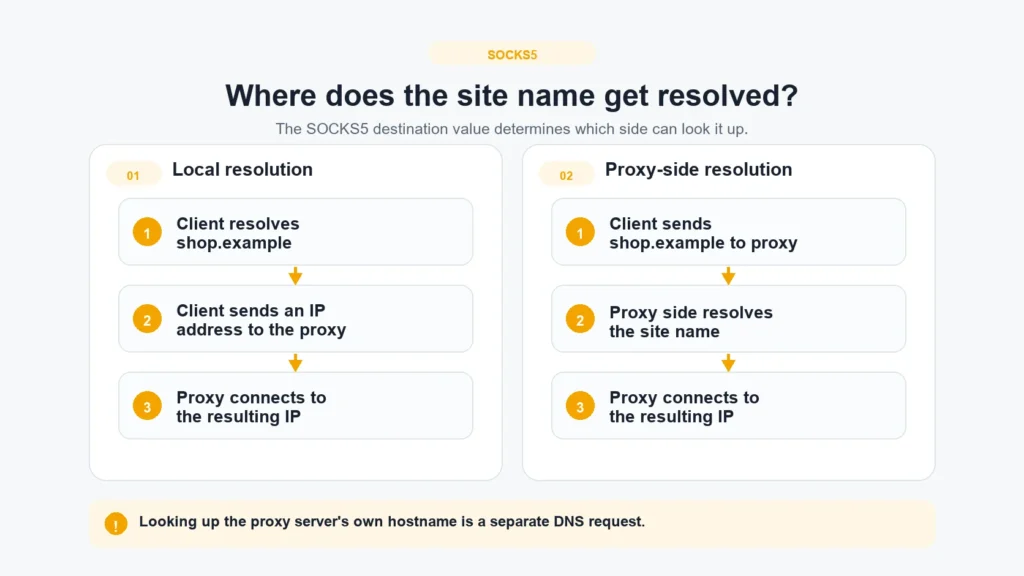
The lookup moves to the proxy side, which may also produce a different answer. Take shop.example over SOCKS5: the application can find its IP first and give that address to the proxy. Alternatively, it can send shop.example and leave the lookup to the server.
The proxy does not need to run its own DNS server for this to count as proxy-side resolution. It may ask a separate resolver. With local resolution, the application arranges the lookup from the client side, using the system resolver or DNS over HTTPS.
Those services may give different answers. A company resolver might know an internal address that an external service cannot find. One service may filter a domain while another returns its IP. Moving the lookup can therefore affect whether the site opens.
What Do Applications Send to HTTP and SOCKS5 Proxies?
An HTTP proxy usually receives the website’s name in the request. SOCKS5 accepts either a name or an IP address. The client’s behavior matters in both cases.
For an ordinary HTTP/1.1 request through an HTTP proxy, the application sends the full page URL. For HTTPS, it usually requests a tunnel with CONNECT, specifying the website’s name and port. Some programs look up an IP beforehand for their own purposes but still pass the domain to the proxy. Seeing that earlier DNS query does not tell you whether the later proxy request contained a name or an IP.
A SOCKS5 client explicitly identifies the destination as a domain name or an IP address. In curl, socks5:// selects a local lookup, while socks5h:// passes the name to the proxy for resolution. Chrome also uses socks5:// in its configuration, yet sends the website’s name to the SOCKS5 server. Curl’s rule does not apply to the browser just because the scheme looks the same.
Which Resolution Mode Fits Your Task?
Choose based on which DNS service knows the name and whether your device is allowed to query it. Consider these three situations:
- Only your organization’s DNS knows an internal service. You may need a local lookup through that service. The proxy must still have a route to the returned address; otherwise, use the access method your organization provides.
- The local DNS service cannot find a public domain. Try resolution through the proxy as an alternative: its resolver may have an answer the client cannot obtain. Switching modes alone does not guarantee that the site will open.
- The website’s name must not be queried from your device. Configure the application to pass the name to the proxy, then check for a separate lookup of that same name on the client.
If both sides return the address you need, the connection works, and there are no special requirements for the DNS path, you can keep the current mode.
Where Can You Check the Current Setting?
Check the DNS options in the application making the request. Firefox and Proxifier have separate controls for name resolution.
Firefox
Firefox lets you control DNS resolution for a SOCKS5 connection. Since version 128, SOCKS5 uses proxy-side resolution by default; earlier versions used local resolution. Check the selected protocol and DNS option in your profile. “How to Set Up a Firefox Proxy: A Clear Guide” will help you find connection settings and exclusions.
Proxifier
In Proxifier 4 for Windows, automatic mode takes system DNS availability into account. If system DNS is unavailable, the program can enable resolution through the proxy. Rules for individual names also affect the outcome. Review the active mode as well as the server address; “How to set up a proxy server in Proxifier: a step-by-step guide” shows where to find the relevant settings.
Why Are There Still DNS Queries After You Enable a Proxy?
Your device may need to look up the proxy itself. If the configuration contains proxy.example, the application needs its IP before connecting. That request tells you nothing about how it found shop.example.
Exclusions are another possible cause. If a website is allowed to connect directly, the application may look up its address in the usual way. When investigating a suspected leak, first identify the queried name and the application responsible.
How Can You Check DNS After Configuring a Proxy?
Start by reviewing the application’s resolution mode. A browser test provides an additional observation about DNS servers. Investigating a particular hostname requires records of the connection and DNS queries.
An Additional Browser Check
If you chose proxy-side resolution to keep the website’s name out of queries from your device, a browser test can help you check which DNS servers it detects. The MangoProxy DNS Leak Test displays the servers observed for its own test queries, along with your public IP. An unexpected result can prompt further investigation, but the test does not establish where the name of any website you visit was resolved.
- Open the tool in the browser profile where your proxy is configured and where you perform the task.
- Run the test and wait for the result. The screen shown here has a “Run test again” button for repeating the check.
- Review the public IP card and the “DNS servers” section. If the detected servers differ from what you expected, revisit the DNS settings and exclusions in that profile.
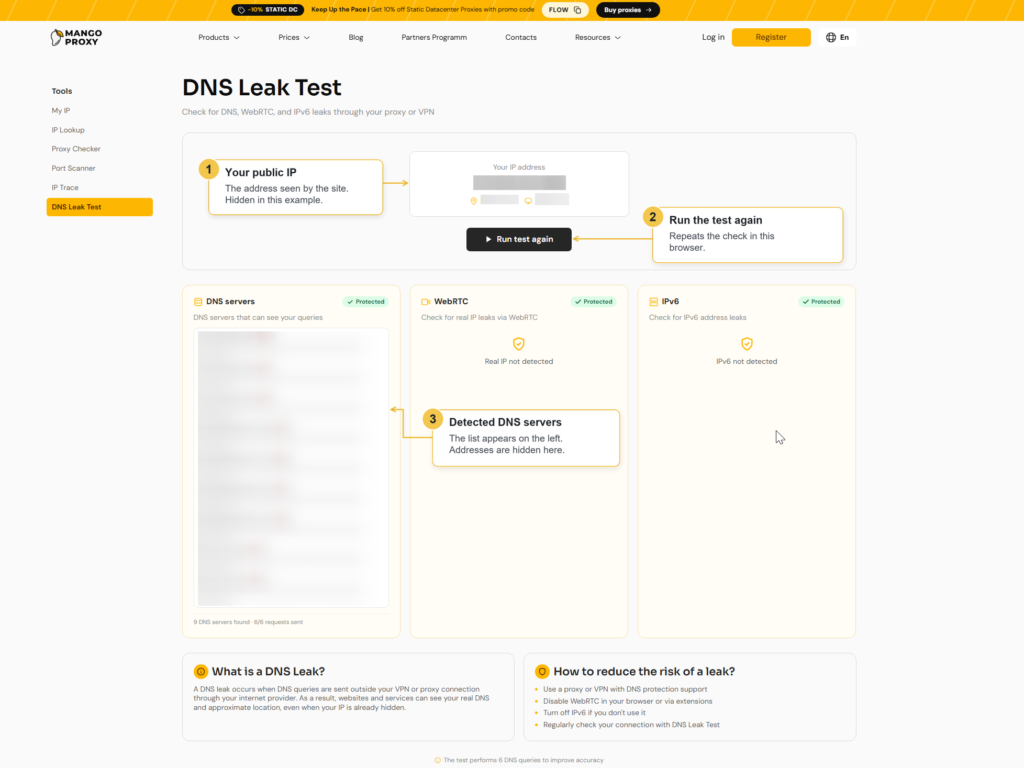
The addresses are hidden in this example, so the screenshot shows where to find the fields, without identifying the servers. “Protected” is the tool’s own assessment.
Investigating One Request
Pick one website and one application. Record the proxy address, the selected resolution mode, and any exclusions allowing direct connections. Then compare three observations:
- Connection: did the application contact the proxy or connect directly to the website?
- Destination: did it give the proxy a domain name or an IP address?
- DNS query: is there a record on the device of a lookup for that exact name?
Use client or proxy logs for the first two points, if you have access to them. For the third, examine DNS query records on the device. A browser test cannot replace missing records.
Allow for caching and DNS over HTTPS. An address may already be stored, or the query may have gone over HTTPS. The absence of an ordinary DNS packet therefore does not prove that resolution happened through the proxy. With HTTP clients, also distinguish an earlier lookup from the destination later sent to the server.
Example: An Internal Website Opens Only Without the Proxy
The next two scenarios are hypothetical. They illustrate possible failures and are not reports of MangoProxy testing.
Within the company network, intranet.example opens because the corporate DNS service has a record for it. In the SOCKS5 setup described here, the browser instead hands the domain to an external proxy. The resolver used there has no record for this internal service, so the lookup fails.
Check whether a local lookup returns an address and whether the intermediary can connect to it. Resolving the domain on your device will not, by itself, make a service restricted to the company network reachable. Use the designated access route or an approved exception that lets this service bypass the proxy.
Example: Chrome Opens a Website, but Curl Does Not
Chrome and curl use the same SOCKS5 server. The browser leaves the domain lookup to the server. With socks5://, curl needs an answer from the client’s resolver first. If that lookup fails, the script stops before the SOCKS5 server connects to the website.
Check which address curl could not find: the website’s or the server’s own. If the failure concerns the website and you want the server to handle that lookup, use socks5h://.
What to Do Next
Save the current settings and the result of one request. Change only the resolution mode, then retry the same website in the same application. Use the two results to assess the effect; the saved settings let you return to the previous configuration if needed.
If you also need a fixed public IP for the task, MangoProxy static datacenter proxies support HTTP(S) and SOCKS5. Where DNS resolution happens still depends on the application’s settings.
Glossary
DNS: The Domain Name System. A domain name is a textual name for a resource, such as shop.example. Finding an IP address for that name is called DNS resolution.
IP address: a network address for a device or server. In a browser test, the public IP is the address from which the tool received the request.
Client: the application that connects to the proxy and sends it a request.
Resolver: a service that processes DNS queries and returns answers. With local resolution, the client arranges the lookup; with remote resolution, the proxy side does.
HTTP and HTTPS: protocols for exchanging web requests and responses. HTTPS protects the connection to the website with encryption.
SOCKS5: a protocol through which a client asks a proxy to establish a connection to a destination.
CONNECT: an HTTP command asking a proxy to open a connection to a specified host and port. The resulting channel is called a tunnel.
Port: a number used to direct a network connection to the appropriate service on a device.
DNS over HTTPS: DNS queries carried over HTTPS. Encryption alone does not determine whether that connection passes through a proxy.
DNS leak: a name lookup using a DNS service or connection you did not intend to use for the task.
Cache: stored answers that an application can use without making another query.
Browser profile: a separate set of browser settings and data.
Static datacenter proxies: proxies with fixed IP addresses from datacenter networks.
Final Thoughts
First, identify which DNS service knows the name and which queries your network permits. Choose a mode the application supports, then check the result. Assess two things separately: whether you obtained the website’s address and whether the proxy can connect to it.
Frequently asked questions
Here we answered the most frequently asked questions.
Will changing the system DNS server make the proxy resolve website names?
No. That changes a service your device may use. For resolution to happen on the proxy side, the application must send it the domain name.
What happens if you give the proxy an IP address?
It does not need to look up an address for that destination. The client may have resolved the domain earlier or obtained the IP from its configuration. If someone entered the address manually, there may have been no DNS query for that website at all.