
How to Set Up a Firefox Proxy: A Clear Guide
This article provides a step by step process for configuring Firefox proxy settings. Mozilla Firefox is a favorite for many because it’s easy to customize and user-friendly. Want to hide your IP, mask your IP address to enhance privacy, access content locked to specific regions, or browse safely on public Wi-Fi? A proxy server in Mozilla Firefox can make that happen. This guide walks you through how to configure firefox proxy settings, the different setup options, common problems you might run into, and how to fix them.
Options for setting up a proxy in Firefox
Firefox gives you three ways to add a proxy, each suited to different needs. Alternatively, you can choose between manual configuration, using an automatic proxy configuration (PAC) file, or a quick setup. For example, you can use a manual configuration, a PAC file, or an extension. Browser extensions are another example of how users can set up a proxy in Firefox, providing a simple way to integrate proxy or VPN functionality directly into your browsing experience. Choose based on whether you prefer full control, automation, or a quick setup.
Manual proxy configuration
This method puts you in charge by letting you manually enter the proxy details yourself, including both the proxy IP address and the required port number in Firefox settings. It’s great for targeted jobs like scraping websites, monitoring search rankings, or reaching geo-restricted content. You can also modify these settings at any time to adjust your proxy configuration as your needs change.
Proxy auto-configuration (PAC) file
A PAC file decides which proxy to use depending on the site you’re visiting. It’s perfect for businesses or anyone who wants to automatically route traffic through specific proxies. With a PAC file, you can define which websites or IP addresses should bypass the proxy, giving you granular control over your Firefox proxy settings.
System proxy settings
If your computer’s operating system already has a proxy set up, Firefox can use it without any extra work. This is the simplest way to get started.
How to manually configure a proxy in Firefox
Manual setup is the top choice for most users because it’s flexible and doesn’t take much effort. The process involves a series of clear steps to configure your proxy settings in Firefox. If you’re scraping e-commerce sites, checking Google rankings, or accessing region-locked content, here’s how to set a proxy in Firefox.
You can use free proxy servers or free proxy extensions for this process, but be aware that free proxies often have limitations such as slower speeds, less reliability, and potential security risks.
Step 1: Go to Firefox settings
Note: Before starting, make sure you have an active internet connection. A stable internet connection is required for proxy settings to work effectively.
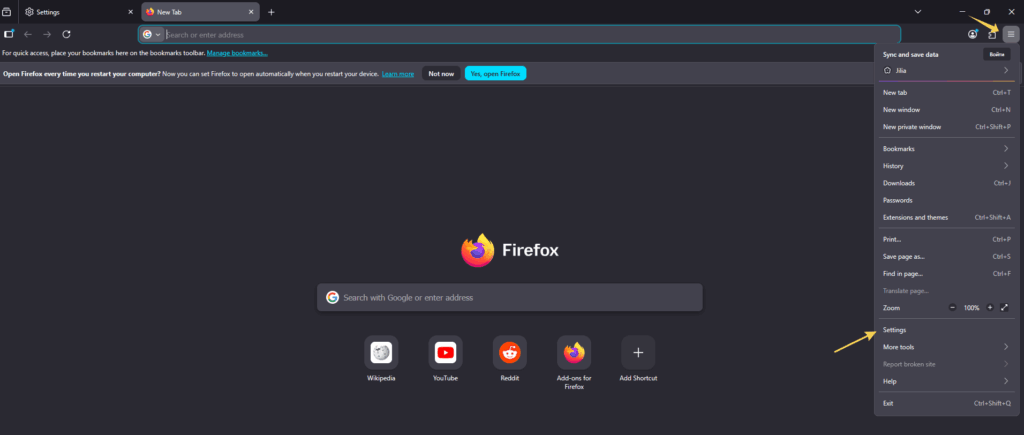
- Open Firefox.
- Click the three-line menu in the top-right corner.
- Select Settings (or Preferences if you’re on a Mac).
Step 2: Locate network settings
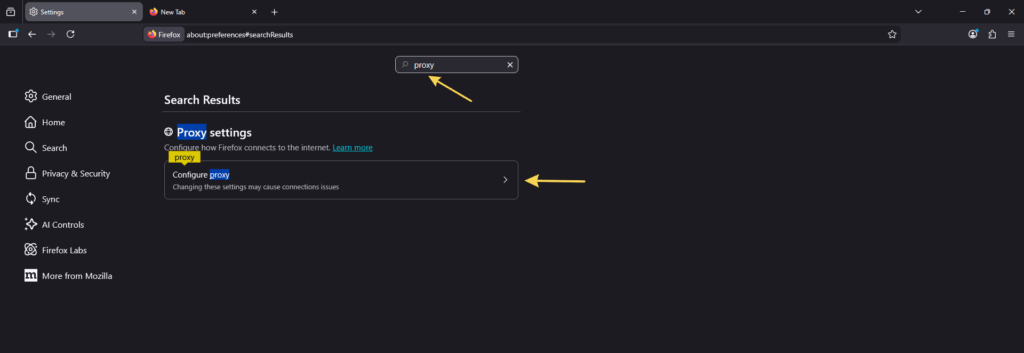
- In the Settings menu, stay on the General tab.
- Scroll down to Network Settings and click Settings next to Configure Proxy Access to the Internet.
Step 3: Pick manual configuration
- In the Connection Settings window, choose Manual proxy configuration.
- Make sure other options, like No proxy, aren’t selected.
Step 4: Add HTTP and HTTPS details
- In the HTTP Proxy field, enter the proxy’s IP address and the correct port number (e.g., 192.168.1.1:8080). Make sure to input both the IP address and port number as required for proper connection.
- If your proxy works with HTTPS, check Use this proxy server for all protocols. Otherwise, fill in HTTPS details separately.
Note: You can find your proxy server details, including IP address, port number, and type, in your Webshare account after signing up for their free proxies.
Step 5: Set up a SOCKS proxy
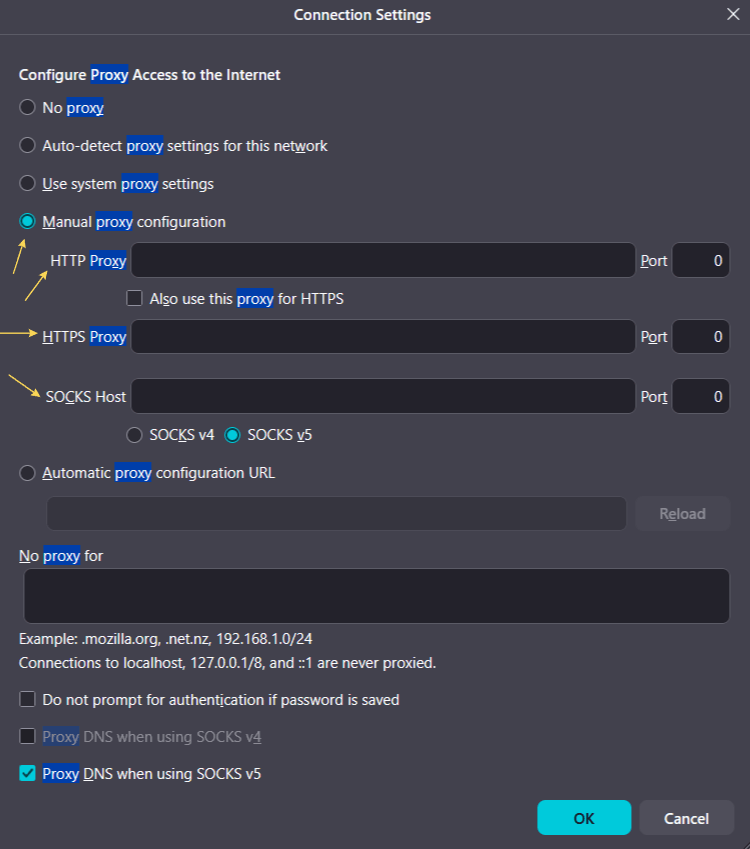
- If you’re using a SOCKS proxy (like SOCKS5), put the IP and port in the SOCKS Host field.
- Select SOCKS v5 for stronger security and support for username/password logins.
Step 6: Add exceptions
- In the No Proxy for field, define which addresses should bypass the proxy, such as localhost or 127.0.0.1.
- This keeps your local network traffic from going through the proxy.
Step 7: Save changes
- Click OK and restart Firefox to make the proxy active.
Note: Firefox will start using the configured proxy for all web traffic after saving the settings.
Step 8: Enter login details if required
- If your proxy needs authentication, Firefox will ask for credentials on the first connection.
- Use the username and password from your proxy provider, like MangoProxy.
Step 9: Confirm the proxy is working
- Head to a website like whatismyipaddress.com that displays your current IP address.
- If the website shows your proxy’s IP instead of your real one, you’re all set.
Step 10: Boost your security
- Route DNS through proxy: Enable Proxy DNS when using SOCKS v5 to prevent DNS leaks, which is key for privacy and helps protect your online activity by ensuring all DNS requests are routed securely through the proxy.
- Use with anti-detection tools: For multi-account tasks, combine Firefox with tools like Multilogin, which work well with MangoProxy. Using a proxy can secure your browsing and protect your data from tracking or leaks.
Configuring a proxy in Firefox can enhance security by filtering requests and protecting user data.
How to turn off a proxy in Firefox
- Go back to Network Settings.
- Select No proxy or Use system proxy settings to disable the proxy settings.
- Click OK and restart Firefox.
Setting up a proxy with a PAC file
PAC files automate proxy selection, letting you route specific sites through different servers—like one in the U.S. for some tasks and another in Europe for others. The process of setting up a PAC file in Firefox involves a series of clear steps to ensure your proxy configuration is efficient and correct. Here’s how to use proxy firefox with a PAC file.
Step 1: Access settings
- In Firefox, navigate to Settings > General > Network Settings.
- Click Settings under Configure Proxy Access to the Internet.
Step 2: Select PAC file option
- Choose Automatic proxy configuration URL.
- Uncheck other options.
Step 3: Add the PAC file URL
- Enter the URL of the PAC file provided by your proxy service (e.g., http://example.com/proxy.pac).
- Confirm the file is accessible.
Step 4: Save and test
- Click OK and restart Firefox.
- Use an IP-checking site to verify the proxy is active.
Using system proxy settings
If your operating system already has a proxy set up, Firefox can adopt it without extra effort—ideal for users who prefer minimal configuration.
Organization-wide Firefox Proxy Configuration
For organizations that need to enforce system proxy settings across multiple devices, you can create a policies.json file and place it in the Firefox distribution directory. This allows your organization to configure Firefox to use system proxy settings automatically.
Distributing the policies.json file can be managed using a patch or a system management solution such as KACE. The file must include settings to lock the proxy mode to system, ensuring all users within the organization use the designated proxy configuration. This approach enables system-wide proxy settings for Firefox, streamlining deployment and management across your enterprise environment.
Step 1: Open settings
- Go to Settings > General > Network Settings.
- Click Settings.
Step 2: Enable system settings
- Select Use system proxy settings.
- Ensure your OS proxy is configured (e.g., in Windows: Settings > Network & Internet > Proxy).
Step 3: Save and check
- Click OK and restart Firefox.
- Test your IP on a verification site.
How to confirm your proxy is working
To ensure your firefox proxy setup is correct and that your requests are routed through the proxy, run these quick tests. Proxies mask your real IP address from websites, making it harder for advertisers and trackers to identify your location and enhancing your privacy.
Check your IP address
- Go to whoer.com or whatismyipaddress.com.
- If the site shows your proxy’s IP, the setup is successful.
Test for DNS leaks
- Visit dnsleaktest.com to check for DNS leaks.
- If leaks are detected, enable Proxy DNS in Firefox settings.
Trace your connection
- Use tracert (Windows) or traceroute (Linux/macOS) for a detailed look at your traffic path.
- Check Firefox’s Developer Tools (Ctrl+Shift+J) for any connection errors.
How to fix proxy settings on Firefox
If your proxy isn’t working as expected, try these solutions:
Proxy server refusing connections:
Verify the IP and port are correct.
Check if the proxy server is online.
Confirm your login details if authentication is needed.
Slow-loading pages:
Free proxy servers are generally slower and can impact browsing performance. Most proxies add an extra hop for data, which can cause noticeable lag and affect overall internet performance. A word of caution: free proxies can also be less reliable, so be patient and test different options to find one that works effectively. Switch to a proxy with faster response times or consider a paid service for better speed and reliability.
Test your connection speed.
Constant password prompts:
Double-check your credentials.
Use sticky sessions if supported by your provider, like MangoProxy.
DNS leaks:
Turn on Proxy DNS in Firefox settings.
Opt for residential proxies for better privacy protection.
Why MangoProxy is a great fit for Firefox
MangoProxy makes proxy setup in Firefox straightforward and dependable, offering features tailored to professional needs:
- Flexible IP rotation: Switch IPs every 0–30 minutes or use sticky sessions for up to 30 minutes for consistent connections.
- Global reach: Choose from 90 million IPs in over 220 countries, with the ability to select specific server locations such as Canada, Germany, and Romania. Selecting different locations enables access to geo-blocked content or websites restricted by firewalls, and lets you filter by city or ASN.
- Fast and reliable: Enjoy 0.6–0.7-second response times and 99.9% uptime, even for high-volume tasks.
- Wide protocol support: Works with HTTP(S) and SOCKS5 for all use cases.
- Easy integration: Pairs smoothly with Firefox and anti-detection tools, with beginner-friendly guides.
These features make MangoProxy ideal for SEO monitoring, data scraping, or marketing analysis.

Frequently asked questions
Here we answered the most frequently asked questions.
Which proxy type works best with Firefox?
- Residential proxies: Best for private scraping of Google or e-commerce platforms.
- ISP proxies: Great for stable multi-accounting or single-IP tasks.
- Datacenter proxies: Perfect for high-speed scraping or API testing.
How do I exclude local networks?
Add your network’s IPs or domains (e.g., 192.168.0.0/16, localhost) to the No Proxy for field.
Why does Firefox keep asking for a password?
This usually happens due to incorrect credentials or server settings. Verify your login details or try sticky sessions.
Can I use one proxy for all protocols?
Yes, if your proxy supports HTTP, HTTPS, and SOCKS, check Use this proxy server for all protocols in how to change proxy settings in Firefox.
Clear and easy to follow I set everything up in Firefox without any issues and it worked exactly as expected