


Why Different Proxy Checkers Show Different Results
Published: ≈ 7 min read
Quick Answer
A result describes the request that a service chose to run. Two services can start from separate servers, contact separate sites, and count time differently. Their location labels may come from IP records rather than anything measured during the request. Even the exit IP can change between requests sent through one gateway.
Start by comparing the exit IPs and the conditions of each test. When the exits differ, trace the two routes before interpreting the reports. When they match, focus on the disputed field. An unexpected country or timing figure alone is too little evidence to diagnose a fault.
Key Takeaways
- The address and port you enter may identify a gateway. The destination sees an exit IP, which can differ from the gateway address in some setups.
- A “working” label describes the check that a particular service completed. It does not guarantee a response from every other website.
- IP location is an estimate from a database. Its reported country or city can vary with the supplier and the age of the records.
- Read the criteria behind an anonymity label: services do not all look for the same evidence.
- Before comparing milliseconds, establish where the timer starts and stops.
Why might two checkers see different exit IPs?
Rotation or separate client routes can send the two checks through different exits. With a static proxy, it is usually easier to establish whether the exit IP stayed the same. Rotation complicates the comparison: a gateway can assign a fresh exit on the next connection. Matching login details therefore do not prove that both reports concern one IP.
The client matters too. A form that accepts connection details can run the test remotely. A page that simply shows “your IP” observes the browser visiting it. Neither tells you which route a separate script took. A bypass rule for a particular domain can also send a request directly. First, find out whether each tool checked a request from your browser or from its own server.
Why does one checker say “working” and another say “not working”?
The labels may use different success criteria. One service might count a connection to the proxy as success. Another might wait for its test site to respond. A third might also inspect the response content. Timeouts can differ as well, so opposite labels do not necessarily describe the same failure.
The destination matters. Reaching one site does not establish that a second site will answer. Look for the last completed step: was the gateway reached, was the login accepted, and did the destination respond? Keep any error message or HTTP status supplied by the tool. “Not working” alone is not a diagnosis.
Why can the same IP have two reported locations?
Location databases can assign conflicting cities to the same exit IP. Check which location database each service uses. One set of records may be older. Even after an update, the result remains an area estimate, too broad to pinpoint the person or device using that IP.
Use the full IP in each lookup; do not mix an IPv4 result with an IPv6 result. Note the database name and update date if shown. The city labels alone do not tell you which result is more accurate. For work that depends on region, check the location shown by your destination website as well.
Why do anonymity and speed ratings disagree?
Each checker has its own rules for rating anonymity. Check the documentation for the signals behind the rating. One possible signal is X-Forwarded-For, an HTTP header that may carry the original client’s IP. Its presence and contents depend on how the request is handled along the way. Look at what the receiving server saw and why the checker assigned that rating.
Response time also depends on how it is measured. One timer stops after connection setup; another runs until the first byte arrives or the transfer ends. A nearby test server has a different route from a distant one. Load and reuse of an existing connection add further variation. Without the method, a larger millisecond figure from a second service does not show that the proxy has become slower.
How can you compare two reports fairly?
- Write down when and where the check ran, along with the gateway, port, and protocol. Omit login credentials from notes and screenshots.
- Read how the tool runs its check. Does it use the connection details you submitted, or observe traffic from the browser opening the page? Their status labels are not the same metric if they test different requests.
- Compare the complete exit IPs. If they differ, inspect rotation, proxy bypass rules, and the client’s active settings. Repeat the checks close together in time.
- If the IP matches, look at where each disputed value came from. The status may describe a response from the test site, the location may come from a database, and the anonymity rating depends on the service’s rules.
- Check the timer definition and the locations of the test server and destination. Several runs with a consistent setup can help you judge whether a timing gap persists.
Conceptual Example
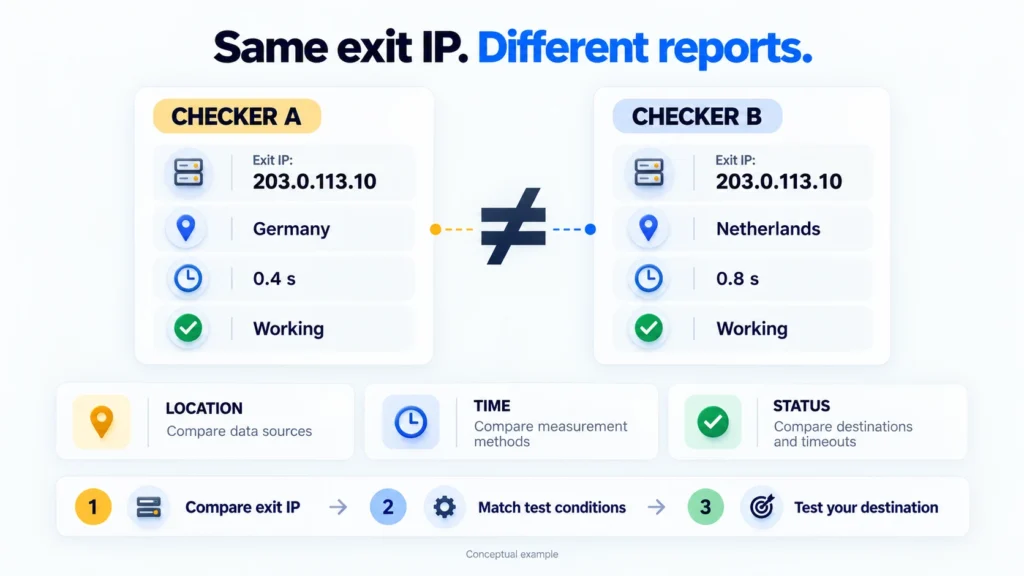
You enter the same proxy details in two services. Both show the same exit IP. The first reports “working, Germany, 0.4 s”; the second says “working, Netherlands, 0.8 s.” The exit IP matches, so the conflicting country labels and timings do not show that it changed.
Where to Repeat the Check
MangoProxy Proxy Checker offers a public check for static proxies. Save the IP, status, location, and response time from its report, together with your test notes. The page directs residential users to the dashboard tool. These notes give you something concrete to compare when a later run disagrees.
The screenshot below shows a static-proxy check in MangoProxy. Numbered markers identify the input format, connection details field, start button, result row, and display filters. The legend below explains each marker.
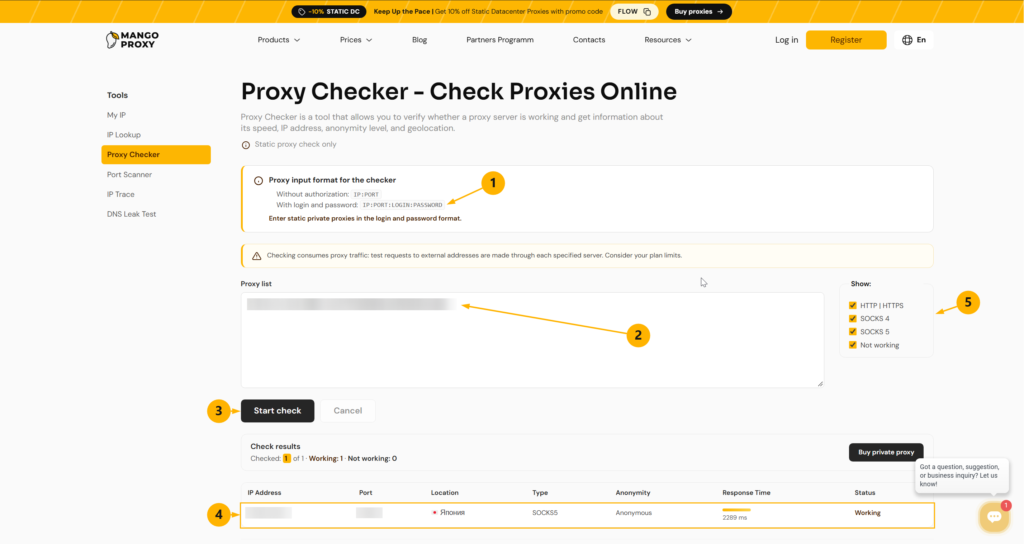
2. Proxy list – paste the issued connection string. Credentials are hidden in this image.
3. Start check – run the test.
4. Result row – read the location, connection type, anonymity rating, response time, and status.
5. Show – filters which protocol results and non-working entries are displayed. This controls the display, not the connection protocol.
Glossary
Exit IP: the address seen by a destination after the request passes through a proxy.
Proxy gateway: the entry address the client connects to; the exit node behind it may be different.
IP geolocation: an estimate of an address’s location based on a provider’s data.
Timeout: the time limit after which a client or checking service stops waiting for a stage of a request.
Final Thoughts
Compare reports in two passes. First, confirm that both checkers tested the same exit IP and a comparable request. Use the source records and timer definitions to explain the remaining gaps. Finish with a request to your intended website from the application and configuration you will actually use.
Frequently asked questions
Here we answered the most frequently asked questions.
What should I do if a checker does not explain its method?
Keep the report as a result from that service. Without a timer definition and rating criteria, its numbers and labels cannot be compared directly with another tool’s.
What details will help support investigate?
Start with the exact error and the time it occurred. Include the protocol, gateway host and port, and the exit IP shown in the report. Add where the test ran and which site it contacted, if known. Leave out login credentials.