
ERR_PROXY_CONNECTION_FAILED: Causes and Fixes
Published: ≈ 9 min read
Quick Answer
Chrome couldn’t connect to the proxy specified in its settings. That is what ERR_PROXY_CONNECTION_FAILED records: a failed lookup of the server’s hostname or a failed socket connection. Start with the address Chrome used for that attempt.
Read the hostname and port from the affected profile, then compare them with the provider’s instructions. Test those values from the same computer. If an extension handles the connection, open its active configuration too. It may still contain the entry you meant to replace.
Key Takeaways
- Test the hostname and port saved in the profile that failed.
- A TCP test can pass without testing a login or fetching a page.
- Check which source controls the browser, especially after editing system settings.
- Ask which address a checker tested and where the check ran.
What Failed Before the Page Could Load?
The failure occurred while connecting to the proxy. For an HTTPS visit through an HTTP intermediary, tunnel setup comes later.
Picture an address copied incorrectly into the active profile. You could try ten websites and still send every attempt to that same wrong address.
In the Chromium error list, ERR_PROXY_CONNECTION_FAILED excludes HTTP CONNECT failures. ERR_TUNNEL_CONNECTION_FAILED covers failed tunnel establishment instead. Check which name you have: an investigation of the tunnel exchange belongs with the second message.
Which Settings Is Chrome Actually Using?
Check the source that controls the failed visit. Your account can show perfectly good connection details while Chrome uses something else.
The system panel is one possible source. Others listed in the Chromium documentation include extensions, policies, and launch options. PAC scripts can choose a route, too. In your setup, look at the sources that apply:
- System settings: read the saved address and port.
- Extension: open its active configuration, rather than another saved profile.
- Managed computer: look at chrome://policy and ask the administrator which settings apply.
- Custom shortcut: inspect its launch options for a server address.
Make a note of the settings or take a screenshot before editing the profile so you can restore its values. For the system configuration, see System Proxy Explained.
Where Are the System Settings?
In Windows, go to Settings → Network & internet → Proxy. The address and port are under Manual proxy setup. An enabled Use setup script entry is worth noting as well; Microsoft’s guide shows both options.
On a Mac, follow Apple menu → System Settings → Network → your active network service → Details → Proxies. This is the path in Apple’s guide. Using Wi-Fi? Open that service’s settings, even if an Ethernet configuration is easier to find.
These are the system values. Go back to the extension or policy if that is what controls the browser.
What If a PAC Script Supplies the Address?
With PAC, ask which server was chosen for the failed URL. There are two problems to separate: an inaccessible server selected by a usable script, and failure to fetch, parse, or execute a mandatory script. Chromium calls the latter ERR_MANDATORY_PROXY_CONFIGURATION_FAILED.
Send the script’s owner the two addresses–the script URL and the page URL–with the error and time of the attempt. A manual entry visible elsewhere may never have been used.
Does the Endpoint Protocol Match?
Match the endpoint’s protocol to the instructions supplied with it. An HTTPS page can be requested through an HTTP intermediary, so don’t select HTTPS or SOCKS5 just because of the page’s address.
An old personal entry can be removed when you are finished with it. Ask the administrator about a work or school entry before changing it.
How Can You Test the Hostname and Port on Windows?
On the affected Windows computer, open PowerShell and run Test-NetConnection against the saved server. No account password is involved in this test.
Take the host and numeric port from your connection instructions and put them into this template:
Test-NetConnection -ComputerName "PROXY_HOST" -Port PROXY_PORT -InformationLevel DetailedThe two placeholders need your server address and port number: PROXY_HOST for the hostname or IP, PROXY_PORT for the port. Keep the quotes around the host. Do not enter the website’s port in place of the server’s.
The command is based on Microsoft’s documentation. No MangoProxy test result is being presented here.
Read the warning text and the TCP result:
- Name resolution failed: check the hostname against the provider’s instructions. Keep the warning if the spelling is right.
- TcpTestSucceeded: False: no successful TCP connection in this attempt. You still need to check the port, the listening service, and access through the network. This result alone does not identify the cause.
- TcpTestSucceeded: True: successful TCP connection. This command has not submitted credentials or requested your page.
Save RemoteAddress with the time. This matters when the hostname resolves to more than one IP: support needs the address used in your attempt. Chrome may also resolve names differently from the diagnostic command.
PingSucceeded: False is a ping result, so don’t use it to judge the port test. Look at TcpTestSucceeded for that. For more on the TCP exchange, see TCP Handshake Explained.
What Should You Change After the Test?
Make the correction that your notes justify. Then open the failed URL again in the same profile.
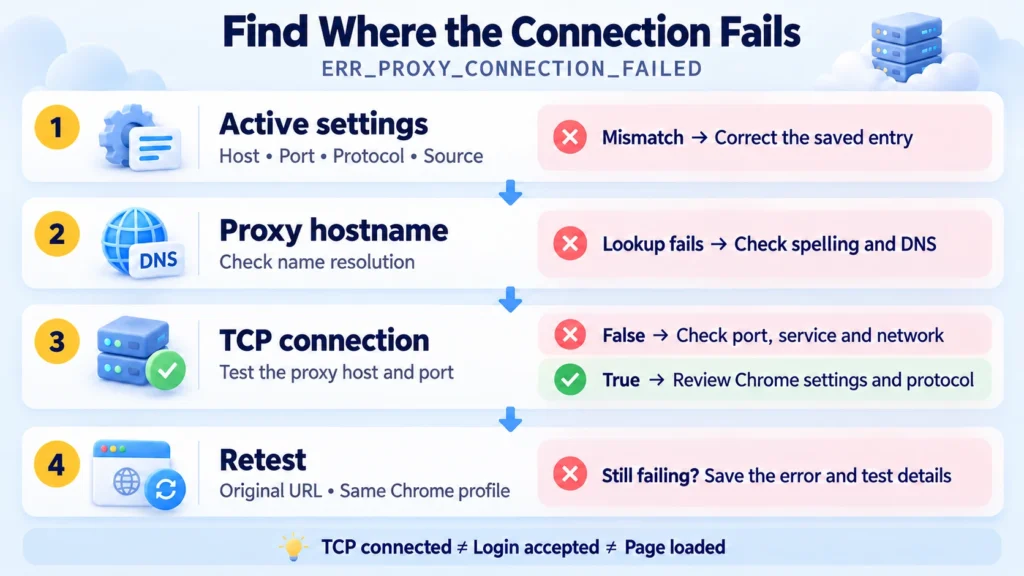
A misspelled hostname: correct the saved entry and repeat the lookup.
A port that does not match the instructions: replace it with the supplied value, even if the saved number looks familiar.
Matching details, failed TCP: give the provider your test result and ask whether the service was available at that time. The network administrator can check access to the specific host and port. Avoid changing several security settings while trying to answer those questions.
Successful TCP, Chrome still failing: return to the active profile. Does it use the tested address and protocol? Is another configuration source overriding your edit?
A different error: keep it. If the next attempt receives 407, check the authentication requirements. You now have a response to investigate.
Why Does Another Client or Checker Report Success?
Its successful connection may have come from somewhere else or used settings that differ from Chrome’s.
Compare the details side by side. For each attempt, check the client, network, endpoint, protocol, requested URL, and timestamp. This makes an old saved address or a test against another website easier to spot.
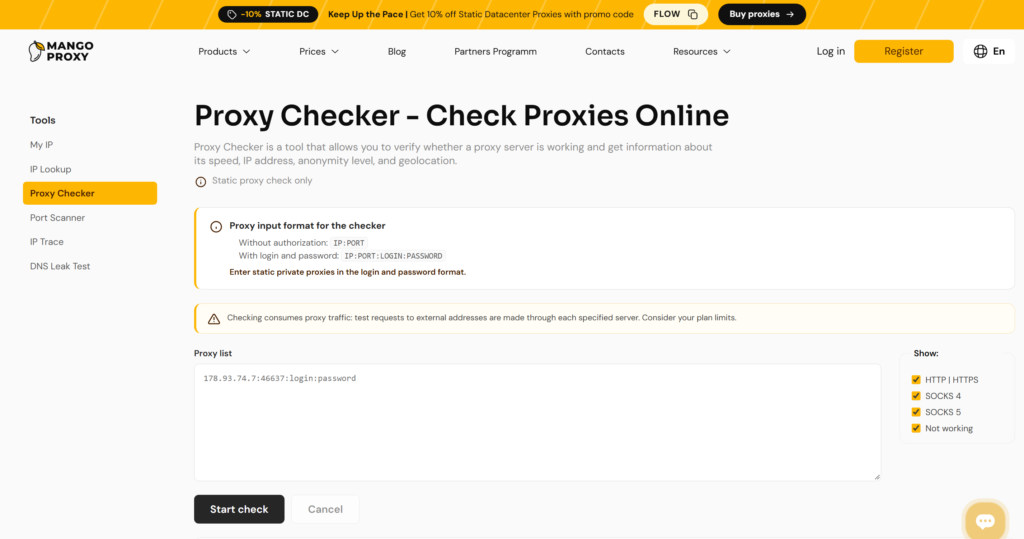
The public MangoProxy Proxy Checker is labeled for static-proxy checks. For residential accounts, the page points to the checker inside the dashboard. Use the tool for your account type and keep its result alongside your local check.
There is also a client limitation to watch for: Chrome’s native SOCKS5 implementation has no SOCKS authentication methods. A separate client may accept a login that this browser configuration cannot use. Check compatibility when comparing the clients; an authentication mismatch does not necessarily produce this particular error.
Practical Examples
The following cases are hypothetical. Neither is a report of a MangoProxy experiment.
An Extension Still Uses the Old Port
Imagine checking port 3128 because that is the number in the account instructions. You get True, but Chrome still shows the error. The extension’s active configuration turns out to contain 8080. Testing that saved port gives False in this example. The successful first test never covered the port the browser was using.
Change the extension’s port to 3128 and retry the page. Write down what Chrome shows after that edit, including any different error.
A Local Debugging Tool Was Closed
In another hypothetical setup, a debugging tool uses 127.0.0.1:8888. You close it after the session but leave that entry configured for Chrome. Assume no other process listens on 8888: attempts to connect there now fail.
This address is local to the machine making the connection. IANA lists its range as loopback. A remote checker given 127.0.0.1 would try its own machine; it cannot use that address to inspect your listener.
Reopen the tool and confirm its listening port if you still need it. If the session is over, remove its old configuration entry. Buying a different remote endpoint would leave this local address in place.
What Should You Send to Support?
Send one failed attempt with enough detail to locate it. Include:
- the full error code and Chrome version;
- the URL and timestamp, with timezone;
- the endpoint you tested, including its port and protocol;
- where Chrome gets the configuration;
- the lookup warning or TCP result, plus RemoteAddress if available.
For example: “My saved endpoint matches the account instructions. At <time and timezone>, Test-NetConnection returned False for <host and port>. Can you check availability and access from my network?”
If TCP passed, say that instead and describe what Chrome showed. Replace the two placeholders with your details, and omit passwords and authorization secrets.
Glossary
Endpoint: Where the client contacts a service: its hostname or IP address, together with the port.
Name resolution: The lookup that finds an IP address for a hostname.
TCP check: A test of the transport connection to the chosen host and port.
PAC: A script used to choose a request’s route.
CONNECT: The HTTP method that requests a tunnel. Its failures are outside the definition of ERR_PROXY_CONNECTION_FAILED.
Final Thoughts
Start with the entry Chrome uses, and follow the result of the local connection test. Correct any mismatch you found. If the values were right and TCP still failed, send that attempt to support. After the fix, retry the original URL.
Frequently asked questions
Here we answered the most frequently asked questions.
Is This Evidence of an IP Block?
This message does not show a website block. The operation it describes is Chrome’s connection to the intermediary; evidence about the website would have to come from elsewhere.
Should I Buy Another Proxy Right Away?
First open the active configuration. Any replacement needs to be entered there. Buying one while leaving an obsolete address in the profile would leave Chrome using the previous server.
Should I Check the Password First?
Start with the hostname and connection, which are the operations named in this error’s definition. If a later attempt receives an authentication challenge, check the login requirements then.
What Does a Passed Port Test Leave Unchecked?
The command tests TCP only. It never logs in or fetches the page. Check those next, once you have confirmed that Chrome uses the same endpoint.
Will Clearing Cookies Help?
Cookies are not what this connection test examines. Start with the server entry and its reachability; deleting website data would leave a wrong address untouched.