
ERR_TUNNEL_CONNECTION_FAILED in Chrome: Finding the Cause
Published: ≈ 9 min read
Quick Answer
Chrome reports ERR_TUNNEL_CONNECTION_FAILED when it cannot establish a tunnel through the proxy. Chromium’s error list identifies the failed operation. To find the cause, start with the account instructions: does the saved address match, is the port correct, and are you using the required access method? For an HTTP proxy, examine the CONNECT reply next.
Try a second HTTPS address before changing the configuration. Save a short result for each URL: either the page loaded or it showed a particular error. You will need that comparison if only one address keeps failing.
Key Takeaways
- Received 407? Check the account’s access method and authentication details.
- An accepted tunnel can be followed by a separate TLS failure.
- When curl works, look for a different endpoint or login in Chrome’s active profile.
Where Did the HTTPS Visit Stop?
The failure occurs during tunnel setup. For an HTTPS visit through an HTTP proxy, Chrome first asks the gateway to connect to a destination such as example.com:443. That request uses CONNECT. TLS with the website follows after the tunnel opens. Under RFC 9110, a proxy may restrict the destinations or ports it accepts.
Which address did your port test examine? If it was the gateway’s, the observation concerns that leg of the route. There is still a destination beyond it. See TCP Handshake Explained for the scope of a successful transport connection.
One word in the error label changes the starting point. With ERR_PROXY_CONNECTION_FAILED, Chromium points to a failure to resolve the proxy’s name or open a socket to it. Its definition excludes HTTP CONNECT failures. Check contact with the gateway for that error; investigate tunnel setup for the one covered here.
Is Chrome Using the Supplied Connection Details?
Chrome’s effective settings may differ from the connection details you intended to use. Open the provider’s instructions beside the saved configuration. Compare the hostname and listening port character by character, then read the protocol selection. An HTTPS page does not require an HTTPS proxy endpoint. If the account supplies HTTP connection details, keep that protocol when configuring access. The tunnel carries the connection to the HTTPS site.
Next, find where Chrome obtained those values. A profile may have its own configuration while the operating system shows another address. Extensions can introduce another source to investigate. System Proxy Explained discusses how applications obtain their settings.
Correct an identifiable mismatch, then reload the failed page. Leave the network and other settings alone during that comparison. Otherwise, a successful reload leaves you guessing which change mattered.
How Can curl Reveal the Reply?
Use an explicit HTTP endpoint to inspect the exchange. This Bash command is a template; no measurements are claimed:
curl --verbose --proxy "http://PROXY_HOST:PROXY_PORT" --noproxy "" --proxy-user "USERNAME" "https://example.com/"Before running the template, edit these entries:
- PROXY_HOST and PROXY_PORT: the server address and port supplied for your HTTP endpoint.
- USERNAME: your account login. Enter the password at curl’s prompt.
- https://example.com/: replace this with the failed page’s URL.
For access without a login, remove the entire –proxy-user “USERNAME” pair.
Three options make this attempt easier to inspect:
- –proxy supplies the gateway address.
- –verbose prints the diagnostic exchange.
- –noproxy “” clears the proxy exclusions for this request, overriding those set in the environment.
The options are documented in the curl manual. curl’s HTTP scripting guide explains the password prompt. Run this template in Bash, or adapt the quoting for your shell so that the empty value reaches curl.
Find CONNECT in the diagnostic output. The reply below it is the first line to examine. For illustration, a request and an authentication challenge might look like this (this is not a recorded MangoProxy test):
> CONNECT example.com:443 HTTP/1.1
< HTTP/1.1 407 Proxy Authentication Required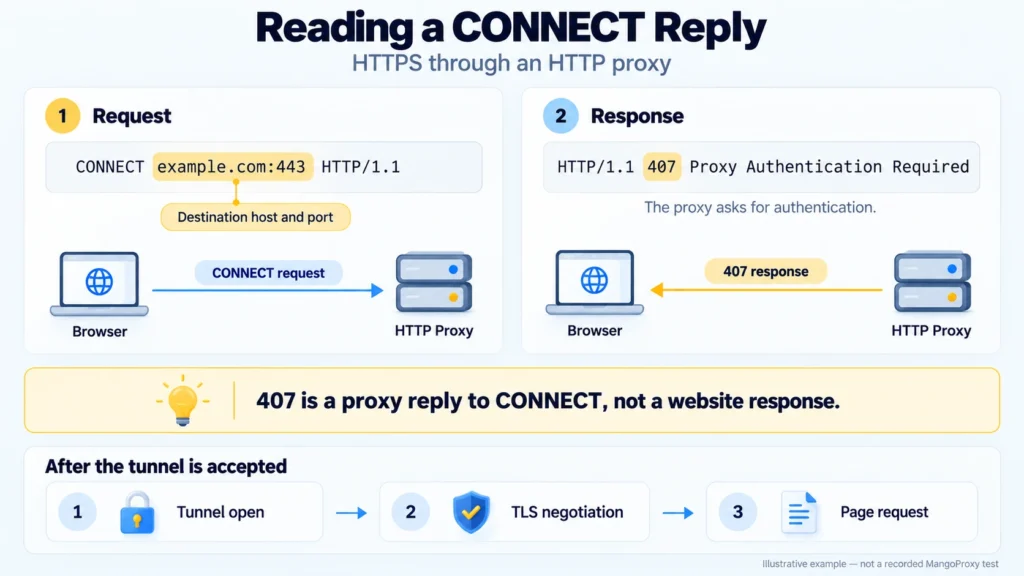
The outgoing line names the destination; it does not contain the gateway’s listening port. The incoming line asks for proxy authentication. This 407 is a reply to the tunnel request, not a response from the website.
Continue past these two lines in your own log. A 407 challenge may lead to another attempt with authentication. With 200 Connection Established, tunnel setup has succeeded, but the later TLS exchange or page request may still fail. Include the relevant outcome in your notes; redact secrets before sharing the log.
What Should You Check Next?
Start with authentication for a 407 response. For a rejected CONNECT request, ask about access to the requested host and port. If TLS fails after the tunnel is accepted, investigate that later error. The table below separates these cases.
| Observation | Next action |
|---|---|
| 407 reply | Check the required authentication method and account details |
| Refusal for a particular host or port | Ask the administrator whether that target is permitted |
| Accepted tunnel followed by a TLS error | Investigate the subsequent certificate or negotiation message |
| curl retrieves the page; Chrome fails | Examine the active profile for different server or login values |
In the Chromium HTTP/1.x code examined for this article, the status-handling branch accepts 200 and sends 407 to authentication handling. Other statuses in that branch return the tunnel error. Keep that implementation detail within its scope: this particular HTTP/1.x branch.
Look up the account’s access method before editing authentication fields. It might require credentials or an approved source IP. For an allowlisted account, check the approved address; entering credentials would not verify that requirement.
For a refusal, retain the status, destination, and timestamp. A restriction on CONNECT requires investigation of the relevant rule. It does not establish that the website rejected an ordinary page request: the tunnel had yet to be created.
Why Does a Checker Report Success?
Its successful attempt may involve a different destination or network. Ask what was tested before treating “working” as an answer to a failed Chrome visit.
The public MangoProxy Proxy Checker specifies static checks; residential users are directed to the dashboard tool.
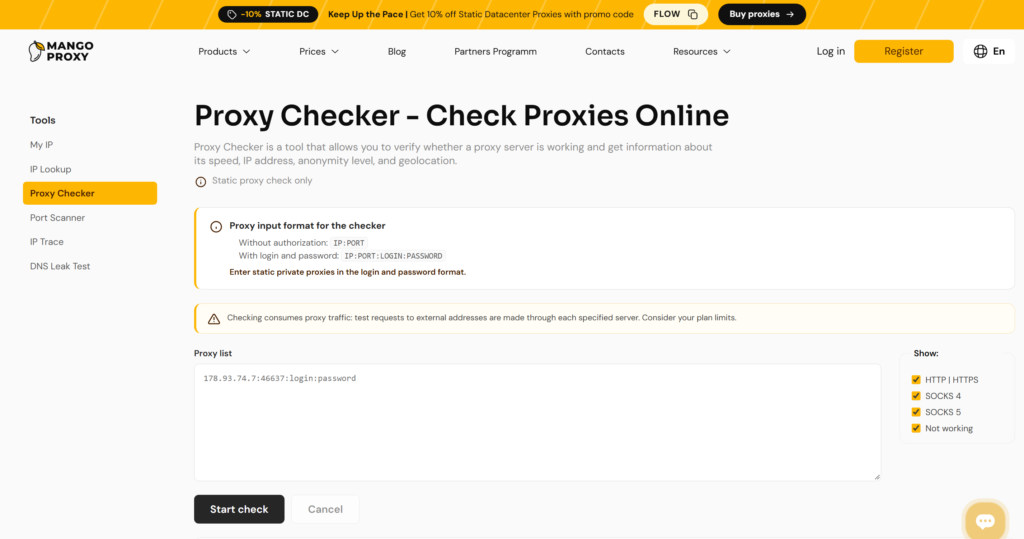
Put the failed browser visit beside the command you ran. Does the last argument name the same URL? Are the server details identical? Use this worksheet to check the remaining conditions:
| Detail to record | Chrome attempt | curl attempt |
|---|---|---|
| Full destination URL, including any explicit port | Failed page’s address | Final command argument |
| Gateway hostname and listening port | Effective browser configuration | Value supplied with –proxy |
| Gateway protocol | Active configuration | Scheme in the –proxy value |
| Access method | Login or approved source IP | Credentials supplied or source IP used |
| Machine, network, and time | Where and when the page failed | Where and when the command ran |
| Result | Exact browser error | CONNECT response and final outcome |
This comparison can expose a stale login, a different destination, or a command run from another network. If the details match and curl retrieves the page, investigate the browser’s configuration source next.
Practical Examples: A Login Change and a Port Refusal
The following scenarios are fictional worked examples.
An Old Username Survives an Account Update
In the first scenario, the user has updated account details but has left the old username in the browser configuration. The page fails. Testing with that same old username in curl produces 407.
The mismatch becomes apparent when the user opens the account instructions beside the saved settings. After updating the username, they try the failed URL again. A successful visit can go into the notes alongside that correction. If it fails, they collect a fresh diagnostic result using the updated login. The gateway address stays unchanged throughout.
Port 443 Works; a Request to 8443 Is Refused
The second scenario concerns a service expected to answer at two addresses:
- https://service.example/
- https://service.example:8443/
The user keeps the gateway, credentials, and network unchanged. The first page loads. For the second address, the CONNECT request receives a refusal.
Both URLs name the same host, but the second explicitly requests destination port 8443 instead of the default 443. Neither test changes the port used to contact the proxy. Support now has a specific request to investigate: is this target permitted, and can the gateway reach the service on 8443? A restriction is one possible explanation, still to be confirmed.
What Should Support Receive?
Send the failed destination, the reply, and enough connection details to find the attempt in the logs. This sample continues the fictional port scenario. Replace its example values and bracketed fields with your own results:
Browser/profile: [version and affected profile]
Time: [date, time, and timezone]
Gateway: proxy.example:8080, HTTP
Access: username/password; credentials omitted
https://service.example/ – page loaded
https://service.example:8443/ – ERR_TUNNEL_CONNECTION_FAILEDcurl, same machine and network, second URL:
> CONNECT service.example:8443 HTTP/1.1
< HTTP/1.1 403 Forbidden
Could you check why this CONNECT request was refused,
whether this target is permitted, and whether it is reachable
from the gateway?
The sample leaves the reason for 403 open. Replace its fictional entries with your destination, timestamp, endpoint, and actual reply so support can look up the attempt. Omit passwords and authorization headers.
Glossary
CONNECT: An HTTP method that requests a tunnel to a specified host and port.
Endpoint: Where the client contacts the service: its server address and listening port.
Tunnel: The forwarding channel requested during setup.
Authentication: The credential check involved when the gateway asks the client to identify itself.
TLS: The security protocol used for the subsequent connection to the HTTPS site.
Final Thoughts
Keep the failed URL and its setup reply together. A wrong saved value gives you a correction to try; an unexplained refusal gives support a request to investigate. After any correction, reopen that URL in the same Chrome profile and record what happens.
Frequently asked questions
Here we answered the most frequently asked questions.
Could This Be a Website Block?
You cannot identify an IP block from this error label alone. Check the failed exchange and ask the gateway operator about any refusal before deciding that the website blocked the address.
Would Testing Another Server Help?
Once you have checked the saved connection details, another server can provide a comparison. Keep the destination and network unchanged. If the replacement also requires a different port or login, record those differences before interpreting the result.
Should I Start by Deleting Cookies?
The error definition points to tunnel establishment and supplies no reason to start with cookies.
Why Does the Command Use http://?
That prefix specifies an HTTP gateway. The separate HTTPS URL identifies the website reached through it. Use the endpoint protocol documented for your account.
What If curl Works but Chrome Still Fails?
Look for differences in the active profile, configuration source, and login details. Test the same page in both clients.