
How to Use Proxies in Multilogin: Profile Setup and Connection Checks
Published: ≈ 6 min read
In Multilogin, open the profile you want to use and go to Proxy → Custom. Add the details from your proxy provider. Wait for Multilogin to confirm it can reach the proxy, then start the profile and look up its public IP from the window that opens. The second tells you which IP a website sees from the running profile.
Which proxy details do you need?
Start with the proxy hostname or IP address, the port, and the protocol. If your provider uses password authentication, copy the proxy username and password too. For IP authentication, add your network’s public IP to the provider’s allowlist. That’s the address you connect from. The exit IP is the address a website sees when your request goes through the proxy.
Go to proxy setup in the MangoProxy dashboard. If you’re generating a connection, set the location, session, and protocol before copying the details. For a static proxy you already have, copy the details assigned to it. Paste the whole username into Multilogin, including any location or session parameters.
If you’re setting up a static proxy, keep the assigned IP handy. You’ll compare it with the address shown in the browser. With a rotating connection, the exact IP can change, so the requested country and the configured session behavior are better starting points. A gateway hostname is where Multilogin connects. The exit IP may be a separate address.
Where to Get Proxy Details in MangoProxy
Sign in to the MangoProxy Static ISP section. In the sidebar, go to Static proxies → ISP, then open Proxy list. Select the checkbox next to an active Static ISP proxy.
Below the list, choose HTTP or SOCKS5, then use Copy to copy the connection string. The screenshot shows where to choose the protocol and how to read the string. The actual credentials are hidden.
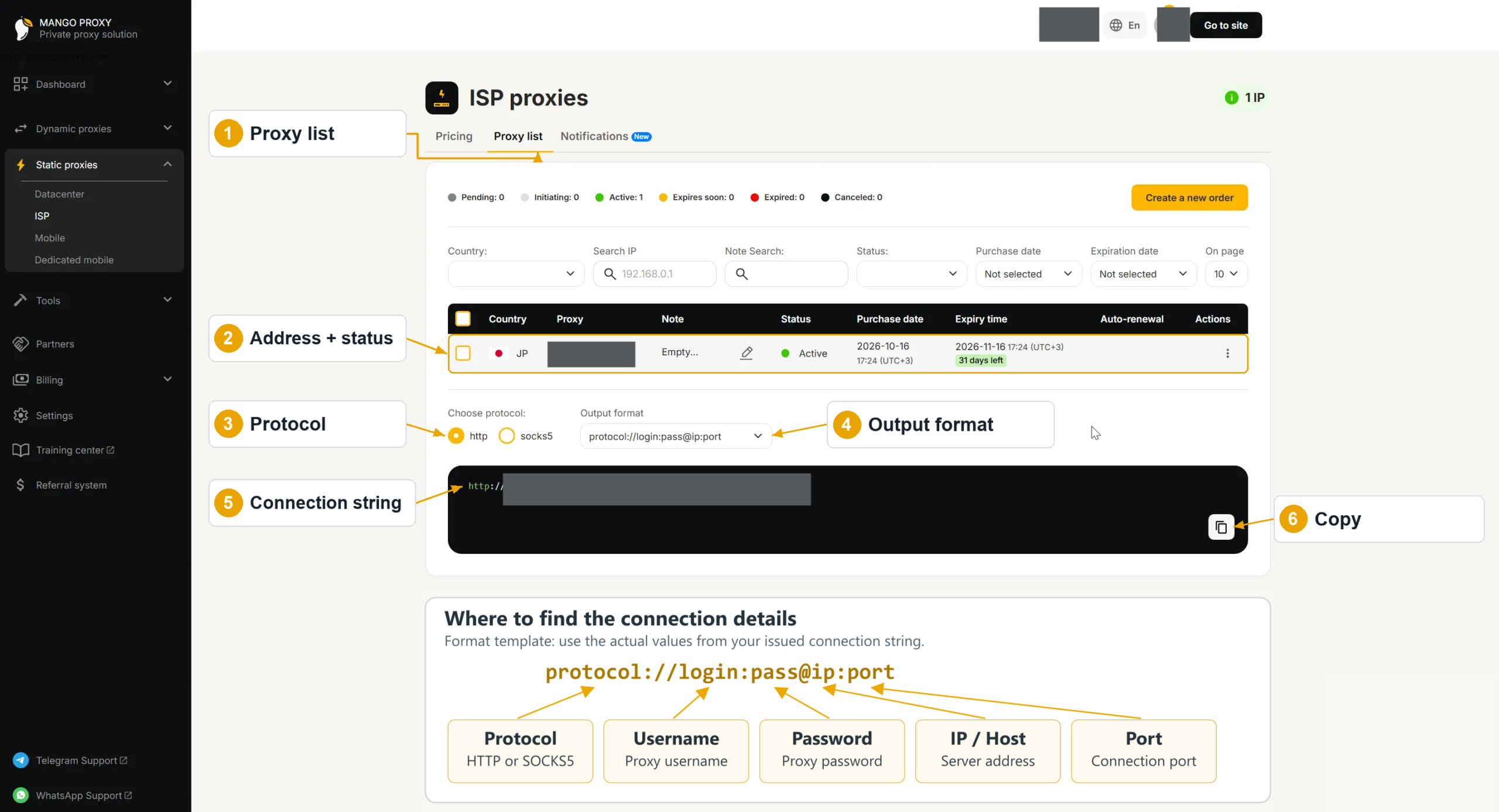
With the output format shown, the string looks like protocol://username:password@host:port. In Multilogin, select that protocol under Proxy → Custom, then enter the values in Proxy details as host:port:username:password. Use the proxy password from the string. Your MangoProxy account password is for signing in to the dashboard.
How to add a custom proxy to a Multilogin browser profile
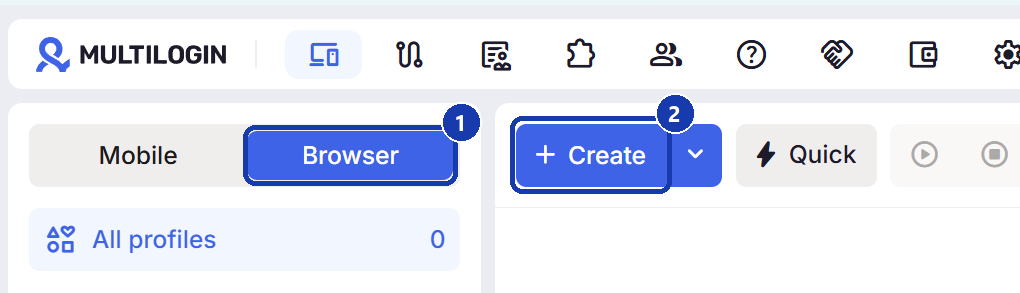
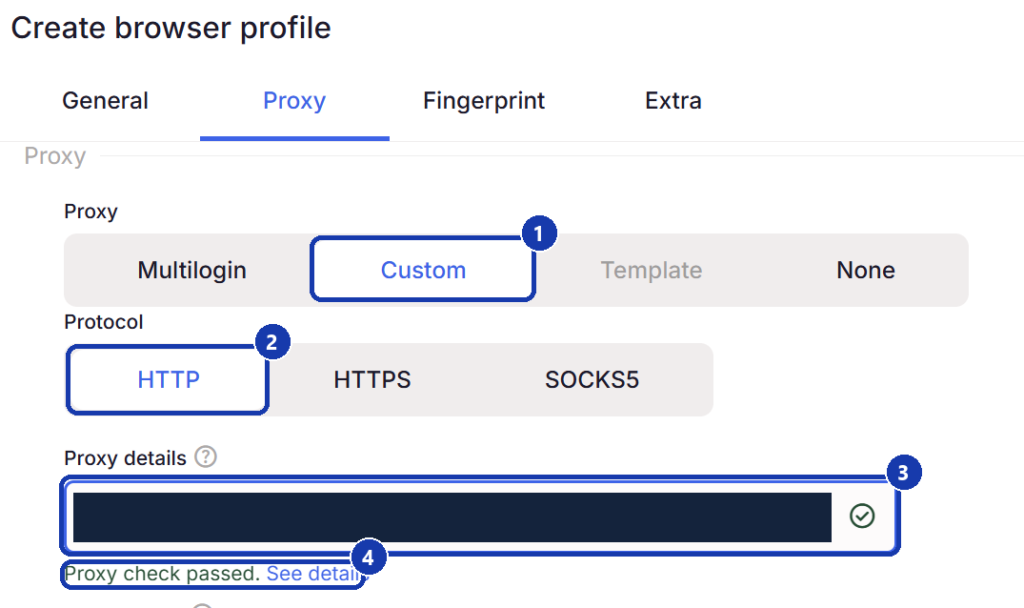
1. Open Profiles, then Browser. Create a browser profile or edit the one you intend to use.
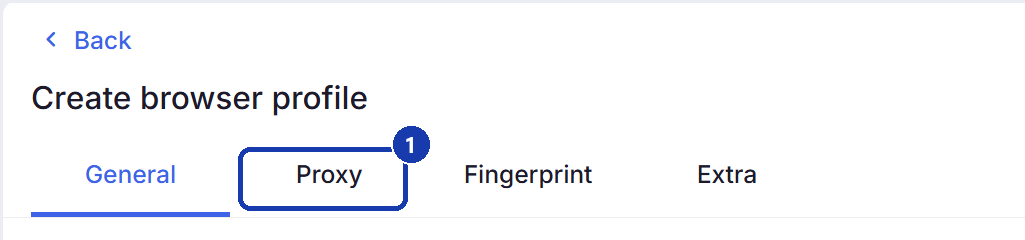
2. Open Proxy and select Custom. This is where you enter a third-party proxy, including for a Mimic browser profile
3. Match the protocol to the one your provider gave you for this endpoint: HTTP, HTTPS, or SOCKS5. An HTTP proxy can handle requests to HTTPS sites, so select HTTP if that’s what your provider issued.
4. Copy the details from one proxy configuration. With password authentication, the format is host:port:username:password, for example proxy.example:8080:demo-user:demo-password. If you’re using IP authentication, enter host:port.
5. Multilogin checks the connection after you enter the details. Save the profile once the check passes. If it fails, start with the troubleshooting section below. To run the check again later, select the saved profile and click Check proxy.
How to verify the connection inside the running profile
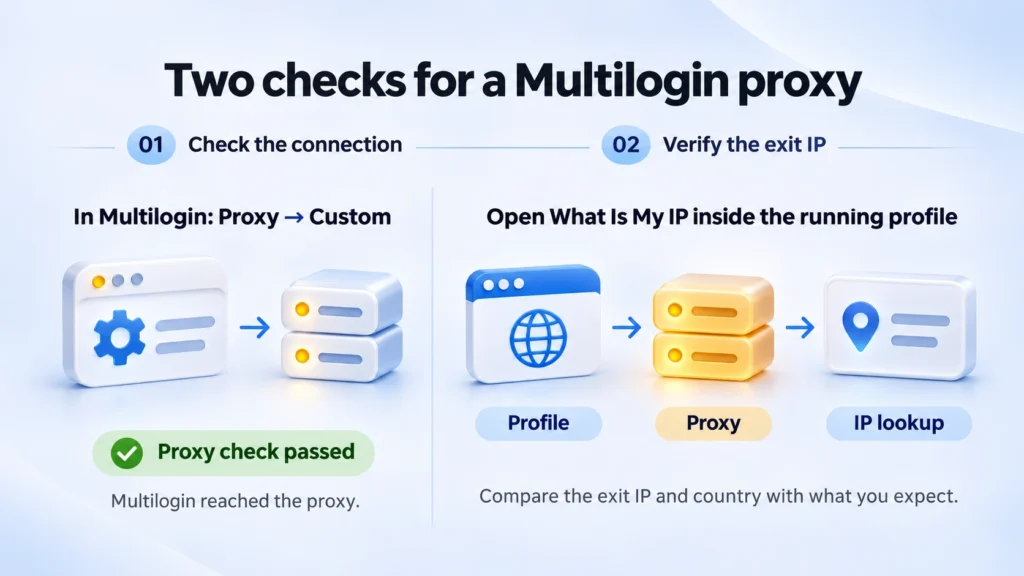
A passed proxy check means Multilogin reached the proxy and retrieved the IP information it needed. To confirm the route your browser is using, start the saved profile and open MangoProxy’s What Is My IP tool in that profile’s browser window. An IP check in your regular browser would measure that browser’s connection instead.
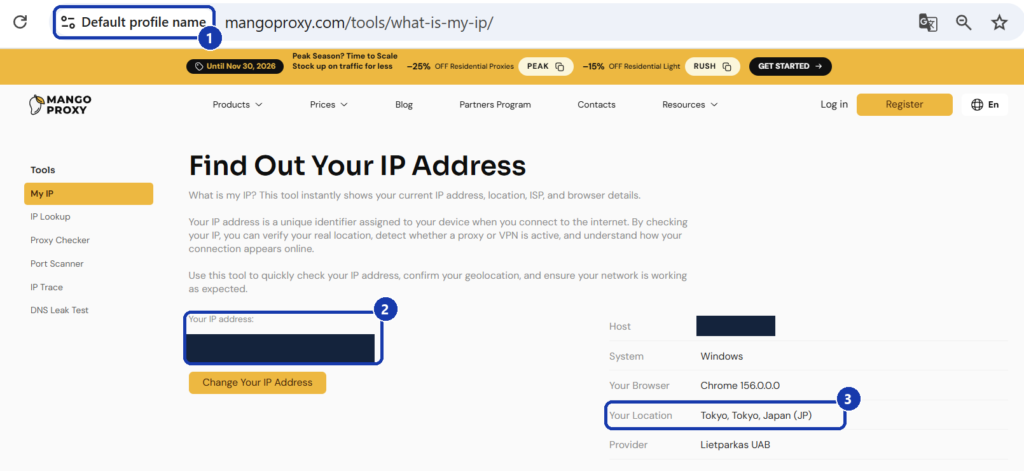
Compare the public IP with the assigned exit IP if you use a static proxy. With a rotating proxy, start by checking the country you selected. If you’re using a sticky session, run the lookup again while that session is active and compare the two IPs. Two lookup tools can show different cities for the same IP because they use different geolocation data.
Next, open the site you plan to use from the same profile. The lookup tells you which IP the lookup service saw. Opening the destination answers a separate question: can you reach that site through this connection?
What to check when a Multilogin proxy fails
| What you see | What to check next |
|---|---|
| Proxy check failed | Check the protocol, host, and port against the provider’s configuration. Then verify the proxy credentials or source IP allowlist, and check whether the plan and endpoint are active. |
| The check passes, but the profile won’t start | Run Check proxy again from the profile list. If it still passes, restart the desktop app or reconnect the agent if you use the web interface, then retry the same profile. |
| The profile opens, but the IP matches your regular browser | Confirm that you opened the IP tool in the intended Multilogin window and that the saved profile uses Custom. If both are correct, check for a VPN or another proxy tool that could be affecting the connection. |
| The profile shows a different country | Compare the exit IP with a second IP lookup. If both lookups show an unexpected country, check the location in the provider’s configuration and make sure the profile has the credentials for that location. |
| The IP looks right, but one website fails | Try another website in the same profile. If other sites load, check whether the destination is reachable through that proxy. If you need to test the connection outside Multilogin, see How to Test Proxies. |
If Multilogin still reports a failed check, try the same proxy in another app on the same network. Use the same endpoint, protocol, and authentication method. If both apps fail, start with the proxy endpoint, your account, and the network. If the other app connects, compare its settings with the ones saved in Multilogin.
Frequently asked questions
Here we answered the most frequently asked questions.
Where do I enter a SOCKS5 proxy in Multilogin?
Open the profile’s Proxy settings and choose Custom, then SOCKS5. Copy the endpoint and authentication details your provider issued for SOCKS5.
When can I leave out the proxy username and password?
Leave them out if your provider uses IP authentication and your network’s public IP is already on its allowlist. In that case, enter the host and port. If your network’s public IP changes, check the allowlist again.
Why does the IP in my profile differ from the proxy hostname?
The hostname identifies the server or gateway you connect to. The IP lookup shows the exit IP that made the request to the website. With a gateway-based service, compare the result with the assigned exit IP or requested location rather than with the gateway’s address.