


MaxTraffer: Automation for Inviting and Messaging in MAX Messenger
Published: ≈ 8 min read
For a business with several MAX groups, publishing posts is one of many recurring jobs. Invitations and customer updates continue between posts, especially around an event. Handling them individually can take up a sizeable part of the working day.
MaxTraffer automates invitations and messaging on its cloud servers. You prepare a task with the chosen audience and, when needed, a message. Once started, that task sends the invitations or messages automatically.
What Is MaxTraffer?
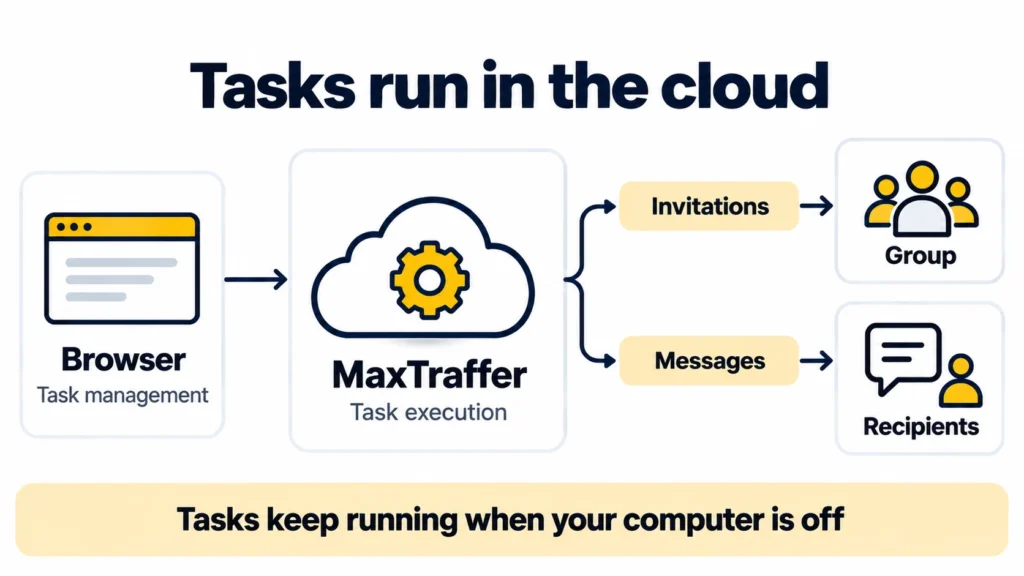
MaxTraffer runs through a browser. Once you launch a task, it runs on MaxTraffer’s side. The laptop can be off while that happens. To return to the service, open it in a browser on your phone or on a different computer. Neither device needs a MaxTraffer installation, just internet access.
MaxTraffer also includes automated account warm-up. An invitation is tied to the group you want to grow. A message is sent to the recipients you select. You can have tasks for different projects running together.
Plans and Task Limits
Check both the included tools and the concurrent task limit when comparing plans. Start includes invitations and account warm-up, with up to three concurrent tasks. Basic adds messaging and raises the limit to six tasks. Pro retains all three tools, with capacity for ten tasks at a time.
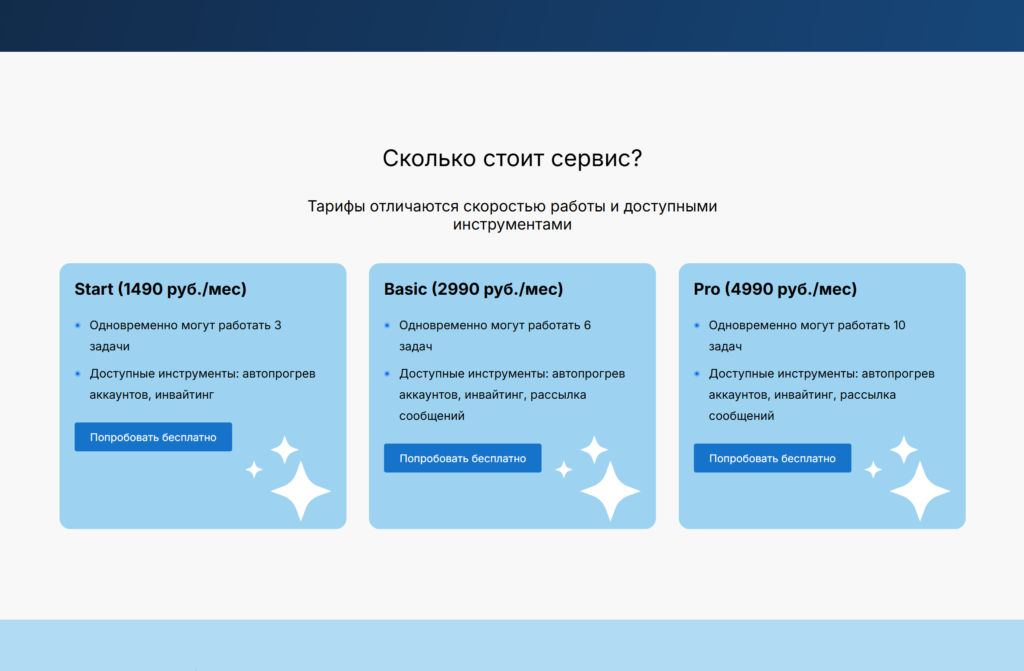
Start covers invitation work. Basic and Pro both support message sending. The difference to plan around is the number of jobs you need running together.
No payment card is needed for the five-day free trial. You can try a task from your regular work while getting familiar with the dashboard.
How Group Invitations Work in MaxTraffer
The invitation tool brings users into a MAX group. MaxTraffer supports two audience sources: groups focused on a relevant topic and lists of customer phone numbers.
For a community about a profession or an area of study, start by finding other groups focused on that field. Enter the relevant groups as your audience source. MaxTraffer identifies their members to prepare the invitations.
The second option starts with phone numbers. MaxTraffer checks which contacts have MAX accounts. The users found during preparation are then automatically invited to your selected group.
A customer list gives you a way to reach people already familiar with the business. Groups can introduce you to people interested in the topic. A group member may not have agreed to hear from your project. Check why their details were collected and what sort of messages they signed up for. The planned invitation or message also needs to fit MAX’s rules.
Before an invitation goes out, the group should already contain something a newcomer can read and understand. The description and pinned introduction explain the purpose; the opening posts show it. A course outline and sample lesson would do that for an education group. A local business could open with its latest news and answers to common customer questions.
Then follow what new members do in the group. If people stay, read, and join discussions, you have feedback to use when planning further posts and invitations.
Messaging in MAX: Notifications and Offers
Messaging covers notices such as a new class time or the practical details of an event. A class update can go to the enrolled participants, with a contact for any questions. Offers are another use case, provided the customers subscribed to that communication.
Open with the sender’s identity and a brief reason for contacting the reader. An event notice then needs its date and location. When sharing an article, add a brief note about its subject beside the link.
Work out who the message is for before settling on the text. Someone registered for an event expects information about that event. For a news subscriber, the relevant material is the project’s own updates. Keeping the lists separate lets you write a different message for each audience.
A test copy is a chance to catch a wrong date, incorrect contact information, or a broken link before the main send. Read the replies afterwards. If the same question comes up several times, address it in your next message.
Organizing Accounts by Project
A short project note can identify the account, the audience, and the message to be used. This is useful when a marketer handles, for example, invitations for a training provider alongside a retailer’s customer updates.
Record the work as account → task → network route → status. When a task stops before finishing, the record tells you which account was involved and which connection it used. The recorded status gives you a starting point for checking what happened.
The Network Connection Behind Each Account
An account’s traffic has to reach MAX over a network connection. With a proxy configured for that connection, it passes through an intermediary server and reaches the destination from the proxy’s exit IP. Separate proxy addresses can give independent connections their own routes, with locations selected from those available.
A long-running operation may need one exit IP from start to finish. A fixed IP serves that purpose. A dynamic proxy allows address changes, so its rotation settings need checking: a change halfway through an operation may break the connection and require it to be established again.
A MAX operation sent from a cloud server uses that server’s network route. The proxy settings in a desktop browser affect connections made by that browser. The proxy must therefore be configured for the cloud service’s account connection. Check that this is supported before selecting a proxy, including where the settings take effect.
Static ISP and static datacenter IPs are available from MangoProxy, together with residential and mobile proxies. The tool’s connection requirements will narrow that choice. Its supported protocol, the exit location you need, and whether the IP should stay fixed or change during a task will rule out some options.
Comparing Proxy Options
| Proxy type | Typical use | Details to check |
|---|---|---|
| Static ISP | IP from an internet provider’s address range | Available country, protocol, and the terms for retaining the IP |
| Static datacenter | Work through a fixed address on server infrastructure | The destination service’s requirements and connection quality |
| Rotating residential | Tasks requiring location selection and changes of exit IP | Sticky session duration and the conditions under which the IP changes |
| Mobile | Connections that require an IP from a mobile carrier | Country, carrier, and the specific product’s rotation mode |
Network type and IP rotation are separate characteristics. For a residential proxy, look in the session and rotation terms to find out how long the exit IP is kept and what triggers a change. “Residential” describes the network behind that IP. The proxy controls routing, and an account can still face restrictions.
Who Might Use MaxTraffer?
An agency or social media manager can have invitation and message tasks running for several projects. Those tools also suit a community owner sending member updates, or a business that already talks to customers in MAX and wants to organize its group invitations and prepared messages. Handing over the repetitive sending leaves time for replies and the posts that keep the community useful.
Trying MaxTraffer on a First Task
A small real task makes a useful first run: an invitation to a group that is ready for visitors, or an update customers are waiting for. Limit the initial audience, and note both the preparation effort and the response.
For several projects, work out which jobs actually overlap. Those jobs determine the concurrent capacity needed. Any message tasks will also require a plan that includes messaging. Confirm the supported connection method and IP requirements before choosing the supporting network setup, so that you pay for the resources your work requires.
MaxTraffer handles the repeated sending in the cloud. The contacts you choose and the message you write determine the communication people receive. What they find in the group can then affect whether they stay.
Frequently asked questions
Here we answered the most frequently asked questions.
Will the task keep running with the browser closed or my computer switched off?
Yes. The work continues on MaxTraffer’s servers, independently of your device.
Is a phone number list necessary for group invitations?
A list is optional; relevant groups provide another source of audience members. With a list, MaxTraffer checks which contacts have MAX accounts. With groups, it identifies members of the groups you specify for invitations.
Does the Start plan include messaging?
No. Start includes invitations and account warm-up. To use messaging, choose Basic or Pro.
What should I compare at the end of the trial?
Take one task you finished and compare it with your usual way of doing that job. Count preparation and review time as well as the sending itself. Then check whether the plan’s limit on simultaneous tasks is enough for your normal workload.