


How to Use a Proxy for ChatGPT: Access, Stability, and Region Settings
Published: ≈ 12 min read
Quick Answer
The connection record in your MangoProxy order is the starting point. Use its values in the settings that control your browser’s connection, then open chatgpt.com. Sign in there and send a short prompt. One complete reply is enough for an initial check.
Use the order screenshots to follow the purchase and collect your connection details. The setup links then branch by browser: Chrome users follow the Windows 11 or macOS guide, and Firefox users have their own instructions. Come back here to check ChatGPT after saving those settings.
Key Takeaways
- A fixed IP is convenient when you regularly return to one account: the proxy address stays the same between visits.
- ISP and datacenter identify the network providing the IP. The protocol choice, HTTP or SOCKS5, determines how your browser talks to the proxy.
- Your country selection in MangoProxy sets the exit location for the proxy. OpenAI’s access conditions also apply to the place you are using ChatGPT from.
Static ISP or Datacenter for ChatGPT?
Compare static ISP proxies with static datacenter proxies if you want to keep using a particular address. The address stays assigned when you reconnect, and MangoProxy rents it to one customer for the chosen period.
Here, the useful distinction is which network the website accepts. An access rule may cover a single IP or extend across the network that provides it.
- A static ISP proxy gives you an IP belonging to an internet provider’s network. One reason to need that network type would be a service whose support team confirms that datacenter traffic is excluded. You would then need an address from an allowed ISP network. A second datacenter IP offers no solution if its network is also on that service’s blocked list.
- A static datacenter proxy supplies a fixed address from a data center. For example, you may already use such an address for daily ChatGPT work, with successful sign-ins, complete replies, and a rental price that suits you. That gives you the fixed connection you wanted. Buying an ISP address would not be a necessary next step in this situation.
Neither label tells you whether a particular IP will work with ChatGPT. A failed sign-in alone does not establish that a datacenter network is restricted. Check access using the address you chose.
If you already have another suitable HTTP proxy with a username and password, you can use its details in the settings described below.
The following sections show how to order a MangoProxy static ISP proxy, find its connection details, and use them in your browser. We will check ChatGPT access after setup.
Which Country Should You Select When Ordering?
Country specifies the location of the address websites will see from this proxy. The choice is not limited to a US exit. Use OpenAI’s supported-country list to check the location you want to order, and see which addresses and rental prices MangoProxy offers there.
Check your own location on the list before paying as well. An overseas exit does not change the location from which you are using ChatGPT. Under OpenAI’s access conditions, use from an unsupported territory may result in suspension or blocking of the account.
Choosing Japan in the order, for instance, selects a Japanese proxy location. It does not select a language or an account country inside ChatGPT. If the service reports an unsupported country while you are in a supported one, use OpenAI’s guidance on region errors after travel.
How Do You Order the Static ISP Product?
To reach the order form, use Log in on the MangoProxy product page linked in the comparison above. New customers can create an account with Register.
The screenshot marks the controls used to place an order. The steps below follow the same numbering.
- In the left menu, select ISP under Static proxies, then open Pricing.
- Choose an offer. The screenshot uses Standard. Available countries and rental periods may differ between offers, so check them before filling in the order.
- Choose your location in Country. Japan is selected in the screenshot; for your connection, use the country you chose using the conditions in the previous section.
- Select an available Provider. The choices depend on the country and the addresses in stock.
- Set IP address count. For one connection, 1 is enough.
- Select the rental period. The screenshot shows one month.
- The optional promo field is on the right. To use a code, type it there and select Apply; leave it blank if you have none.
- Read back the order summary before paying: do the country, IP quantity, rental length, and final amount match your selection?
- Select Checkout to proceed with payment, then follow the remaining prompts.
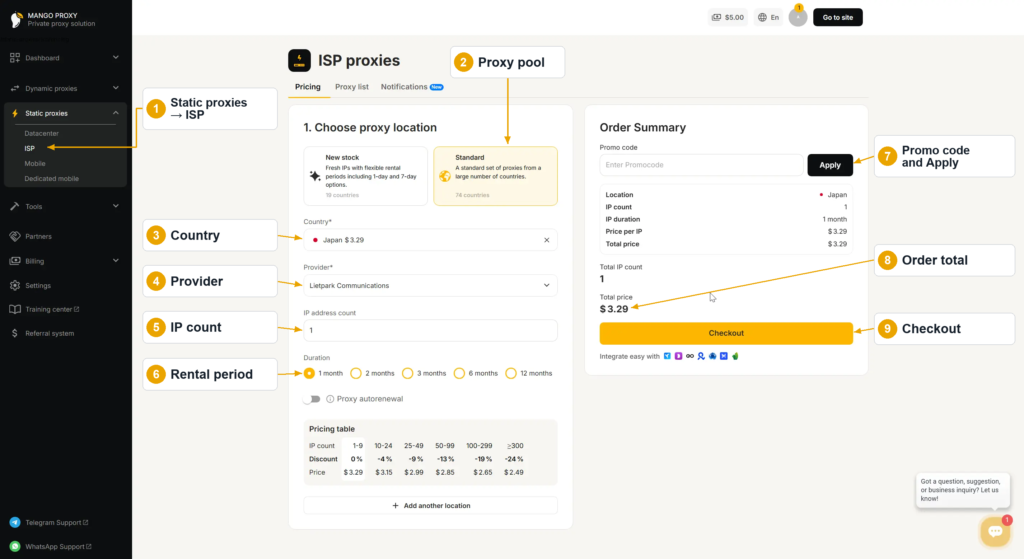
The pictured amount applies to that selection only. Your payment amount is the total calculated for your own cart.
How Do You Retrieve the Purchased Proxy?
The Proxy list tab holds the addresses on your account. Select it to read the activation status and retrieve the connection record for an order.
The next screenshot shows how to get the details for browser setup. Working connection details have been hidden.
- Open Proxy list.
- Find your paid-for address with the status Active. This means the provider has activated the proxy; access to a particular website is checked after connecting.
- Below the table, select http. We will use this protocol in the manual settings for Windows, macOS, or Firefox.
- Set Output format to protocol://login:pass@ip:port.
- Find the string in the black box. In this format, it contains all the connection details you need.
- Copy the connection record with the icon at the far right of the black box. Its components go into individual fields during setup.
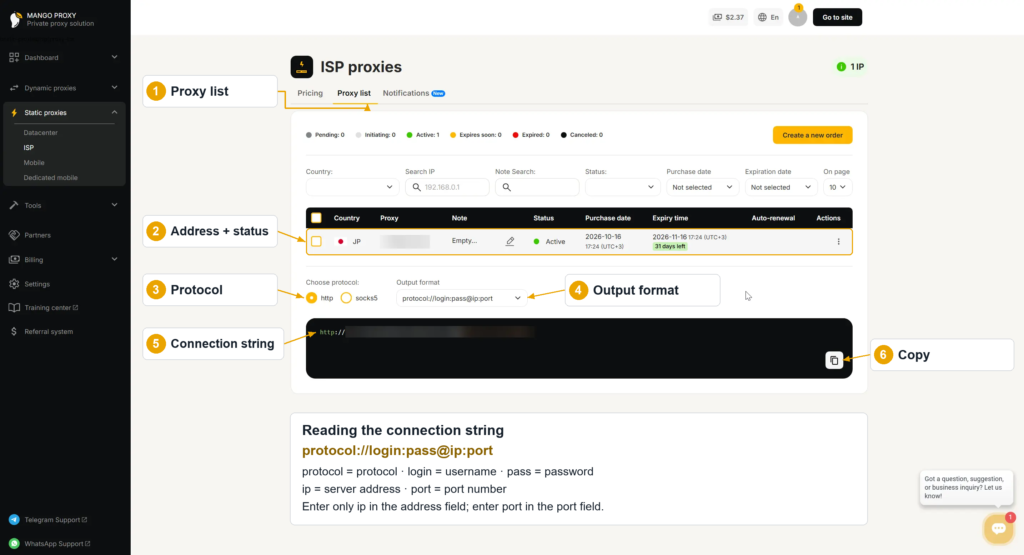
Leave the order in a second tab as a reference while entering each value. Since the record contains your proxy password, keep it out of public messages.
Which Part of the Copied Line Goes in Each Field?
The following record is fictional:
http://demo_user:[email protected]:8080The record above cannot be used to connect. For your actual setup, use the values in your order. The sample IP 192.0.2.10 belongs to a range set aside for documentation.
Match the settings fields to the record as follows:
- Server: copy 192.0.2.10, located immediately after @ and ending before :8080.
- Port: take the final 8080.
- Username: take demo_user from the login section, immediately before :demo_pass.
- Password: demo_pass, placed after demo_user: and before @.
The sample’s http:// tells you which protocol was selected. A server field would contain just 192.0.2.10, with 8080 supplied separately as the port. Follow that separation for Windows, macOS and Firefox: no protocol prefix or login portion in the server box. An order that supplies a server name uses that name in place of the numeric address.
Which Setup Guide Matches Your Browser?
For Chrome, the values saved in your computer’s proxy configuration are the ones used in this walkthrough. Choose the Windows or Mac subsection accordingly. Firefox users can enter their values within Firefox instead.
Before replacing anything, capture the current values in a screenshot. That gives you the information to restore the old connection. A managed work computer needs its administrator’s agreement to this change.
For the later IP comparison, note the current result in What Is My IP. Do this in the browser that will use the proxy and keep the result tab open. The saved address will let you check for a change after setup.
Chrome on Windows 11
In the Windows guide, use your order’s server value for the address field and its port for the port field. Chrome’s proxy login, if requested, uses the username and password attached to your MangoProxy order. Your ChatGPT account login is entered separately at chatgpt.com.
The complete click sequence is in Windows 11 proxy setup. Other browser configuration methods are covered in Google Chrome proxy setup.
Chrome on macOS
Your Mac connection needs two entries for this HTTP setup. Copy the order’s server and port into the HTTP entry, then use that same pair for HTTPS. Use the proxy’s login and password for authentication.
For the path to these controls, use Apple’s Mac proxy settings reference.
Firefox on a Computer
Firefox’s manual entry keeps this configuration in that browser. Fill its HTTP server and port boxes from your order, and select the option that also uses this entry for HTTPS. Authenticate with the proxy’s issued login if Firefox requests it.
The Firefox proxy setup guide shows both that manual method and the option that follows settings already saved in the operating system.
With the browser configured, continue at the check below.
How Do You Check the Connection and Start Using ChatGPT?
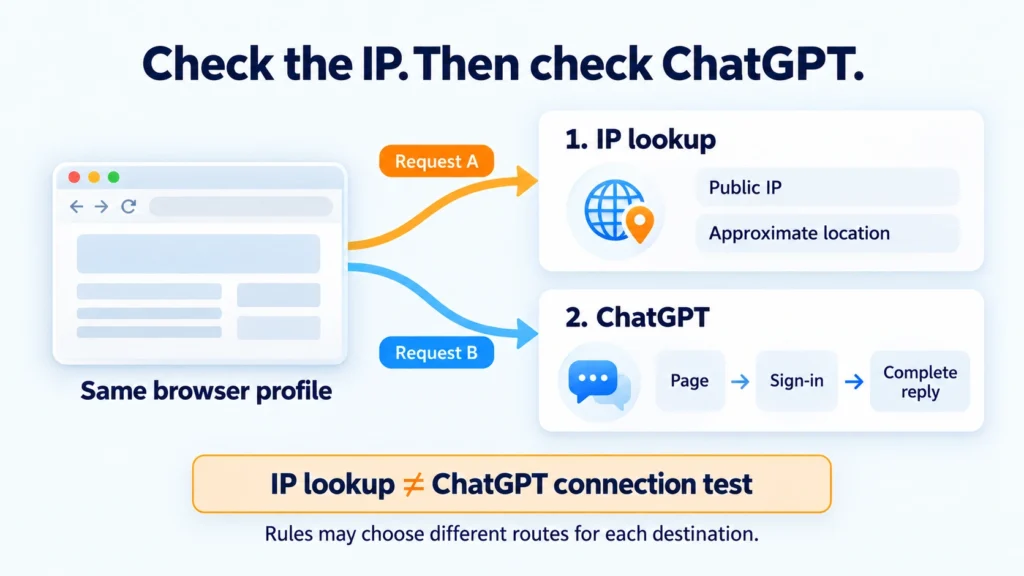
Reload the result tab you left open and compare its address with your earlier note. A changed value means the browser reached the tool through a different exit. If the provider names an expected exit IP, check that the result matches it. Then try ChatGPT.
- Open chatgpt.com in the same browser.
- Sign in to your account as usual.
- Start a chat and send a short prompt, such as “Make a shopping list for vegetable soup.”
- Let the answer finish. A complete reply without an error is enough to start working on your own tasks.
A successful prompt checks that moment’s connection. For stability, judge the sessions you actually use afterwards: replies should finish without connection errors or unexpected interruptions.
Where Should You Look When Setup Fails?
Find the symptom below that matches your screen.
Every Page Fails After the Change
In your order, check for Active status and a rental that has not expired. Then check the two saved connection values against that order. A full record in the address box needs correcting: keep only its server there and place its port in the separate port box. Use the dashboard’s http option for this method. If the order and saved values agree but browsing still fails, ask MangoProxy support to help connect to the issued proxy.
The IP Check Page Opens, but the Address Has Not Changed
Return to the browser whose settings you changed. Enable the saved Windows proxy for the system method. For a manual Firefox entry, select that entry; Firefox can alternatively follow the system entry you already configured. Refresh the IP result after correcting the selection. A page that loads with the previous address has not yet shown the expected change.
The Browser Repeats Its Proxy Login Request
A returning prompt means the browser has not completed the proxy login. Retrieve both login values from the order again, checking for spaces at either end. Use the password issued for the proxy. If another attempt with those details brings back the same box, have the provider confirm that the credentials are valid.
Other Sites Open, but ChatGPT Will Not Load
Open the OpenAI status page and check for a ChatGPT incident. If you see a specific error message, follow OpenAI’s troubleshooting advice for that message. For an unsupported-country warning, check the access conditions in the country section above. Buying another IP does not remove those conditions.
The Reply Takes Too Long or Ends Unfinished
A reply still producing words can be left to finish. Reload and resubmit the prompt in a new chat when the reply has stalled unfinished, or when ChatGPT displays a connection error.
To check whether the newly added proxy is involved, retry the prompt using the connection you had beforehand. For permitted direct access in Windows, disable Use a proxy server in the manual entry you added and save. Restore any older proxy values instead if that was your previous connection. Refresh ChatGPT before the retry.
Tell your proxy provider if the comparison shows that replies stop through the new connection but finish without it. When the failure also occurs without that proxy, continue with OpenAI’s troubleshooting guidance. On a work computer, get the administrator’s permission before making this comparison.
Using the Connection After Setup
The browser can reuse the saved configuration on your next visit. Leave it in place while the proxy remains active and you intend to use it. Watch the rental’s end date under Proxy list and renew before that date if you need to retain the address.
Glossary
IP address: identifies a device or server on a network. The exit IP is the one a website sees for a request arriving through the proxy.
Static proxy: keeps an exit address assigned for the agreed service period.
ISP proxy and datacenter proxy: the labels identify which kind of network supplied the address: an internet provider’s or a data center’s.
Por: the service number paired with the server address. The example uses 8080 in this separate field.
HTTP and SOCKS5: protocols available for reaching a proxy. This walkthrough selects http in the dashboard.
HTTPS: the encrypted website connection. An HTTP proxy can carry connections to HTTPS pages.
Proxy authentication: the issued login credentials establish your access to the proxy.
System proxy settings: saved by the operating system for compatible applications to read.
Final Thoughts
Once the order is active, move its connection details into the setup method for your browser. Finish by comparing the IP result and sending a prompt to ChatGPT. Use that saved setup for your own work, where you can observe how reliably replies arrive.
Frequently asked questions
Here we answered the most frequently asked questions.
Can I Use SOCKS5 with This Setup Method?
HTTP is the protocol used by the Windows option in this article. A SOCKS5 connection requires a setting that explicitly supports SOCKS5. Pasting SOCKS5 details into HTTP fields leaves you with the wrong configuration.
Will the Windows Setting Affect Only ChatGPT?
Other websites opened in Chrome use the configuration too. Windows also makes it available to programs that read the system proxy. A setup with per-site rules is needed if only certain destinations should use the proxy.
Where Can I Check When My ISP Proxy Rental Ends?
Read Expiry time for your order’s row under Proxy list. That is the rental deadline. Purchase date records when the order was bought.
Will This Connect the ChatGPT App on My Phone Through the Proxy?
No. Settings on your computer are not transferred to your phone. This guide covers the ChatGPT website in a browser. Check the connection settings separately for a mobile or standalone desktop app.