
SMS.Red: How to Coordinate SMS Verification as a Team
Published: ≈ 7 min read
SMS verification can get confusing when two people are involved in the same attempt. One colleague clicks Resend while another is still entering the previous code. If verification fails, it may be hard to tell which message was used or what to try next.
SMS.Red provides phone numbers for receiving verification messages. A simple team process helps everyone work with the right request: one person asks the application to send a code, a colleague reads the incoming SMS, and the requester confirms the result. This guide explains how to organize that process for accounts you own or are authorized to use, and where MangoProxy can help with the network connection.
What Is SMS.Red?
SMS.Red offers one-time SMS verifications and phone number rentals. You select an available service and country, review the price and terms, and read incoming messages in the customer dashboard.
The service provides a way to receive SMS without using a personal phone number for the task. The application you are signing in to still decides whether it accepts the number, so check its requirements before buying.
Choose Between One-Time Verification and a Rental
Use a one-time verification when you only need the number for a short session. Rent a number if you need access over a longer period, such as for later sign-ins. Before either colleague starts, purchase the option that fits the task and check when access to the number ends.
For a one-time verification, pay particular attention to the receiving window: you need to request the message while the order is active. SMS.Red’s one-time verification guide explains how to select a number and track the order.
For a rental, check which application the offer supports as well as how long it lasts. An app-specific rental is intended for messages from that service. Access to messages from other applications must be explicitly included in the offer.
If you expect to use the account after the rental ends, plan how you will sign in or recover access. Verifying the account once does not give you permanent access to the number.
Coordinate One Request at a Time
Consider a hypothetical example: a tester is signing in to a company-managed account while a colleague is responsible for receiving its verification message. Here is how they can coordinate the attempt.
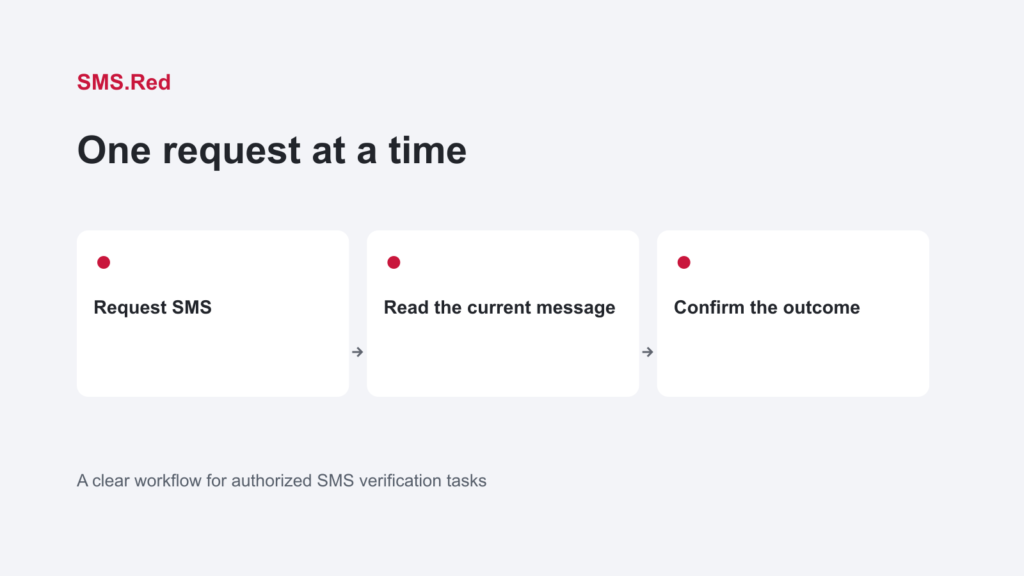
1. Agree on the account and task
Confirm the application, account and action that needs verification. Add the SMS.Red order reference to a private task record so both colleagues can identify the correct order.
2. Choose who requests the code
One person enters the full international phone number in the application and requests the SMS. They note the time and tell the colleague monitoring messages that the request has been sent. Any resend should go through the same person.
3. Find the right order in SMS.Red
For a one-time verification, find the order in Verifications. For a rental, select the active number in Rentals and open its messages in Workspace. Requesting an SMS is an action in the external application; copying information in SMS.Red does not trigger another message.
4. Check the message before using the code
Match the number, timestamp and message text to the request. Some messages are account notifications and contain no verification code. In the rental message view, Copy code copies the code detected in a message; Copy full SMS copies the complete text. The rental SMS guide explains these controls and how to view older messages.
5. Enter the code and confirm the result
The colleague monitoring SMS privately sends the matching code to the requester, who enters it and confirms what the application shows. If another request is needed, tell the colleague which attempt they should now watch for before using another code.
Where MangoProxy Fits
SMS.Red and MangoProxy handle different parts of the process. SMS.Red receives messages sent to the selected phone number. MangoProxy provides proxies for browser and application connections.
If your browser workflow requires a consistent public IP, MangoProxy static ISP proxies are an option: the same address remains assigned for the duration of the proxy rental. Choose the connection to suit the application and the task.
To check a browser’s public IP, open What Is My IP in that browser with its proxy settings enabled. The result applies to that browser request. Checking on another device, or in a browser that uses different settings, will not tell you which IP the application is using.
If the application’s page will not load, troubleshoot access to the page before investigating SMS delivery. Once the page works, keep the connection unchanged while checking for messages unless you have a reason to suspect a network problem. Our proxy types comparison can help if you need to choose a different type of connection.
Troubleshoot the Stage That Failed
Before retrying, establish how far the attempt got. A rejected phone number, a missing message and a rejected code call for different checks.
Number rejected – read the application’s error and check its number requirements. A working proxy connection does not confirm that the application will accept a particular phone number.
No SMS received – check the selected order, service, number format and how much time is left to receive a message. Refresh the relevant message view before buying another number. If you resend, follow the application’s waiting period and have the assigned requester handle it.
Code rejected – check that the message belongs to the latest request and that no one has requested another code in the meantime. Receiving an SMS and completing verification are separate results.
Keep a Useful Handoff Record
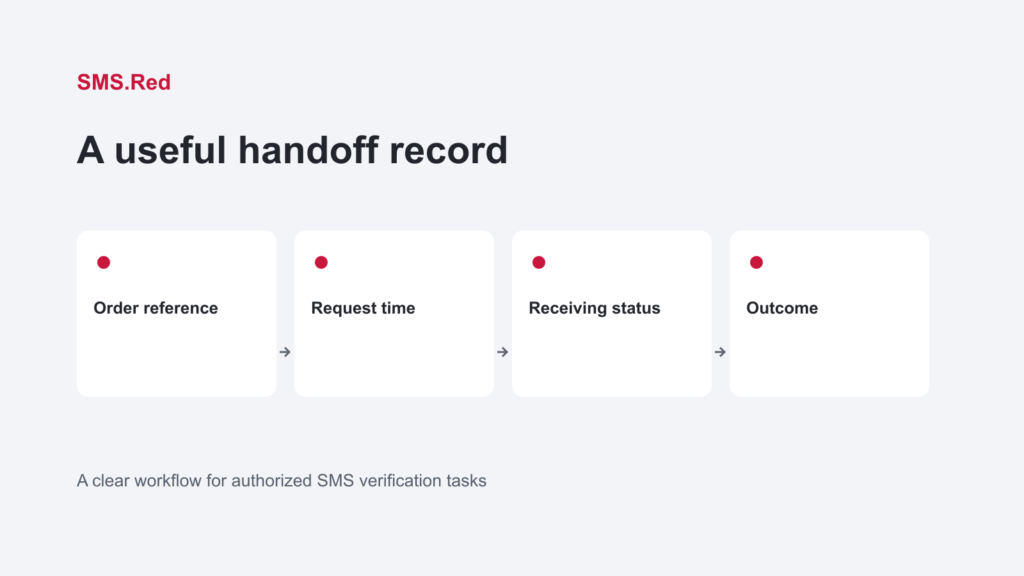
A short record helps the next colleague see what happened and decide what to do next. Keep four items together:
- Order reference – which SMS.Red order was used.
- Request time – when the SMS was requested, including the time zone.
- Receiving status – whether a matching message arrived while the order was active.
- Outcome – whether verification succeeded and any error shown by the application.
For example: “SMS requested at 14:10 UTC; no message appeared before the receiving window ended.” This gives support a clear description of the problem without guessing at its cause.
For a rental, also note the expiry date and who will review access before it ends. Keep passwords, full SMS contents and complete phone numbers out of public project boards. Use your team’s approved access arrangements rather than sharing account passwords.
Try the Workflow with One Task
Review the current offers on SMS.Red and use the SMS.Red guides for the product you choose. Start with one task so you can check that the handoff works before relying on it for ongoing account access.
Frequently asked questions
Here we answered the most frequently asked questions.
Do I need a proxy to use SMS.Red?
You do not need a proxy simply to receive an SMS. You may need one for a particular browser or application workflow, but that is a separate network requirement.
What if the service I need is not listed?
Use Suggest Service under Service not Listed to submit the service name and any useful supporting details. Sending a suggestion does not buy a number or guarantee that the service will become available.
Do one-time verifications and rentals have the same cancellation rules?
No. Follow the conditions shown for the specific order. Do not apply rental cancellation rules to a one-time verification. If you cannot tell whether a cancellation went through, check the order’s status before submitting another request.
Can I keep the same number after my rental expires?
Do not rely on recovering it afterward. Check renewal eligibility before expiry. SMS.Red offers auto-renew for supported rentals, but enabling it does not guarantee renewal. The auto-renew and expiry guide explains the conditions. Set up another account recovery method where the application allows one.