
Why Traceroute Shows Timeout or * * *: What It Really Means
Published: ≈ 4 min read
Why Traceroute Shows Timeout or * * *
Quick Answer
If traceroute shows * * *, it usually means that a network device did not respond to the request. In most cases, this is caused by filtering, rate limiting, or how routers handle diagnostic traffic – not necessarily a real connection failure.
Why You See * * * in Traceroute
When traceroute runs, it sends packets and waits for responses from each hop along the path.
If a device does not reply within the expected time, the tool displays:
* * *
This simply indicates that no response was received, not that the node is unreachable.
In modern networks, this behavior is very common.
The Most Common Reasons for Traceroute Timeouts
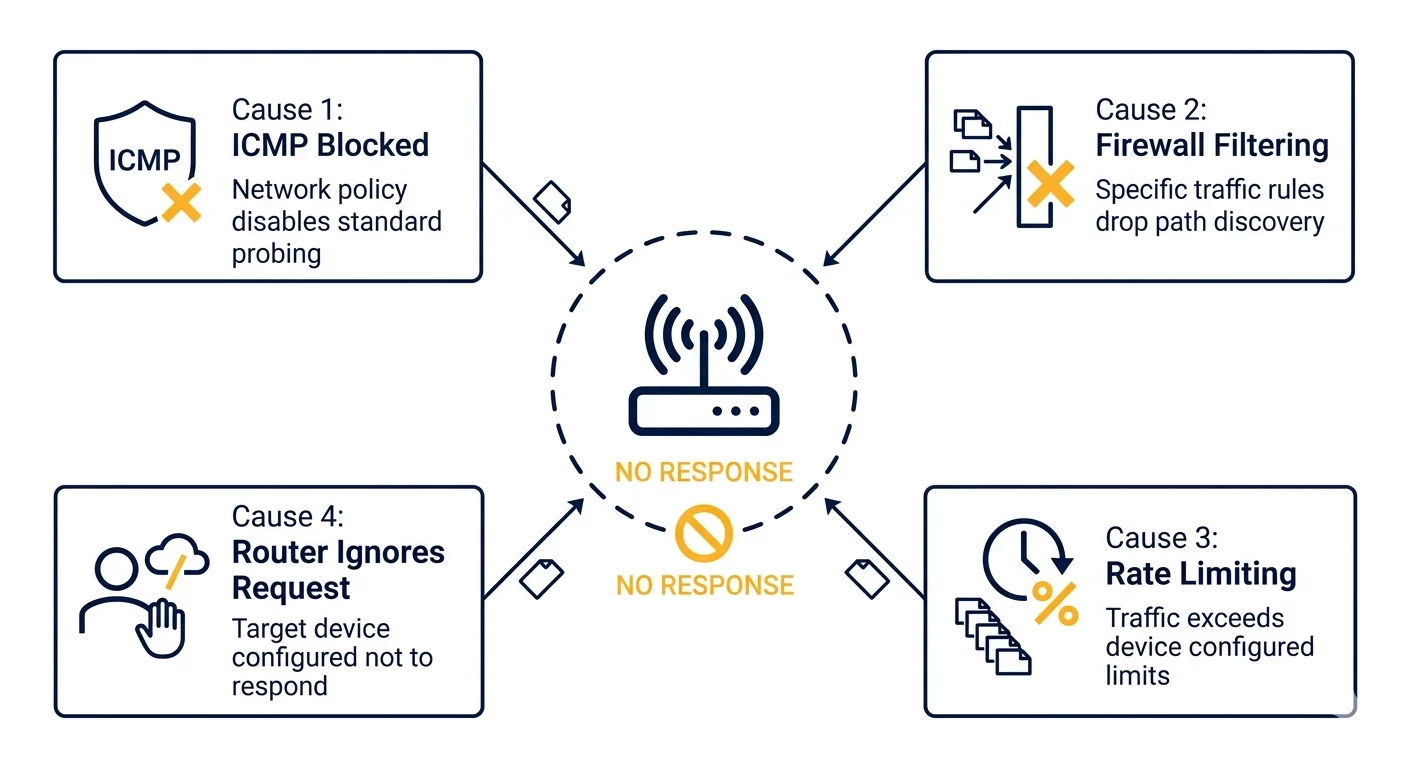
Routers Blocking ICMP Requests
Many routers are configured to ignore or limit ICMP traffic, which traceroute relies on.
This is done for:
- security reasons
- performance optimization
- protection against scanning
As a result, the router forwards traffic normally but does not respond to traceroute.
Firewall and Security Rules
Firewalls often block diagnostic requests while still allowing regular traffic.
This can lead to a situation where:
- traceroute shows timeouts
- but the service itself works correctly
This is especially common in:
- cloud environments
- enterprise networks
- protected APIs
Rate Limiting on Network Devices
Some network devices intentionally limit how often they respond to traceroute packets.
If too many requests arrive within a short time, the device may stop responding.
This results in intermittent * * * lines.
Network Devices Prioritizing Real Traffic
Routers prioritize actual user traffic over diagnostic tools.
If a device is under load, it may:
- forward packets normally
- ignore traceroute responses
This can create the illusion of packet loss.
Packet Filtering Along the Route
Some intermediate networks filter traceroute traffic entirely.
This means:
- packets pass through
- but no response is sent back
This is why missing hops do not always indicate a problem.it’s successfully forwarding your main traffic.
When Timeouts Are NOT a Problem
Seeing * * * in the middle of a traceroute is usually harmless.
Example:
3 10 ms
4 * * *
5 45 ms
In this case:
- hop 4 does not respond
- but hop 5 responds normally
This means traffic is still flowing through the network.
When Timeouts Indicate a Real Issue
Timeouts become important when they appear at the end of the trace.
Example:
8 120 ms
9 * * *
10 * * *
This may indicate:
- destination server is down
- network path is broken
- firewall blocks final connection
If the last hops do not respond, the issue is likely real.
How to Tell the Difference
You can interpret traceroute timeouts using simple rules.
| Situation | What It Means |
| Timeout in the middle | usually normal |
| Timeout at the end | possible issue |
| Single missing hop | often filtering |
| Multiple missing hops | potential network problem |
Understanding these patterns helps avoid false conclusions.
How Traceroute Behavior Relates to Latency
Timeouts are often connected to latency spikes or overloaded nodes.
If packets take too long to process, the response may not arrive in time.
This is why traceroute sometimes shows:
- high latency
- followed by missing responses
For deeper understanding, see Proxy Latency Explained.
Real-World Debugging Example
In real infrastructure, traceroute timeouts often confuse developers.
Example scenario:
• a website loads slowly
• traceroute shows missing hops
• but the site still works
In such cases, the issue is usually not connectivity, but:
- routing inefficiency
- overloaded nodes
- regional network delays
Running a live test using MangoProxy IP Trace Tool can help confirm this behavior.
How to Properly Use Traceroute for Troubleshooting
To get reliable insights, traceroute should not be used alone.
Best practice:
- run traceroute multiple times
- compare results from different locations
- combine with ping tests
- analyze patterns, not single hops
This approach reduces the risk of misinterpreting timeouts.
Additional Tools for Network Diagnostics
Traceroute is only one part of network troubleshooting.
Other tools help provide a broader view:
• My IP – shows your external IP address
• IP Lookup – identifies network ownership and routing
• Proxy Checker – verifies connectivity through proxy infrastructure
Using multiple tools gives a more accurate picture of network behavior.
Glossary
- Timeout
A situation where no response is received within a defined time. - Hop
A single step in the path between two network devices. - ICMP
A protocol used for diagnostic tools like traceroute. - Packet filtering
A process where network devices block or ignore certain types of traffic.
Frequently asked questions
Here we answered the most frequently asked questions.
What does * * * mean in traceroute?
It means that no response was received from that hop within the expected time.
Does a timeout mean the connection is broken?
Not always. Many devices ignore traceroute requests while still forwarding traffic normally.
Why do routers block traceroute?
For security reasons and to reduce load from diagnostic traffic.
When should I worry about traceroute timeouts?
When timeouts occur at the final hops or when the destination server does not respond.
Classic pitfall. So many people panic when they see full asterisks mid-route thinking the connection died. Nice quick write-up on ICMP drops.