
How to Set Up a Proxy in AntiBrow: Step-by-Step Guide
Published: ≈ 9 min read
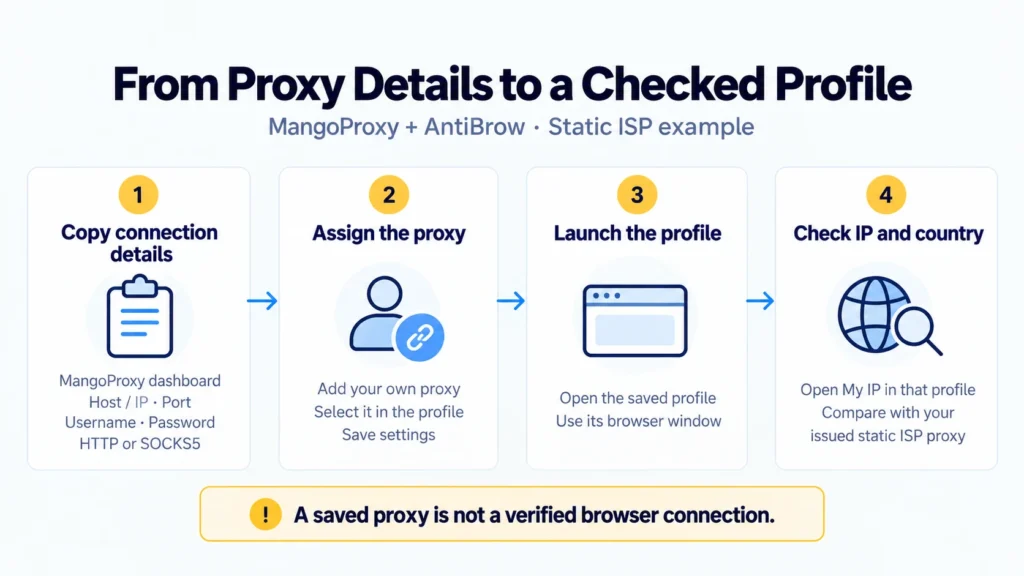
AntiBrow stores cookies and session data separately for each browser profile. A proxy supplies the public IP for a profile’s requests. Here, we’ll connect a static ISP proxy from MangoProxy, starting with the credentials in the dashboard and finishing with an IP check in the running profile.
Why Use Proxies in AntiBrow?
Two profiles in the AntiBrow antidetect browser can have separate cookies while sharing a public IP. Assign different proxies when those profiles need different addresses. For a regional task, choose the exit country you need; for repeat sessions from one address, use a proxy that keeps its IP between launches.
Proxies for AntiBrow address those network requirements. Account details, browser settings, and activity still matter to websites, so a working proxy does not rule out verification checks or blocks.
Where to Get Proxy Details in MangoProxy
MangoProxy’s static ISP product provides an address from an internet provider’s network. During the lease, you keep that one address, including when you close and later reopen the profile.
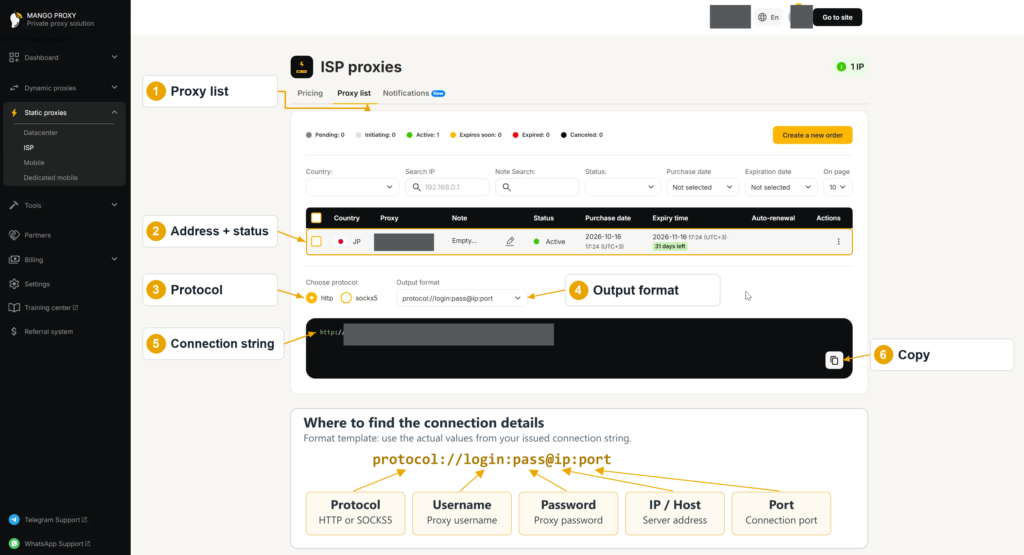
In your MangoProxy dashboard, open Static proxies → ISP → Proxy list. Pick an active proxy from that list. An existing connection is fine for this setup. Keep these four details at hand:
- Host / IP – the proxy server address.
- Port – the connection port.
- Username – the proxy username.
- Password – the proxy password.
The dashboard also generates a complete connection string. With SOCKS5 selected, choose the following layout and copy the result:
protocol://login:pass@ip:port
In your copied string, protocol becomes socks5, and the remaining placeholders contain the four values listed above. The proxy password is included in that string. Your MangoProxy account password is not used here. The universal dashboard screenshot shows HTTP; select SOCKS5 to follow this guide.
HTTP, HTTPS, or SOCKS5?
MangoProxy static ISP proxies support HTTP and SOCKS5. We use SOCKS5 in this example. For an HTTP connection, get the HTTP string from the dashboard and use HTTP in AntiBrow too.
An HTTP proxy can tunnel the encrypted connection to an HTTPS website. So an https:// page address is no reason to change the proxy protocol to HTTPS. That setting encrypts the separate connection to the proxy server and is usable only when the provider supports it.
Use the protocol specified for your proxy. HTTP and SOCKS5 are connection options, neither of which guarantees acceptance by a website.
AntiBrow Proxy Setup: Step by Step
Install the app from the official AntiBrow website and sign in. Have your MangoProxy connection string ready. The section names below follow AntiBrow’s English documentation.
1. Open the Proxy Manager
Start in Proxies and open the option for adding your own connection. You already have the credentials from MangoProxy, so there is no need to order a proxy from AntiBrow.
2. Enter Your MangoProxy Details
Enter the MangoProxy values in the fields for address, port, username, and password, with SOCKS5 selected. Use only the server address in the address field. If the form can import a full connection string, paste yours there and check the imported values before saving.
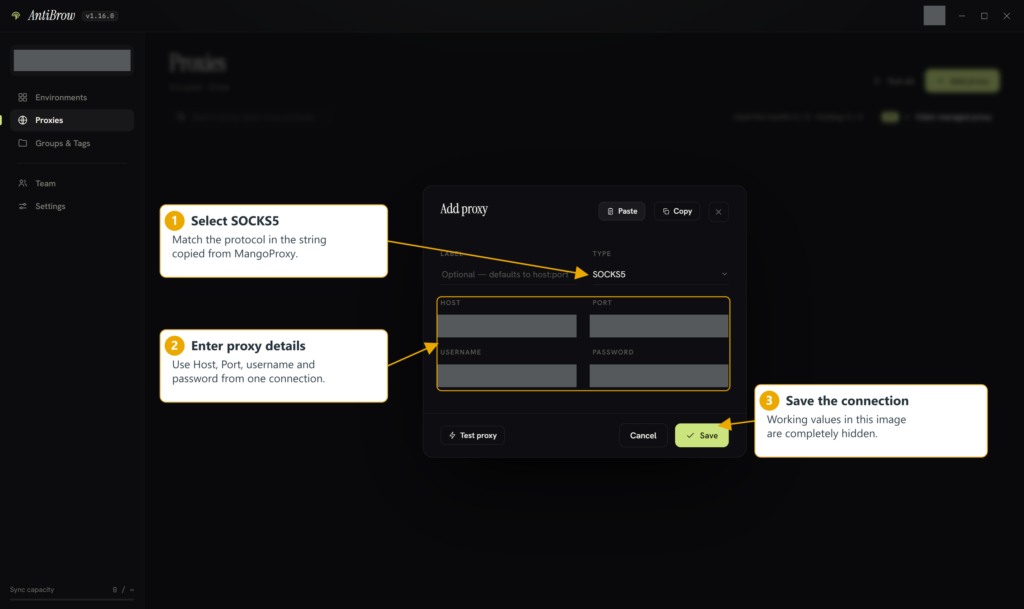
Save this connection as MangoProxy ISP. You’ll select that entry in the profile settings.
3. Check the Connection
Run the proxy manager’s connection check. Once it reports success, continue to the profile. The next check, after you open the profile, shows the public IP used by its browser.
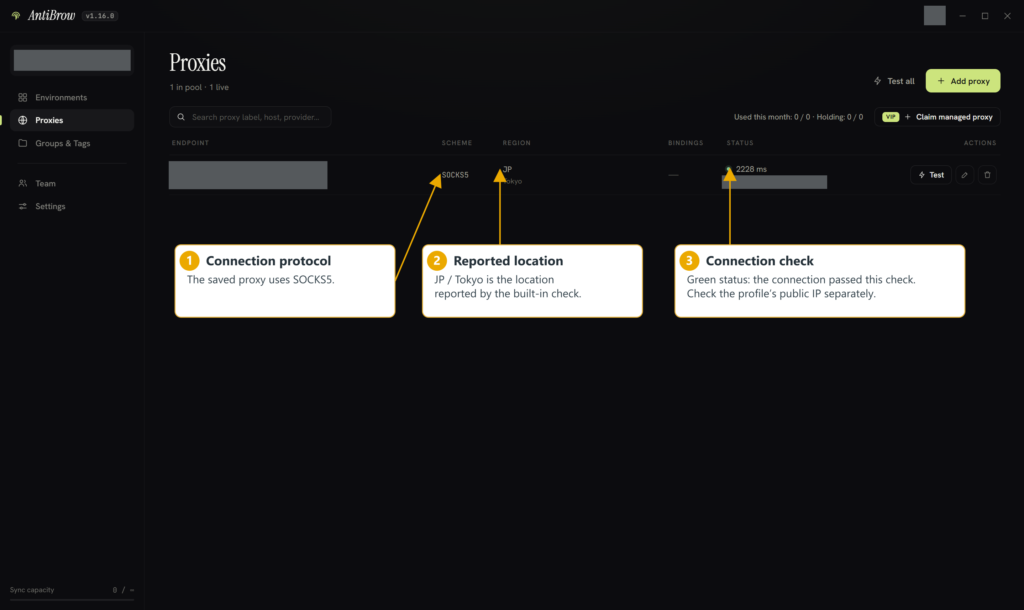
Save the error if this check doesn’t pass. Common Errors and Fixes below covers connection details and server access.
4. Set Up the Browser Profile
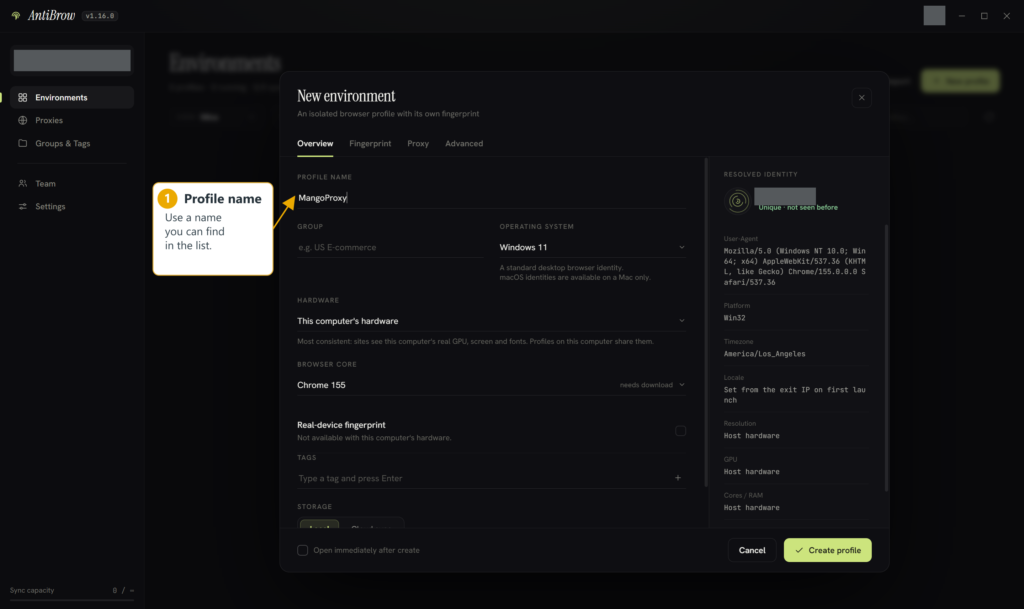
Use Environments → New profile to create MangoProxy test. Select Local for the profile’s storage mode. Cloud sync can stay off. If the profile already exists, open its settings to change the proxy.
5. Connect the Saved Proxy to Your Profile
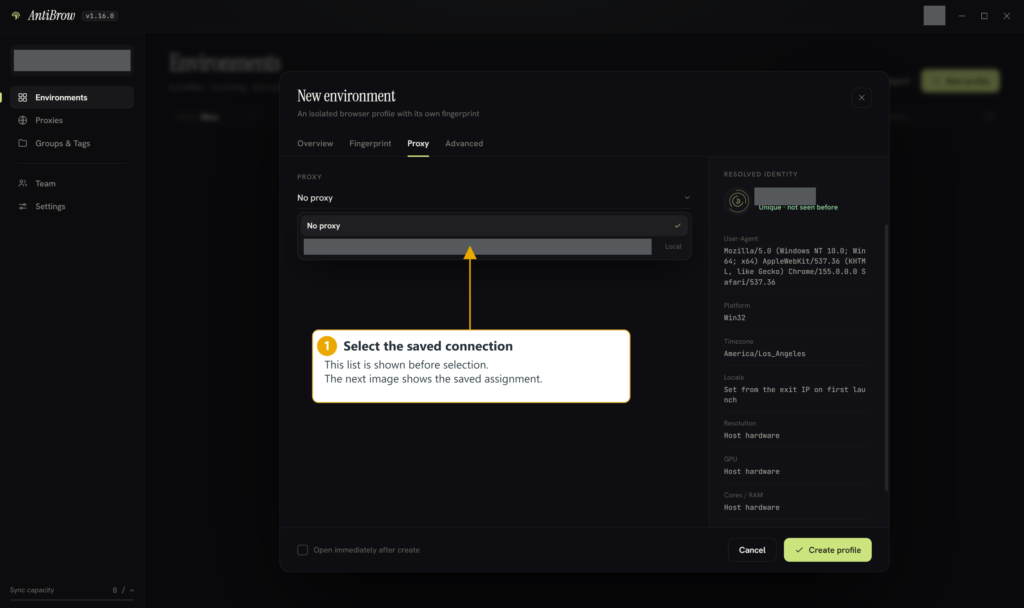
In the profile’s Proxy section, select MangoProxy ISP and save the settings. The proxy manager stores connections; this setting chooses which one the profile uses.
6. Open the Profile
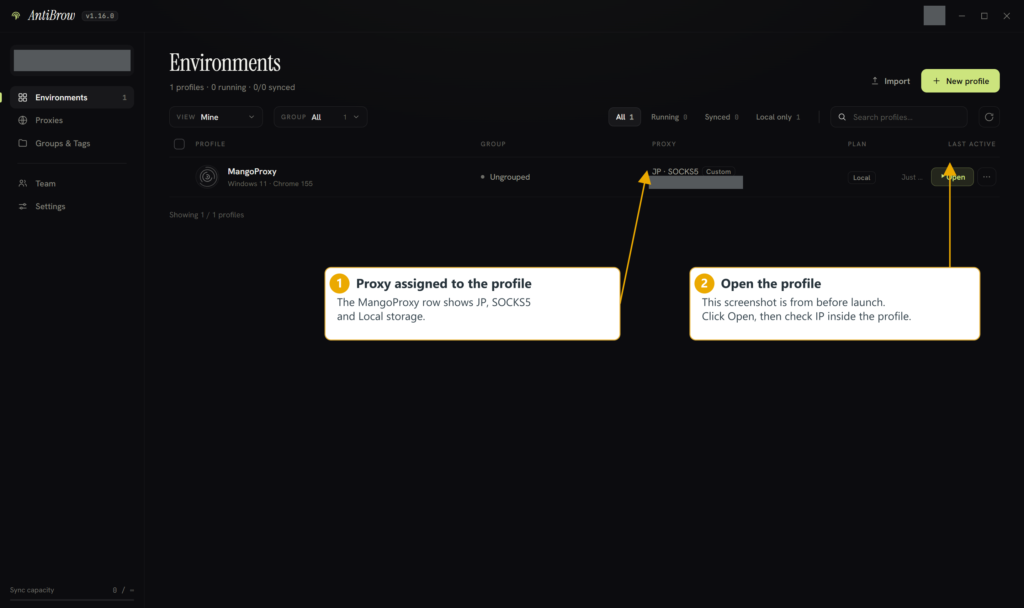
Open your saved profile in Environments, allowing time for a browser engine download if the first launch requires one.
Check Your IP After Setup
Open the My IP tool inside the running profile. Compare the public IP it shows with the static ISP address issued by MangoProxy, then check the country. Opening the tool in your regular browser will not verify your AntiBrow settings.
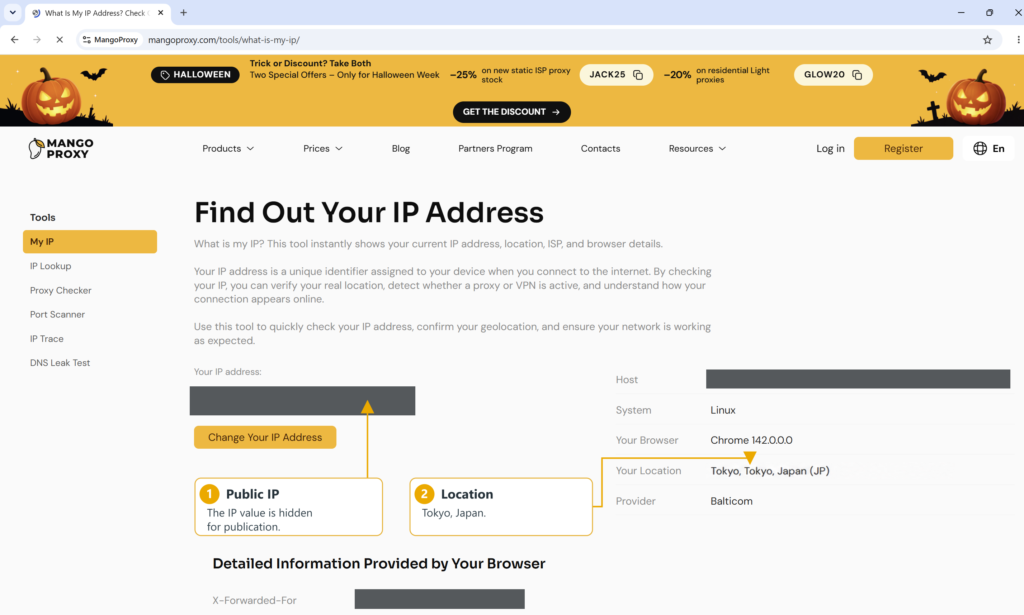
IP Lookup provides further information about the exit address. Geolocation databases can disagree, particularly at city level. Different city names do not, by themselves, mean that you selected the wrong proxy.
Check the profile’s time zone as well if your task depends on it. AntiBrow describes matching it automatically to the proxy’s location. Verify what was set after the profile opens.
A rotating residential proxy needs a different comparison. Its connection string can point to an entry gateway, with websites seeing an exit IP from the pool. Rotation can therefore explain a changing public IP. For work that needs one exit throughout a session, check the provider’s settings for keeping that address.
Proxy Types for AntiBrow Profiles
For browser profiles, the key choice is whether the task needs one address over time or access through different exits.
| Proxy type | Address behavior | Use in AntiBrow | Before choosing |
|---|---|---|---|
| Residential | IP rotation or a session that holds one address | Regional checks and public data collection across exits | Country availability, traffic allowance, and session length. Holding a session address is different from a fixed IP lease. |
| Static ISP | One address until the lease ends | Repeat visits and logins from the same profile | Required country, lease expiry, and the profile’s saved connection |
| Static datacenter | A fixed IP | Monitoring and site tests over a datacenter connection | Access to the target site from that network and the allowed request volume |
| Mobile | Varies with the service and rotation settings | Viewing sites through a mobile carrier | Operator, region, and rotation timing. A mobile IP alone does not emulate a phone. |
Use Cases for AntiBrow with Proxies
Managing several projects. A profile per project keeps its cookies apart from other work. If the projects also need different IPs, give those profiles different proxies. Use matching names for the two entries to make the assignment easy to recognize.
Checking regional website versions. Use a profile and a proxy for each country you want to compare. Check the currency, product availability, and pages you can access. Browser language and stored site preferences also influence what you see, so account for them when comparing the results.
Reproducing a bug during testing. Try the failing action in a separate profile with an exit IP in the country concerned. Record the steps, exit country, and result. This helps distinguish the effect of location from the cookies in your main work profile.
Common Errors and Fixes
The Proxy Fails the Connection Check
The issued details are the reference for every saved value: address, port, protocol, username, and password. Also confirm that the proxy is still active. The MangoProxy Proxy Checker provides another way to check a static connection. For a private proxy, enter:
IP:PORT:LOGIN:PASSWORD
The public checker handles static proxies. Its page points residential users to the tool in the dashboard. If support needs to investigate, include the outcomes from both checks. Different results are useful evidence, but do not identify the cause on their own.
The Form Does Not Accept the Pasted Details
Look at the order the form expects. The string protocol://login:pass@host:port starts with the protocol and credentials; host:port:login:pass starts with the server address and port. With separate fields, you can enter each component directly if import fails. A field for the server address alone cannot take the entire connection string.
The Profile Opens, but the Public IP Is Unexpected
Confirm that the saved proxy is selected in this profile’s settings. Close the profile completely after a connection change. Reopen it and load the IP check again. With a dynamic proxy, also review the rotation mode.
The Country Does Not Match Your Selection
For a static ISP proxy, compare the public IP with your issued address first. If the addresses match but a lookup places the IP in another country, ask MangoProxy support about the location data. For a residential pool, check the location parameters in the string from the generator: the gateway address does not determine the exit country.
The Proxy Passes Its Check, but the Site Fails to Load
Keep the error message and test another page from that profile. Loading failures across several pages call for a different investigation from an error on one target site. The checker has tested its own request, so its success does not confirm that your website will open.
Keep Proxy Access Details Private
A screenshot can expose the proxy’s username and password, either in the full connection string or in individual fields. Hide both forms before sharing the image. Before sending someone a profile or its archive, check whether it contains those credentials too.
Related Guides
Frequently asked questions
Here we answered the most frequently asked questions.
Do I need a paid AntiBrow plan to use my own proxy?
Under the current plan terms, the free tier lets you create local profiles and run one browser at a time. That covers this setup with your own proxy. Paid features include running more browsers simultaneously and cloud sync.
Can I assign one proxy to several profiles?
One static proxy gives those profiles a shared public IP, even though each keeps its own cookies. Use different proxy connections when the profiles need different network addresses.
Can I keep a profile after changing its proxy?
Yes. Edit the connection in the existing profile. Its cookies and account data stay in place, so a proxy change alone will not produce a fresh browser session.
Do I need an extension for proxy authentication?
According to AntiBrow’s documentation, the engine handles proxy authentication internally, including SOCKS5 authentication. No separate extension is required for the setup described here.