


How to Set Up a Proxy in Hidemium: Step-by-Step Guide
Published: ≈ 5 min read
Configuring a Proxy in Hidemium
Hidemium is an antidetect browser for Windows and macOS that allows you to create isolated browser profiles with independent browser, device, and network settings.
Each profile functions as a separate environment with its own cookies, User-Agent, browser fingerprint, and network configuration. This makes it possible to keep multiple projects completely isolated without sharing browsing data between profiles.
One of the key steps when creating a profile is configuring a proxy. The proxy determines the external IP address that the browser profile will use when accessing websites, advertising platforms, and online services.
Why Use a Proxy in Hidemium?
Even with a properly configured browser fingerprint, websites continue to analyze network-related information such as your IP address, country, time zone, ASN, and other connection details.
Using proxies in Hidemium allows you to:
- assign a unique IP address to each browser profile;
- connect from different countries and regions;
- separate projects from one another;
- test websites from various geographic locations;
- manage network settings independently for every profile.
Hidemium supports multiple proxy protocols, including HTTP, SOCKS4, SOCKS5, and SSH (Proxy over SSH), making it compatible with most modern proxy providers.
If you’re new to proxies and would like to learn how they work, we recommend reading our introductory guide:
Setting Up a Proxy in Hidemium
Step 1. Create a New Profile
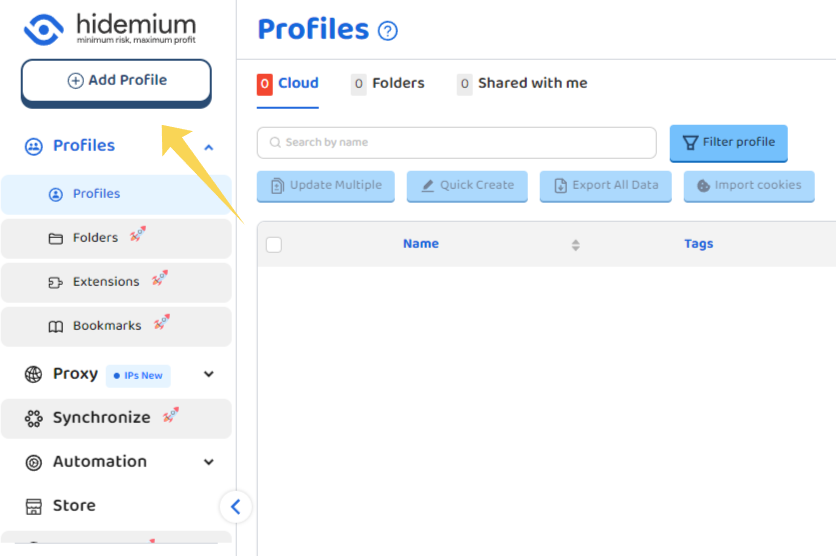
Launch Hidemium, open the Profiles section, and click Add Profile.
The browser profile creation wizard will open.
Step 2. Open the Proxy Section
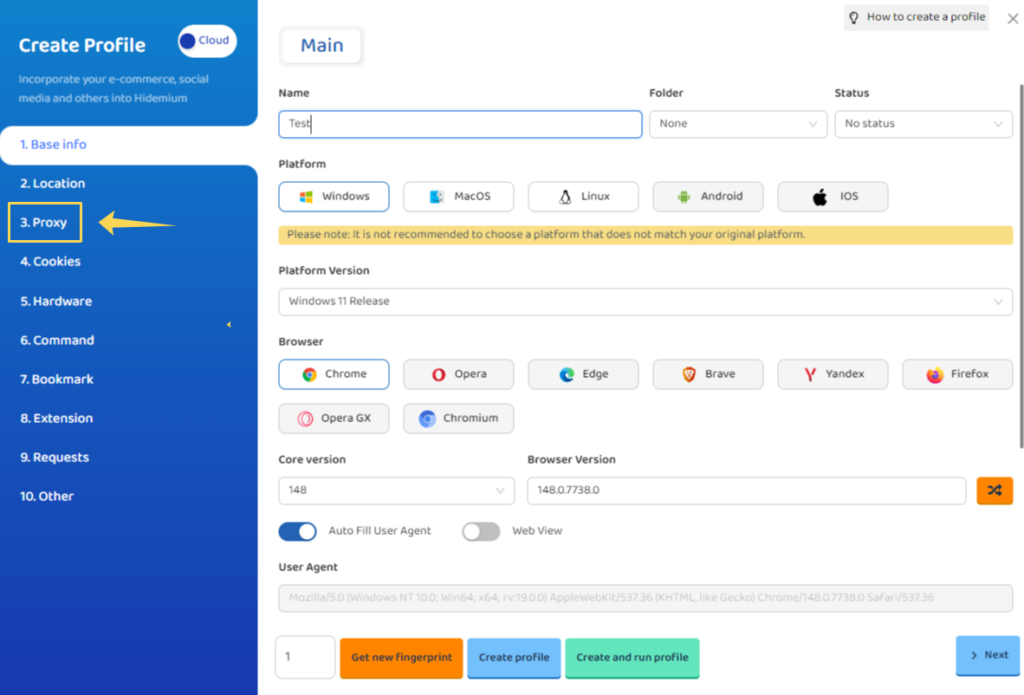
While creating the profile, select the Proxy step from the menu on the left.
This is where you configure the network connection for the new browser profile.
Step 3. Choose the Proxy Source
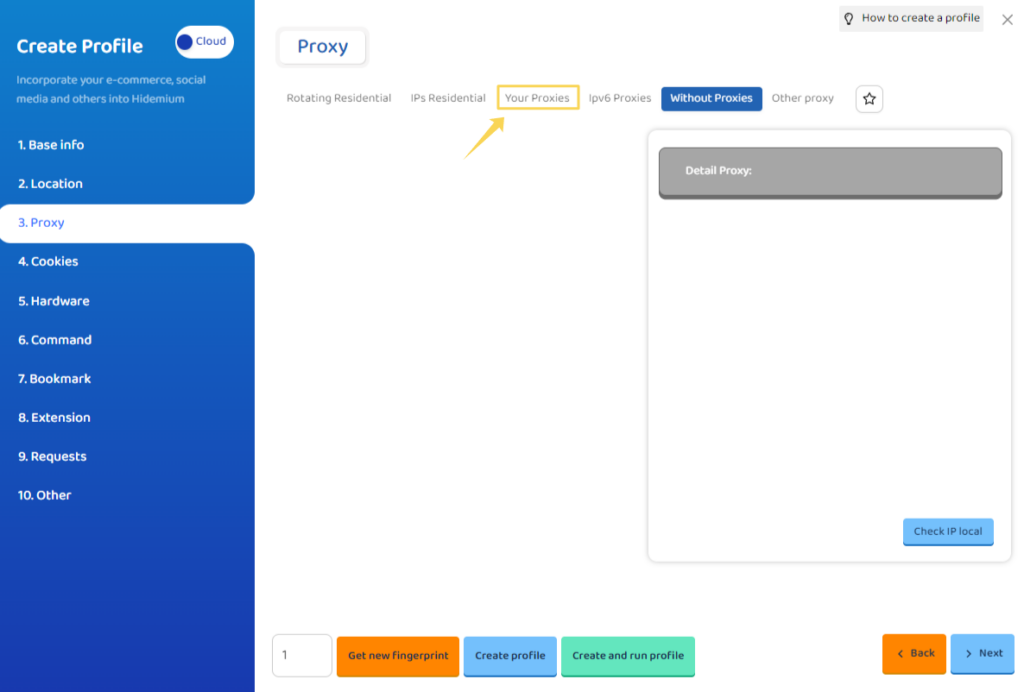
At the top of the page, you’ll find several connection options:
- Rotating Residential;
- IPs Residential;
- Your Proxies;
- IPv6 Proxies;
- Without Proxies;
- Other Proxy.
If you want to use your own proxy server, open the Your Proxies tab.
Step 4. Select the Proxy Protocol
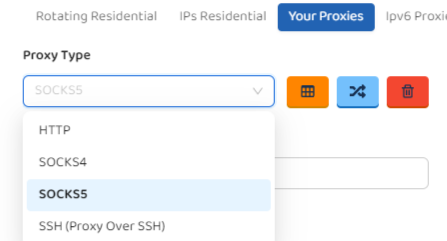
In the Proxy Type field, choose the protocol provided by your proxy service.
Hidemium supports:
- HTTP;
- SOCKS4;
- SOCKS5;
- SSH (Proxy over SSH).
Be sure to select the protocol that matches your proxy credentials.
Step 5. Enter the Proxy Details
Fill in the connection details supplied by your proxy provider:
- IP address;
- Port;
- Username;
- Password.
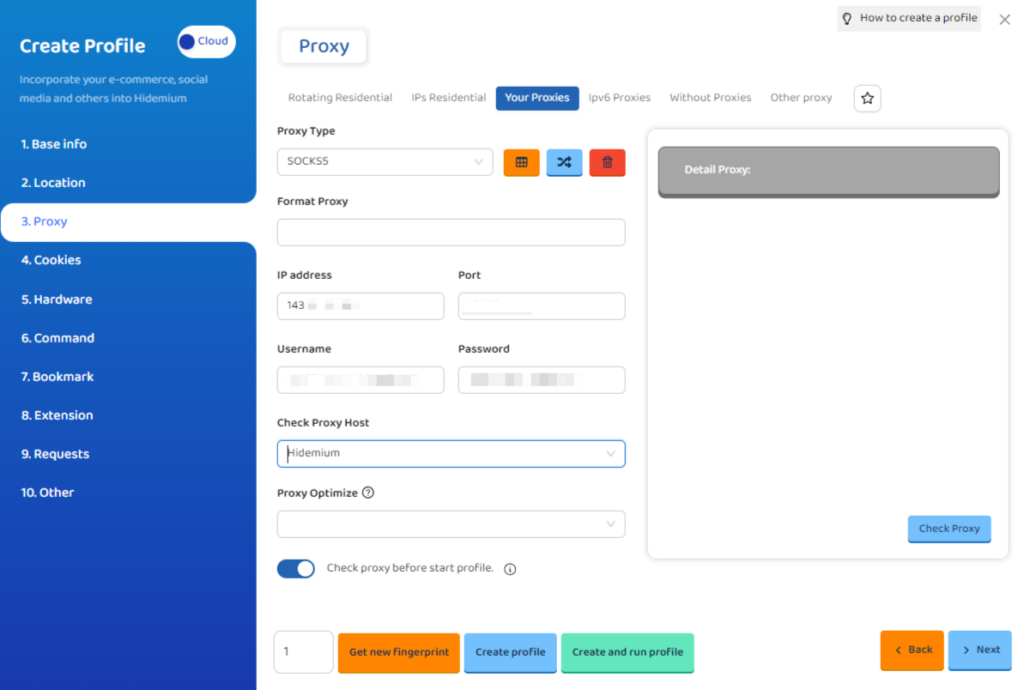
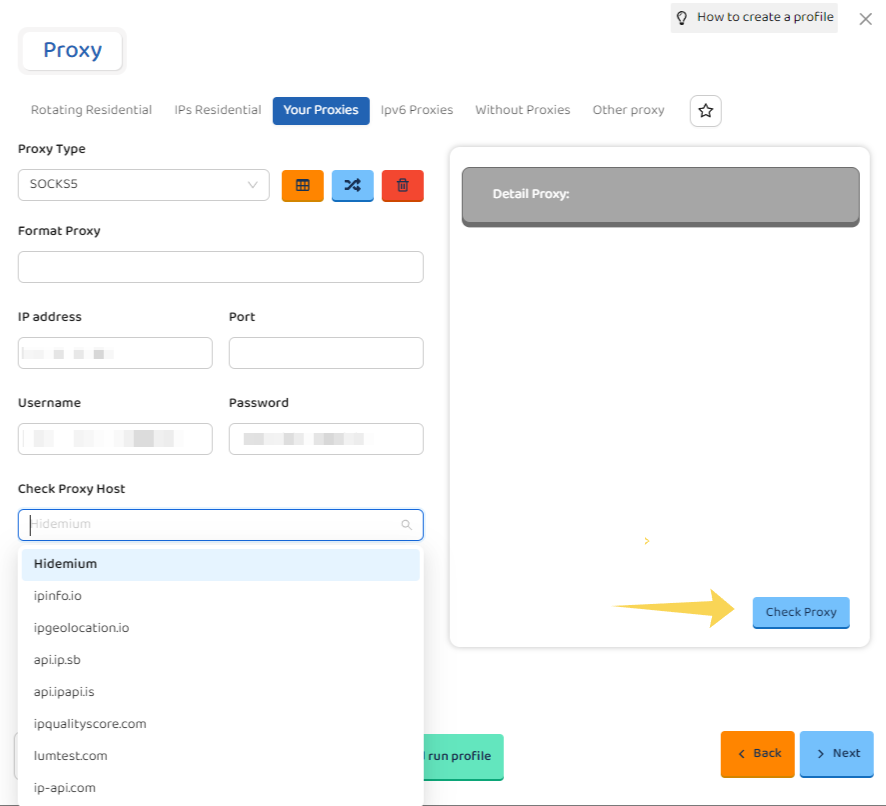
Below the connection fields, you can choose the service that Hidemium will use to verify the connection (Check Proxy Host).
Available options include:
- Hidemium;
- ipinfo.io;
- ipgeolocation.io;
- api.ip.sb;
- api.ipapi.is;
- ipqualityscore.com;
- lumtest.com;
- ip-api.com.
If needed, you can also configure Proxy Optimize and enable Check proxy before start profile, which automatically verifies the proxy before launching the browser profile.
Step 6. Test the Connection
After entering all proxy details, click Check Proxy.
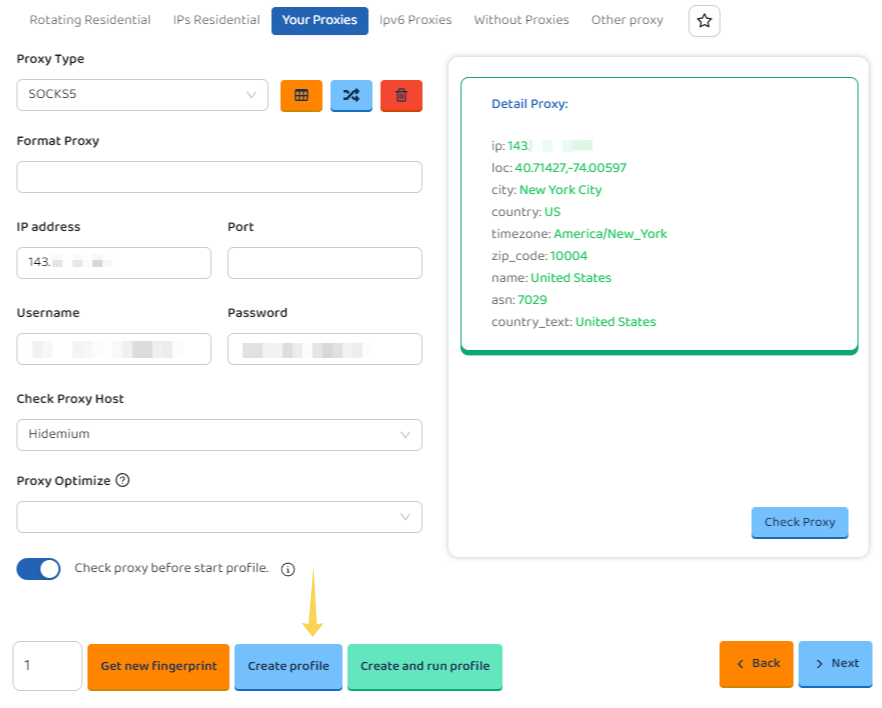
Hidemium will verify the connection and display information about the detected IP address.
A successful check includes details such as:
- IP address;
- Country;
- City;
- Coordinates;
- Time zone;
- ASN;
- Region.
If the displayed information matches your proxy, you can continue with profile creation.
Step 7. Create the Profile
Once the proxy has been successfully verified, click Create Profile.
The new profile will appear in your profile list and will be ready to use.
If you’d like to launch it immediately, click Create and Run Profile instead.

Additional Connection Verification
Although Hidemium includes its own proxy testing feature, it’s a good idea to perform an additional check before starting work. This helps confirm that your external IP is detected correctly and that there are no DNS, WebRTC, or other network leaks.
You can use MangoProxy’s free online tools:
👉 IP Lookup – Check your IP address and geolocation
👉 Proxy Checker – Verify that your proxy is working
👉 DNS Leak Test – Detect DNS, WebRTC, and IPv6 leaks
👉 Port Scanner – Check open network ports
Which Proxies Work Best with Hidemium?
The ideal proxy type depends on how you plan to use your browser profiles.
- Residential proxies are suitable when you need IP addresses assigned to real home internet users.
- ISP proxies are a great option for long-term sessions thanks to their stable connections and trusted IP reputation.
- Datacenter proxies are commonly used for automation, monitoring, and other tasks where speed and performance are essential.
- Mobile proxies are useful when your workflow requires connections through mobile carrier networks.
If you’re unsure which option is best for your use case, take a look at our detailed comparison:
👉 Residential vs ISP vs Datacenter vs Mobile Proxies: What’s the Difference?
Hidemium Features
Key features of Hidemium include:
- creating isolated browser profiles;
- support for HTTP, SOCKS4, SOCKS5, and SSH proxies;
- support for both built-in and custom proxies;
- configurable IP verification services;
- built-in proxy connection testing;
- automatic proxy verification before profile launch;
- browser fingerprint customization;
- compatibility with Windows and macOS.
Frequently asked questions
Here we answered the most frequently asked questions.
Which proxy protocols does Hidemium support?
Hidemium supports HTTP, SOCKS4, SOCKS5, and SSH (Proxy over SSH) connections.
Can I use my own proxies?
What is the Check Proxy Host option?
It lets you choose the service Hidemium uses to verify your external IP address and connection details. Available services include Hidemium, ipinfo.io, and ip-api.com.