


How to Set Up a Proxy in Undetectable: Step-by-Step Guide
Published: ≈ 4 min read
What Is Undetectable Used For?
Undetectable is an anti-detect browser for Windows and macOS that allows users to create separate browser profiles with independent browser, device, and network settings.
Each profile operates as a standalone environment with its own cookies, User-Agent, system parameters, and proxy connection.
This approach is widely used for multi-account management, web project testing, advertising campaigns, e-commerce operations, and other workflows where browser isolation is important.
One of the key profile settings is the proxy connection, which determines the external IP address used when accessing websites and online services.
Why Use Proxies in Undetectable?
By default, a profile can use your computer’s regular internet connection. However, Undetectable also allows you to assign dedicated proxies to individual profiles.
Using proxies helps you:
- assign unique IP addresses to different profiles;
- connect through specific countries and regions;
- separate workflows between accounts;
- test localized versions of websites;
- manage network settings independently for each profile.
Undetectable supports both HTTP and SOCKS5 proxies and includes a built-in Proxy Manager for storing and managing connections.
If you’d like to learn more about proxy technologies and their use cases, we recommend reading:
Setting Up a Proxy in Undetectable
Step 1. Create a New Profile
Open the Profiles section and click New Profile.
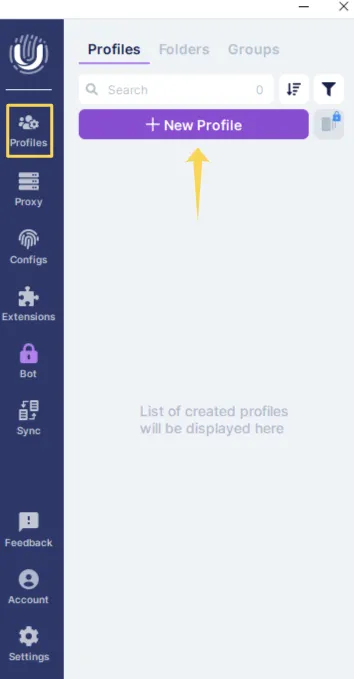
This will open the profile creation window.
Step 2. Open Proxy Settings
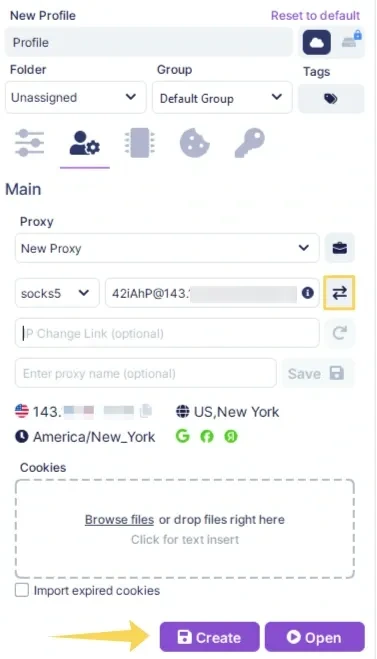
In the profile creation window, switch to the proxy settings tab.
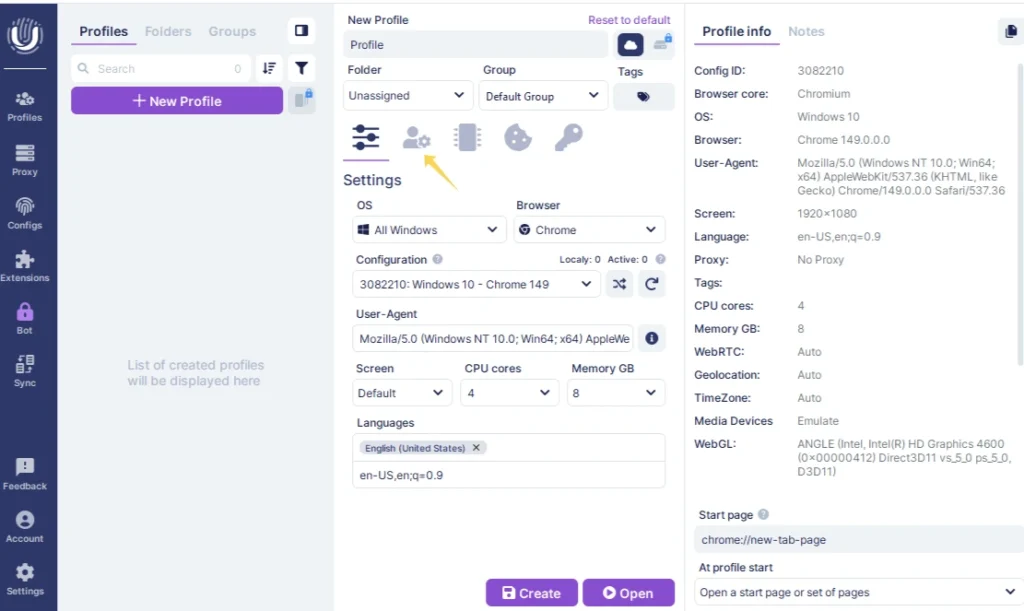
This is where you can connect a new proxy or select an existing one.
Step 3. Select New Proxy
Open the Proxy dropdown menu and choose New Proxy.
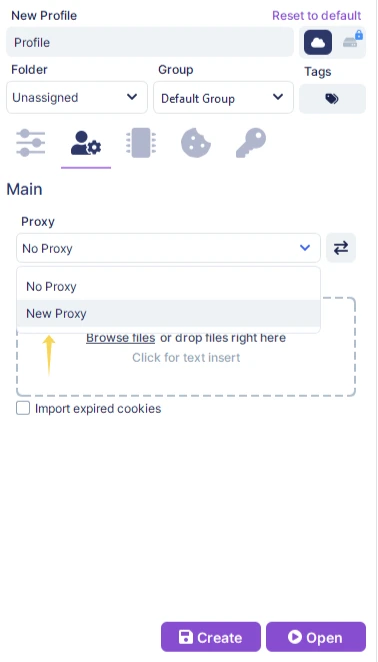
Undetectable will display a form for entering connection details.
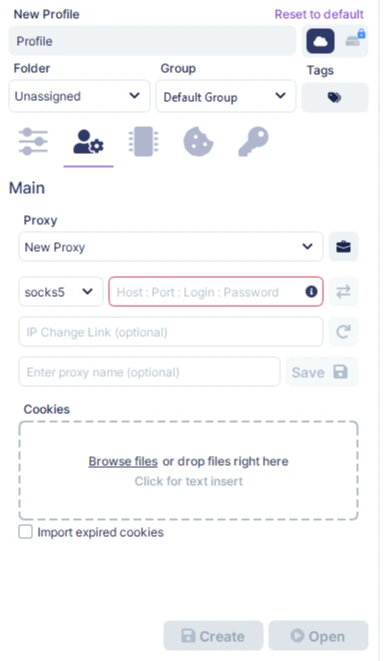
Step 4. Enter Proxy Information
Fill in the proxy credentials provided by your proxy provider:
- connection type (HTTP or SOCKS5);
- host or IP address;
- port;
- username;
- password.
If needed, you can also add an automatic IP rotation link using the IP Change Link field.
Step 5. Verify the Connection and Save the Profile
After entering the credentials, run the connection check.
If the proxy is configured correctly, Undetectable will display:
- IP address;
- country;
- city;
- time zone.
Once the verification is successful, click Create to save the profile.
Using Proxy Manager
Besides assigning proxies directly inside profiles, Undetectable allows you to store connections in a dedicated Proxy Manager.
This is especially useful when working with multiple profiles and reusing the same proxy pool.
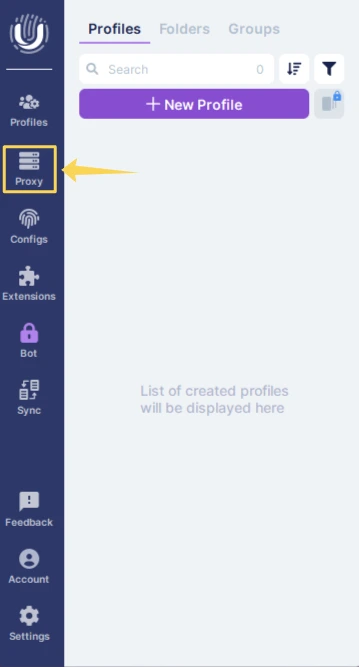
Step 6. Open Proxy Manager
Select the Proxy section from the left-side menu.
All saved proxy connections will be displayed here.
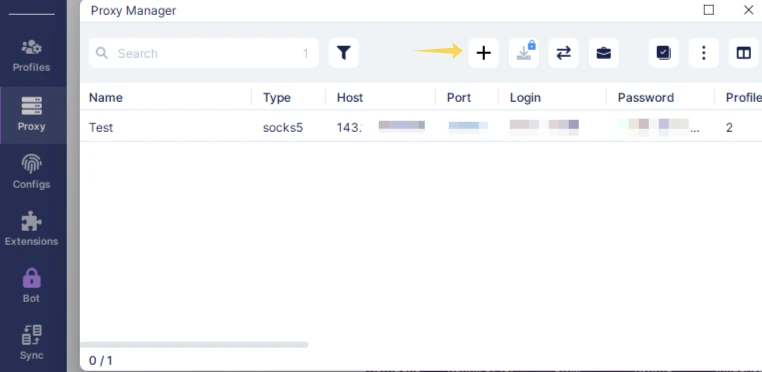
Step 7. Add a New Proxy
Click the + button at the top of the window.
A new proxy creation form will appear.
Step 8. Save the Proxy
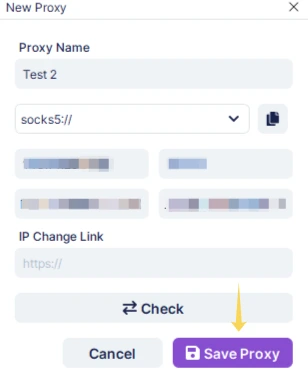
Enter the following information:
- proxy name;
- protocol;
- IP address;
- port;
- username;
- password.
Click Save Proxy when finished.
The saved proxy will become available for quick assignment to future profiles.
Additional Connection Testing
After configuration, it’s a good idea to verify that your proxy is detected correctly and does not expose your real network information.
You can use the following tools:
👉 Check IP Address and GEO: IP Lookup
👉 Test Proxy Availability: Proxy Checker
👉 Check DNS, WebRTC, and IPv6 Leaks: DNS Leak Test
👉 Scan Open Ports: Port Scanner
Which Proxies Work Best with Undetectable?
The most suitable proxy type depends on your workflow and profile usage.
For automation, monitoring, and large-scale data collection, datacenter proxies are often chosen because of their speed and efficiency.
For long-term account management, ISP proxies provide a balance between stability and trust.
If you need connections that closely resemble real user activity, residential proxies are typically the preferred option.
For certain mobile-oriented use cases, mobile proxies may also be appropriate.
Learn more about proxy types here:
👉 Residential, ISP, Datacenter, and Mobile Proxies: What’s the Difference?
Key Features of Undetectable
Some of the browser’s main capabilities include:
- creating isolated browser profiles;
- support for HTTP and SOCKS5 proxies;
- built-in Proxy Manager;
- proxy storage and management;
- support for Windows and macOS;
- browser and device fingerprint customization;
- profile organization using folders and groups;
- profile synchronization features.
Frequently asked questions
Here we answered the most frequently asked questions.
Which proxy protocols does Undetectable support?
Undetectable supports both HTTP and SOCKS5 proxy connections.
Can I use different proxies for different profiles?
Yes. Each profile can be configured with its own proxy server and unique IP address.
What is Proxy Manager?
Proxy Manager is a built-in tool that allows you to store proxy connections and quickly assign them to new profiles.