
How to Set Up a Proxy in MoreLogin: Step-by-Step Guide

When working with antidetect browsers like MoreLogin, it’s important to consider not only profile settings but also the network environment. Even with a properly configured browser fingerprint, using the same IP across profiles can link accounts together.
Websites analyze not only device parameters but also behavior at the network level — primarily the IP address. That’s why proper proxy setup directly impacts stability and safety.
In MoreLogin, proxies allow each profile to operate with a separate IP, reducing the risk of blocks and making it easier to scale your workflows.
In this guide, we’ll walk through how to connect proxies in MoreLogin and configure them for smooth and reliable performance.
Why You Need Proxies in MoreLogin
MoreLogin isolates browser fingerprints, but the IP address remains a key identification factor for websites.
If multiple profiles share the same IP, they can be linked together, increasing the risk of restrictions.
Using proxies helps you:
- separate accounts from each other
- reduce the risk of bans
- work with different GEO locations
- scale your operations
- simulate real user behavior
👉 Learn more: What is a proxy server
Step-by-Step Proxy Setup in MoreLogin
Step 1: Create a Profile
Open MoreLogin and go to the profile management section.
Click the button to create a new profile and open its settings.

Each profile represents a separate browser environment with unique parameters, including fingerprint and network configuration.
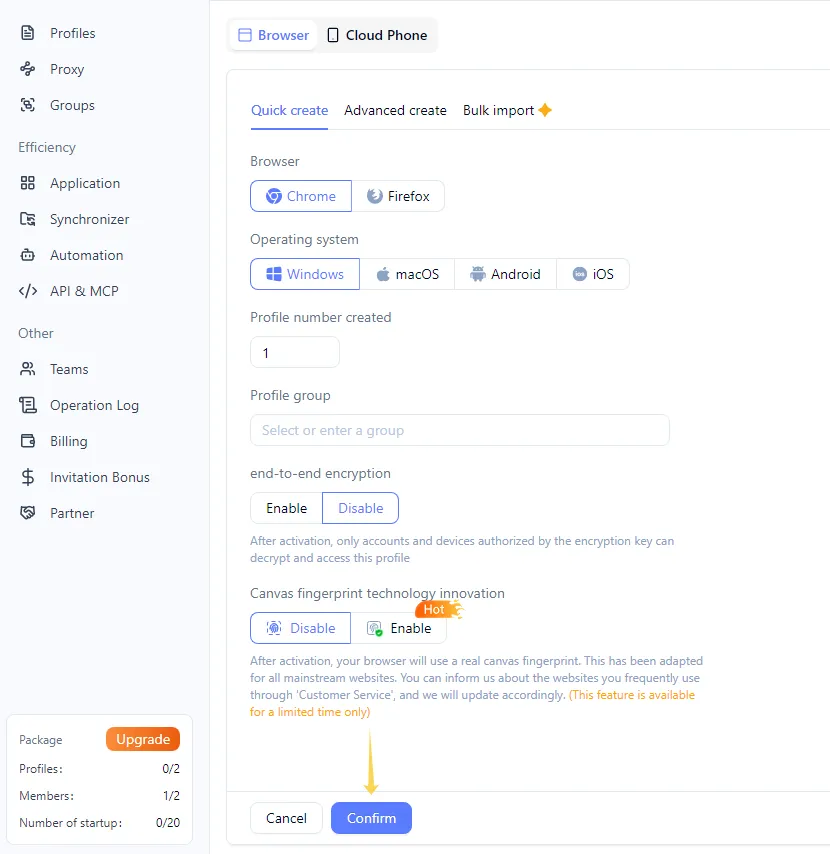
Step 2: Add a Proxy
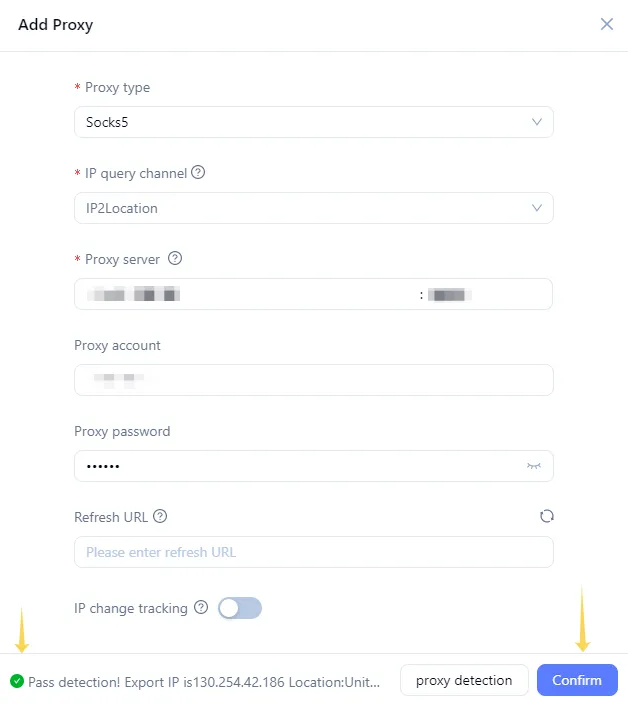
In the profile settings, go to the Proxy section and click Add proxy.
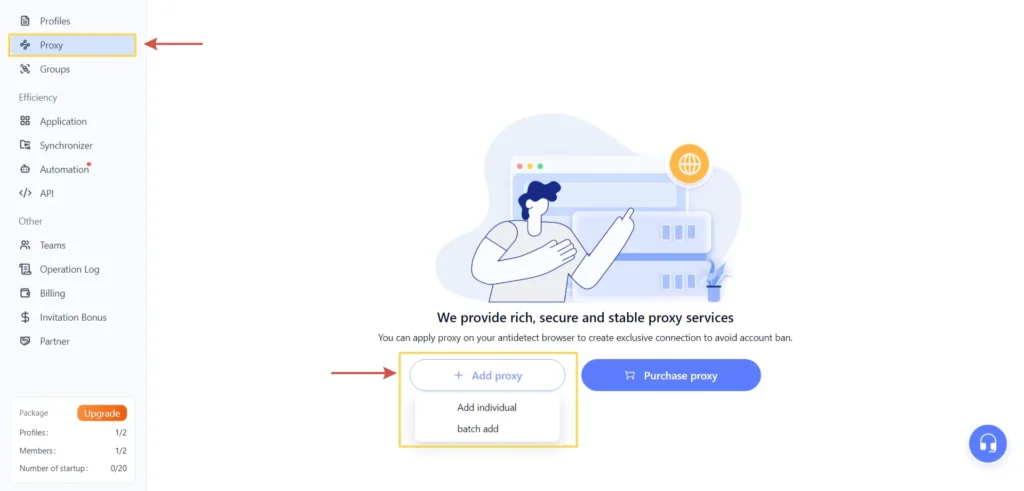
You will be able to choose between:
- single proxy setup
- bulk import
For manual configuration, select single setup.
Then fill in the connection details:
- Proxy Type – HTTP or SOCKS5
- IP channel – usually left as default
- Proxy Server – IP address
- Username / Password – authentication details
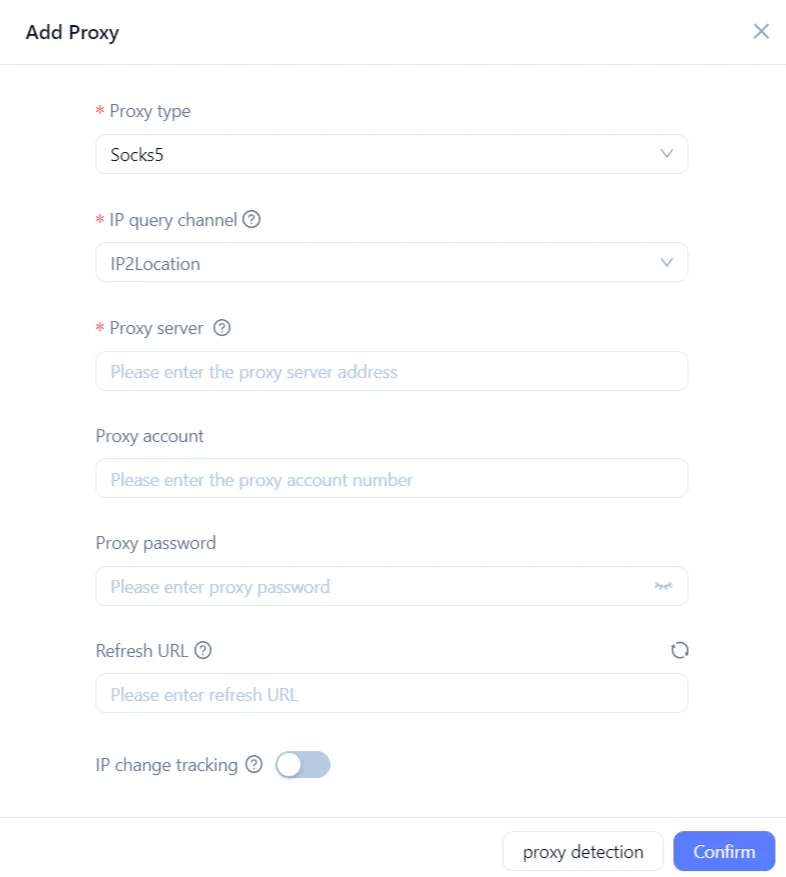
You can get these details from your MangoProxy dashboard. Before adding the proxy, it’s recommended to test it.
👉 We recommend checking proxies using: Proxy Checker
Step 3: Additional Settings
If you are using rotating proxies, you can specify a URL for IP rotation. This allows you to refresh the IP without creating a new profile.
There is also an option to monitor IP changes, which helps track address updates during operation.
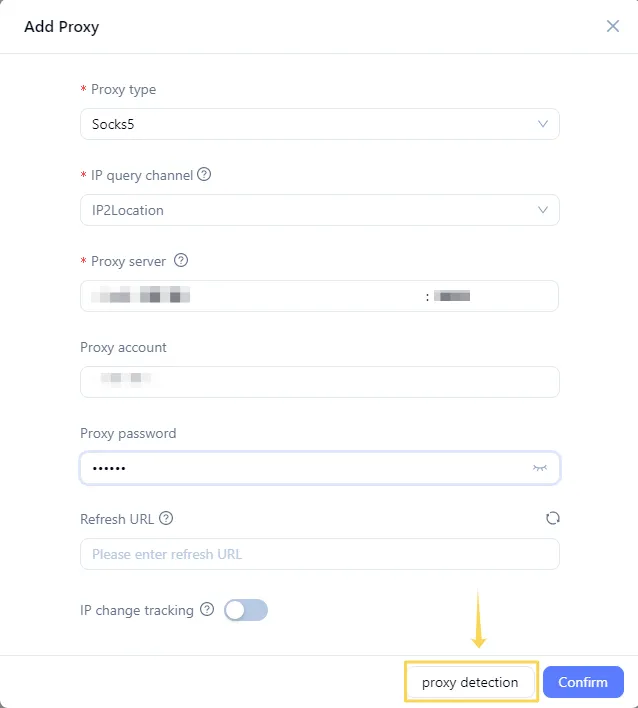
Step 4: Check the Connection
After entering the details, click Check Proxy.
If everything is set correctly, the system will confirm a successful connection.
Then click Confirm to save the proxy.
Step 5: Launch the Profile
Save the profile and launch it.
The browser will now run using the configured proxy and network settings.

Verify IP and Stability
Before starting, make sure that:
- the IP matches the required GEO
- there are no DNS leaks
- the connection is stable
👉 Additional IP check: IP Lookup
Best Proxy Types to Use
| Proxy Type | Best For | Stability | Trust Level |
| Residential | social media, ads, accounts | High | Maximum |
| ISP | long-term tasks | Very high | High |
| Datacenter | bulk tasks | Medium | Medium |
| Mobile | complex platforms | High | Very high |
Choosing the right proxy type directly affects performance and the risk of blocks. Learn more:
👉 Types of proxies – residential, datacenter, and ISP
Main Use Cases
MoreLogin with proxies is commonly used for:
- multi-accounting
- traffic arbitrage
- automation
- data scraping
- GEO testing
👉 Also check:
What to Do If Proxies Don’t Work Properly
The profile doesn’t connect to the internet via proxy
Check the IP, port, username, and password. Issues are often caused by formatting errors or extra spaces.
Incorrect GEO is displayed
Make sure you are using a proxy from the correct location. If using rotating proxies, verify rotation settings.
Connection check fails
The proxy may be inactive, out of balance, or using an unsupported protocol. Try testing it via a proxy checker.
CAPTCHAs or blocks appear
Reduce activity frequency and check IP quality. For sensitive tasks, use higher-trust proxy types.
Slow loading speed
Try switching servers, GEO, or proxy type. Also check if the IP is overloaded.
Security Tips
- use a separate proxy for each profile
- match proxy GEO with browser settings
- avoid sudden spikes in activity
- use IP rotation for automation
- monitor proxy quality regularly
Frequently asked questions
Here we answered the most frequently asked questions.
Which proxy types work best with MoreLogin?
Residential and ISP proxies are the most commonly used, as they provide more natural behavior and stable performance.
Can I use one proxy for multiple profiles?
Not recommended. A shared IP can link accounts together and lead to restrictions.
Which protocol should I choose?
SOCKS5 is the most reliable option, as it works better in antidetect environments and does not add extra headers.
Do I need to test proxies before using them?
Yes, it helps identify connection issues and ensure correct GEO detection.
Can I use rotating proxies?
Yes, if your provider supports IP rotation and it’s properly configured.
Perfect step-by-step overview. So many people overlook proxy quality when setting up new profiles, nice to see a clear walkthrough on doing it right.