
How to Set Up a Proxy in HotLogin: Detailed Guide
Published: ≈ 5 min read
HotLogin is commonly used for multi-accounting, automation, and separating browser sessions. The browser helps create isolated environments with different fingerprint parameters, but fingerprint isolation alone is not enough for complete profile separation.
Many websites analyze not only browser fingerprints but also network-related data such as IP addresses, GEO location, connection stability, and repeated traffic patterns. When several accounts operate through the same IP, anti-fraud systems may treat them as connected.
Proxies in HotLogin help isolate the network environment for each profile and make account activity appear more independent.
In this guide, we’ll show how to add proxies in HotLogin, test the connection, and correctly assign IPs to browser profiles.
Why Use Proxies in HotLogin
In HotLogin, proxies are used not only for changing IP addresses. They help make each browser environment more independent and reduce overlaps between profiles at the network level.
When multiple accounts work through the same IP address, platforms may interpret this activity as connected. This is especially common when working with advertising platforms, social media, and automation tools.
Using proxies in HotLogin allows you to:
- distribute accounts across different IP addresses
- work with multiple GEO locations simultaneously
- reduce restrictions and verification checks
- run automation more safely
- make profile network behavior appear more natural
Even with a properly configured browser environment, repeated IP addresses remain one of the strongest signals for anti-fraud systems.
If you want to better understand how proxies work and what types are available, we recommend starting with this guide:
Step-by-Step Proxy Setup in HotLogin
Step 1. Create a New Environment
Open HotLogin and click the New Environment button.
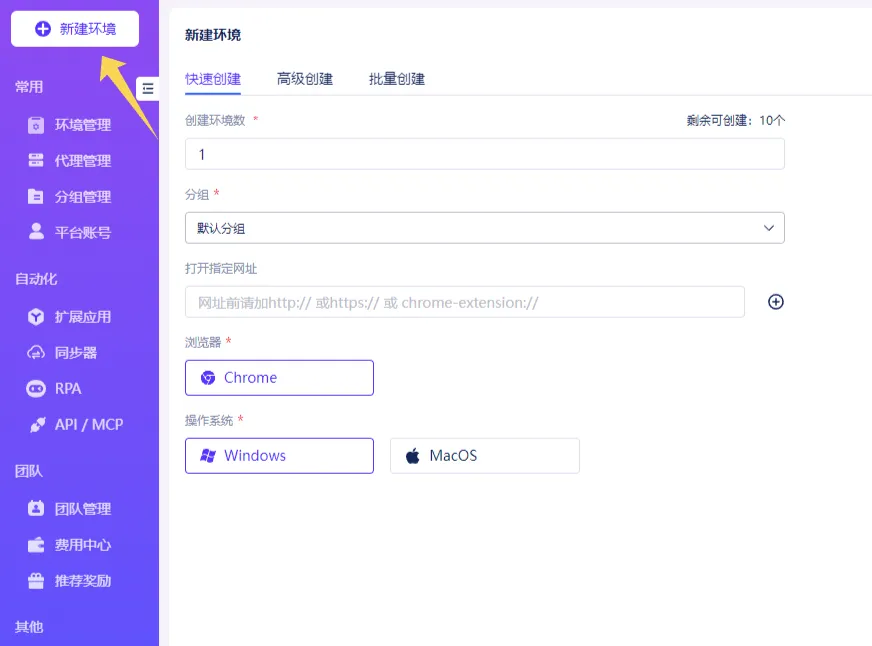
A new profile setup window will appear where you can choose the browser type, operating system, and configure environment settings.
After that, you can proceed to proxy configuration.
Step 2. Add a Proxy Through Proxy Manager
Go to Proxy Management → Custom Proxy.
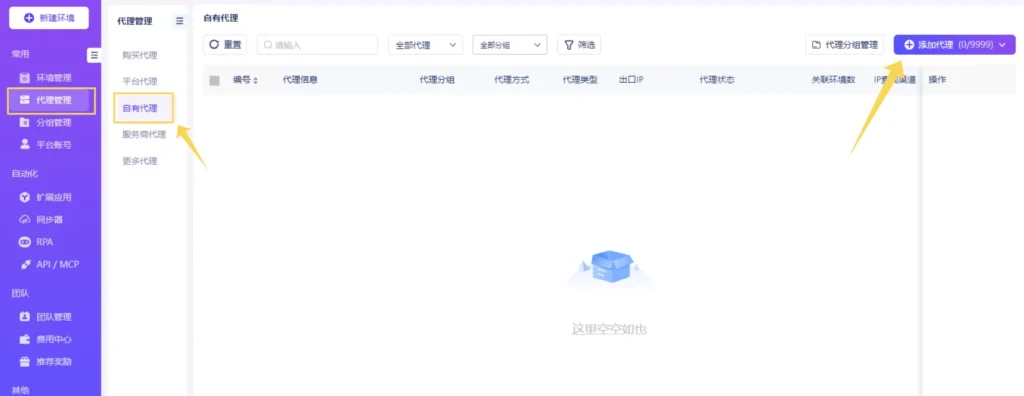
In the upper-right corner, click Add Proxy.
HotLogin supports several proxy import methods:
- single add
- batch import
- API integration
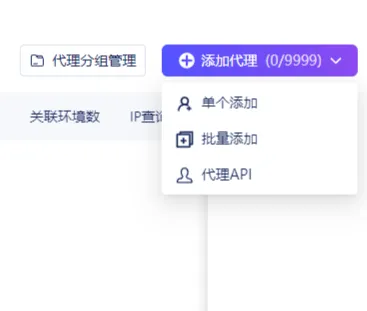
For manual configuration, choose Single Add.
In the setup window, enter the proxy details:
- connection type
- IP address
- port
- username
- password
HotLogin supports HTTP, SOCKS5, and other popular proxy protocols.
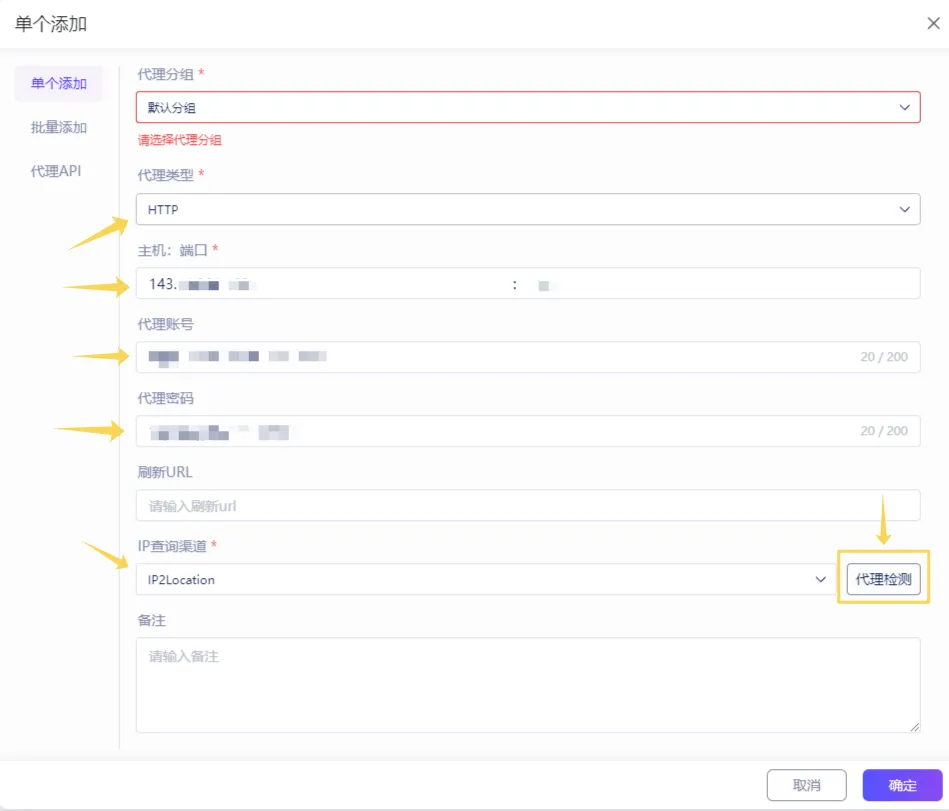
If needed, you can also add a URL for IP rotation.
To verify the connection, click Proxy Check.
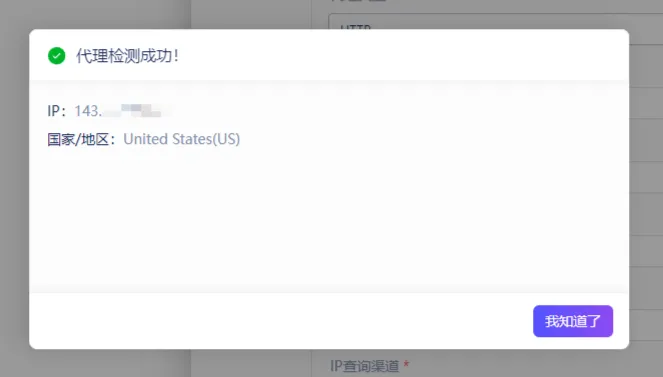
If the details are entered correctly, the system will display the active IP address and GEO location. Then click Confirm.
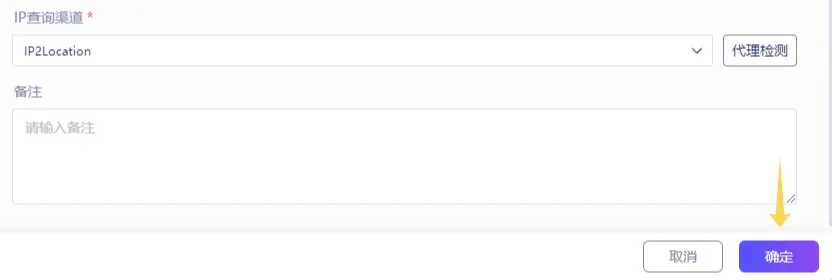
The saved proxy will appear in the general list and become available for assignment to profiles.

Step 3. Verify the Connection
After connecting the proxy, it’s recommended to make sure the browser is using the correct IP address and that websites detect the connection properly. It’s also worth checking GEO location and connection stability before launching profiles.
For additional diagnostics, you can use the following tools:
👉 IP address and GEO detection: IP Lookup
👉 Proxy availability and status check: Proxy Checker
👉 Connection route and IP analysis: IP Trace
Which Proxy Types Are Commonly Used in HotLogin
Different proxy types подходят for different tasks. When choosing a proxy, it’s important to consider not only the price but also IP trust level, connection stability, and the platform you work with.
| Proxy Type | Best Used For | What to Consider |
| Residential | social media, e-commerce, arbitrage | high trust level and natural behavior |
| ISP | long-term accounts and stable sessions | stable connection without frequent IP rotation |
| Datacenter | bulk actions, automation, scraping | high speed but lower trust level |
| Mobile | platforms with strict anti-fraud systems | mobile operator IPs look more natural |
If you are not sure which option is best for your tasks, we recommend checking our detailed proxy comparison guide:
👉 Residential vs Datacenter vs ISP Proxies
Common Use Cases for HotLogin with Proxies
HotLogin combined with proxies is often used for:
- multi-accounting
- traffic arbitrage
- advertising account management
- automation
- web scraping
- account farming
We also recommend checking other setup guides:
Possible Setup Issues
Proxy fails the connection check
Verify the IP address, port, and authentication details.
Incorrect GEO location is displayed
Make sure the selected proxy matches the required region.
Websites load slowly
Try another server or switch proxy types.
CAPTCHAs appear too often
Use higher-trust IPs and reduce activity intensity.
Connection error
Check proxy availability and make sure the selected port is correct.
Security Tips
For more stable profile management, it is recommended to:
- use a separate proxy for each account
- avoid mixing different GEO locations in one session
- avoid sudden spikes in activity
- periodically rotate IPs during automation
- monitor proxy quality and connection speed
Frequently asked questions
Here we answered the most frequently asked questions.
Which proxies are most commonly used with HotLogin?
For most tasks, residential and ISP proxies are preferred because they provide a higher trust level for websites and platforms.
Can I use one IP address for multiple profiles?
It’s better to avoid this, since accounts may become linked together.
Which protocol is considered the best option?
SOCKS5 is the most common choice because it works reliably in antidetect environments.
Should proxies be tested before launching profiles?
Yes, testing helps detect connection or GEO-related issues in advance.
Does HotLogin support IP rotation?
Yes, the browser supports rotating proxies and IP updates via URL.
I’ve been looking for an alternative anti-detect browser lately, and HotLogin seems worth checking out. Curious to see how it performs with larger account setups.