
How to Set Up a Proxy in Dolphin Anty: Step-by-Step Guide
Published: ≈ 4 min read
Dolphin Anty is one of the most popular antidetect browsers for multi-accounting, traffic arbitrage, automation, and working with different online platforms. It allows users to create separate browser profiles with unique fingerprint settings, but fingerprint isolation alone is not enough.
Websites analyze not only browser fingerprints but also the user’s network environment. If multiple profiles operate through the same IP address, accounts can become linked, leading to restrictions, additional verification checks, or bans.
Proxies in Dolphin Anty help separate traffic between profiles and create an isolated network environment for each account. This becomes especially important when scaling operations or managing multiple accounts long-term.
In this guide, we’ll explain how to connect proxies in Dolphin Anty, verify the connection, and correctly assign IPs to profiles.
Why You Need Proxies in Dolphin Anty
Using proxies in Dolphin Anty allows you to:
- separate accounts from each other
- reduce the risk of bans and CAPTCHAs
- work with different GEO locations
- run automation more safely
- create more natural network behavior
Even with a properly configured browser fingerprint, a repeated IP address remains one of the most noticeable signals for anti-fraud systems.
If you’re new to proxies, we recommend first understanding the basics of how they work:
Step-by-Step Proxy Setup in Dolphin Anty
Step 1. Create a Profile in Dolphin Anty
Open Dolphin Anty and go to the profiles section.
To create a new profile, click Create Profile at the top of the interface.
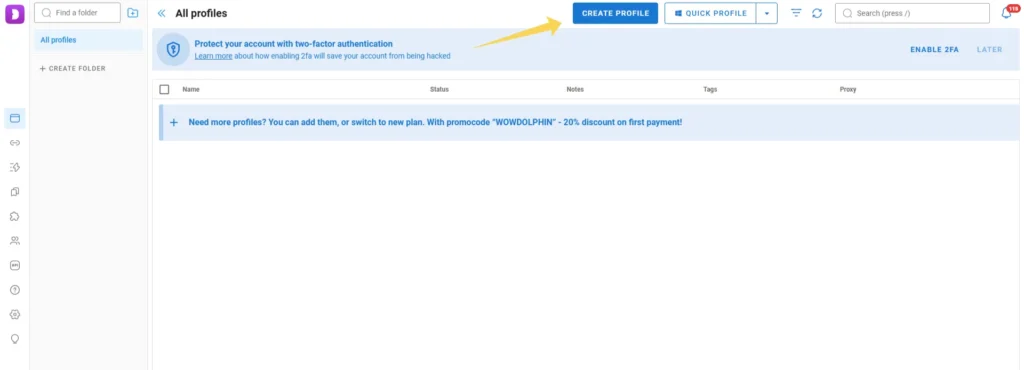
There is also a quick setup mode called Quick Profile, which allows you to create a profile with minimal configuration.
Step 2. Add a Proxy
Dolphin Anty supports two ways of connecting proxies:
- through the separate Proxy section
- directly inside a browser profile
Method 1. Adding a Proxy Through the Proxy Section
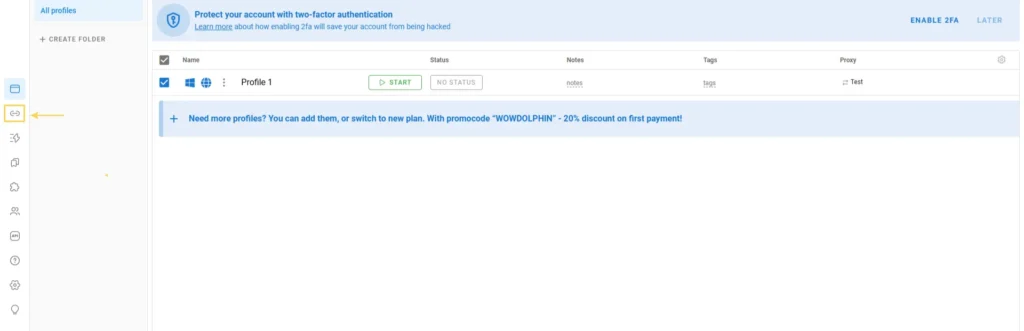
Open the Proxy section in the sidebar menu and click Add Proxy.

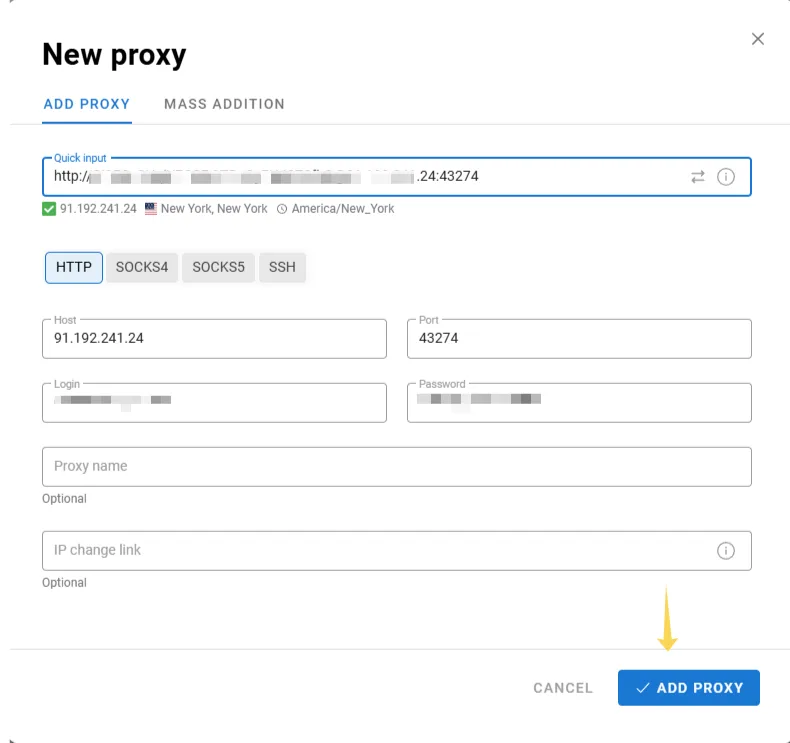
A proxy setup window will appear.
Dolphin Anty supports several protocols:
- HTTP
- SOCKS4
- SOCKS5
- SSH
Enter the connection details:
- IP address
- port
- username
- password
If you are using a rotating proxy, you can additionally specify a URL for IP rotation.
After entering the details, click Add Proxy.
Method 2. Adding a Proxy Inside a Profile
While creating a profile, go to the Proxy block.
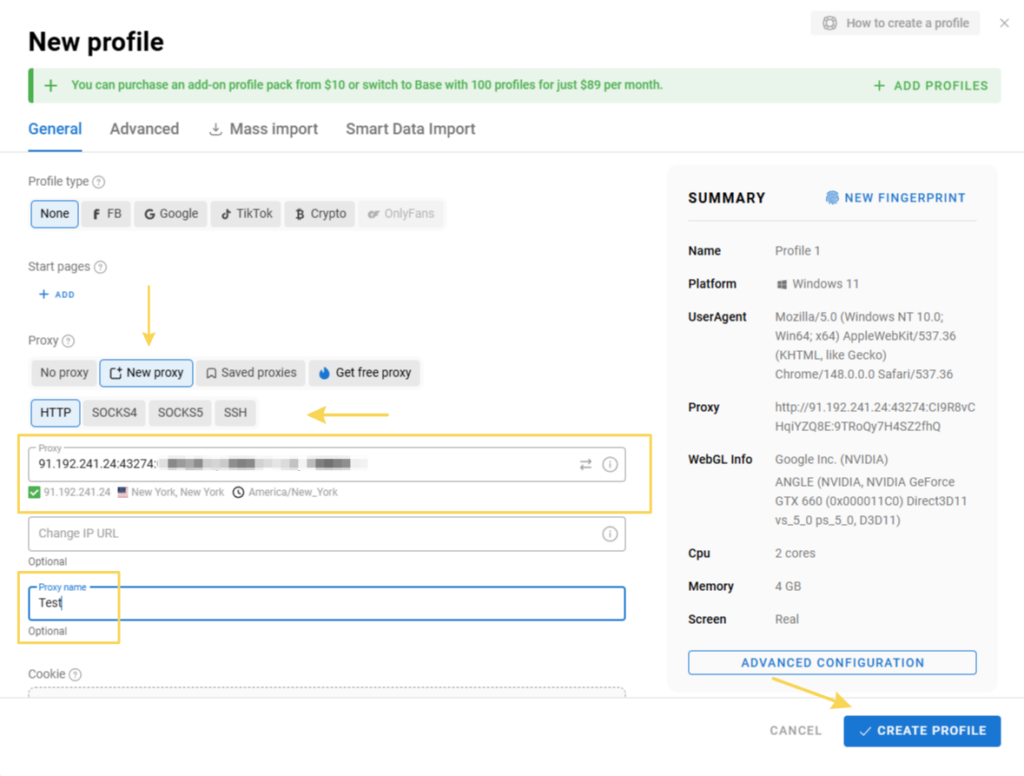
Here you can:
- select a saved proxy
- add a new proxy
- use a free proxy
For manual setup, click New Proxy, choose the required protocol, and enter the connection details.
After checking the settings, click Create Profile.
Step 3. Verify the Connection
After adding a proxy, Dolphin Anty will display it in the general proxy list.

We recommend checking that:
- the IP is detected correctly
- the GEO matches your task
- the connection works stably
Before launching a profile, it’s also recommended to verify how the IP address is detected, whether the proxy works correctly, and whether there are any DNS leaks. You can use the following tools:
👉 IP address and GEO check: IP Lookup
👉 Proxy status check: Proxy Checker
👉 IP route and connection tracing: IP Trace
Best Proxy Types to Use
| Proxy Type | Best For | Stability | Trust Level |
| Residential | social media, accounts, arbitrage | high | high |
| ISP | long-term operations | very high | high |
| Datacenter | automation and bulk tasks | medium | medium |
| Mobile | complex anti-fraud platforms | high | maximum |
Not sure which option is best for your task?
👉 Residential vs Datacenter vs ISP Proxies
Main Use Cases
Dolphin Anty combined with proxies is commonly used for:
- multi-accounting
- traffic arbitrage
- account farming
- web automation
- scraping
- managing advertising accounts
We also recommend:
Possible Connection Issues
Proxy cannot be added
Check the connection string format and authentication details.
Incorrect GEO is displayed
Make sure the selected proxy belongs to the required region.
Websites load slowly
Try switching servers or testing another proxy type.
CAPTCHAs appear frequently
Reduce activity and use higher-quality IPs with better reputation.
Connection error
Make sure the proxy is active and the port is not blocked.
Security Tips
For more stable performance, we recommend:
- using a separate proxy for each profile
- avoiding mixing different GEOs within one session
- avoiding sudden spikes in activity
- periodically rotating IPs during automation
- monitoring proxy quality and connection speed
Frequently asked questions
Here we answered the most frequently asked questions.
Which proxies work best with Dolphin Anty?
Residential and ISP proxies are the most commonly used because they appear more natural to websites.
Can I use the same IP for multiple profiles?
Not recommended. A shared IP can link accounts together.
Which protocol should I choose?
SOCKS5 is the most common choice because it works well in antidetect environments.
Should I test proxies before launching profiles?
Yes, this helps identify connection or GEO-related issues in advance.
Does Dolphin Anty support rotating proxies?
Yes, the browser supports proxies with IP rotation.
Great breakdown. A lot of people blame the browser when their accounts get flagged, completely ignoring the fact that they used cheap, burned-out IPs.