


Headless vs Headful Browsers: Performance, Detection and When to Use Each
Published: ≈ 15 min read
Quick Answer
Headless and headful browsers use the same rendering engine but operate differently. A headless browser runs without a graphical user interface, making it faster and better suited for automation and CI/CD pipelines. A headful browser displays a visible window, making debugging and interactive testing easier. Contrary to common belief, modern headless browsers are not automatically easier to detect-browser fingerprint consistency and session quality often matter far more than whether the browser has a visible interface.
Key Takeaways
- Headless browsers run without a visible graphical interface.
- Headful browsers display the full browser window for user interaction.
- Modern headless Chrome behaves much more like a normal browser than earlier versions.
- Browser detection depends on many signals beyond headless mode.
- Headless mode is ideal for automation, scraping, and CI/CD pipelines.
- Headful mode is usually preferred for debugging and interactive testing.
Browser Automation Has Changed
If you searched for browser automation advice a few years ago, you probably encountered the same recommendation repeatedly:
Never use headless mode because websites can easily detect it.
For a long time, this advice was largely correct.
Early headless browsers exposed obvious differences compared to normal desktop browsers. Many websites could identify automation simply by checking a handful of browser properties.
Today, however, the situation is very different.
Modern Chromium-based browsers have significantly reduced the gap between headless and headful execution. Frameworks such as Playwright Browser Contexts and recent versions of Selenium can launch browsers that behave much more like regular user sessions.
This doesn’t mean headless browsers are impossible to detect.
It means that browser detection has become much more sophisticated.
Instead of asking:
“Is this browser headless?”
Modern anti-bot systems increasingly ask:
- Does this browser behave consistently?
- Does its fingerprint look realistic?
- Does its session remain stable?
- Does its network activity resemble human behavior?
As discussed in Cookie Persistence vs Session Persistence, maintaining a trusted browser session depends on far more than a single browser setting.
Understanding the difference between headless and headful execution helps developers choose the right tool for each automation project instead of relying on outdated assumptions.
What Is a Headless Browser?
A headless browser is a full web browser that runs without displaying a graphical user interface (GUI).
Although no browser window appears on the screen, the browser still performs nearly all of the same operations as a normal browser.
These include:
- rendering HTML;
- executing JavaScript;
- loading CSS;
- making network requests;
- processing cookies;
- running browser APIs;
- interacting with web applications.
From the perspective of your automation script, the browser behaves almost exactly the same.
The only major difference is that everything happens in the background.
Headless Browser Workflow
Automation Script
↓
Launch Browser
↓
No Visible Window
↓
Load Website
↓
Execute JavaScript
↓
Return Results
Because there is no graphical interface to render, headless browsers generally consume fewer system resources and can launch much faster than traditional browsers.
This makes them especially attractive for:
- automated testing;
- continuous integration (CI/CD);
- web scraping;
- monitoring systems;
- scheduled automation tasks;
- cloud-based browser infrastructure.
For many production environments, running thousands of invisible browser instances is simply more practical than managing thousands of visible desktop windows.
What Is a Headful Browser?
A headful browser is the standard browser experience that most users interact with every day.
When launched, it opens a visible browser window that can be controlled either manually or through automation.
Everything displayed to a human user-including tabs, menus, animations, pop-ups, and developer tools-is fully rendered.
Automation frameworks interact with the browser exactly as they would in headless mode, but developers can watch every action in real time.
Headful Browser Workflow
Automation Script
↓
Launch Browser
↓
Visible Browser Window
↓
Load Website
↓
User Can Observe Actions
↓
Automation Continues
Headful mode is particularly valuable during development because it allows engineers to see exactly what the browser is doing.
Unexpected redirects, loading issues, modal dialogs, or failed interactions become immediately visible, making troubleshooting significantly easier.
For this reason, many teams develop automation scripts in headful mode before switching to headless execution in production.
Headless vs Headful Browsers
At first glance, the difference seems simple:
One browser shows a window.
The other does not.
In reality, the choice affects several aspects of browser automation, including performance, debugging, scalability, and workflow design.
| Feature | Headless | Headful |
| Visible Browser Window | ❌ | ✅ |
| GUI Rendering | Background only | Full interface |
| Startup Speed | Faster | Slightly slower |
| Memory Usage | Lower | Higher |
| CPU Usage | Lower | Higher |
| Debugging | More difficult | Easier |
| Visual Testing | Limited | Excellent |
| Screenshots | Supported | Supported |
| Automation | Excellent | Excellent |
| CI/CD Pipelines | Ideal | Less common |
Neither mode is universally better.
The right choice depends on the task you’re trying to accomplish.
For example:
- automated regression testing often benefits from headless execution;
- UI debugging is much easier in headful mode;
- large-scale web scraping commonly runs headless;
- manual QA sessions almost always use headful browsers.
Choosing the appropriate mode is ultimately a trade-off between performance, visibility, and operational requirements.
Why Headless Browsers Used to Be Easy to Detect
For years, headless browsers developed a reputation for being easy to identify.
This wasn’t a myth.
Early implementations of headless Chrome exposed several obvious differences compared to normal desktop browsers. Anti-bot systems quickly learned to look for these inconsistencies.
As a result, many automation guides recommended avoiding headless mode altogether.
Today, many of those recommendations are outdated.
Understanding why headless browsers were once easy to detect helps explain why modern browser automation looks very different.
Early Detection Techniques
The first generations of headless browsers leaked numerous implementation details.
Some of the most common detection methods included:
- navigator.webdriver
- missing browser plugins
- empty MIME types
- unusual WebGL information
- inconsistent screen properties
- missing browser extensions
- incomplete graphics rendering
- automation-specific Chrome flags
Individually, these differences were small.
Combined, they created a browser that looked noticeably different from a normal user environment.
The navigator.webdriver Property
One of the simplest detection techniques involved checking a single JavaScript property.
navigator.webdriver
For automated browsers, this often returned:
true
A regular browser typically returned:
undefined
For websites, this became an immediate indicator that browser automation might be running.
Many anti-bot platforms still evaluate this property today, although modern automation frameworks often handle it much more effectively than they did several years ago.
Missing Browser Features
Real browsers accumulate small details over time.
For example:
- installed extensions;
- PDF viewers;
- language packs;
- plugins;
- cached resources;
- permission history.
Early headless browsers frequently lacked many of these characteristics.
The result wasn’t one obvious difference.
It was dozens of tiny inconsistencies.
Modern detection systems rarely rely on a single signal.
Instead, they calculate an overall confidence score based on hundreds of browser characteristics.
Rendering Differences
Rendering engines also exposed detectable variations.
Some headless browsers produced slightly different results for:
- Canvas rendering;
- WebGL output;
- font measurements;
- image processing;
- GPU acceleration;
- animation timing.
Although these differences were often invisible to humans, they could be measured programmatically.
This eventually led to more advanced browser fingerprinting techniques.
We’ll explore these mechanisms in detail in Browser Fingerprinting Explained.
Why That’s No Longer Entirely True
Headless browsers have evolved dramatically.
Beginning with newer Chromium releases, Google introduced significant improvements to reduce the differences between headless and normal browser execution.
The newer implementation behaves much more like a standard desktop browser.
Many of the obvious detection signals that worked several years ago have disappeared.
Today, modern automation frameworks inherit these improvements automatically.
For example:
- Playwright launches the latest Chromium engine.
- Selenium can use modern Chrome headless mode.
- Browser APIs behave much more consistently.
- Rendering closely matches visible browser execution.
This means that simply checking whether a browser is running headless is no longer sufficient for reliable detection.
Detection Has Become More Sophisticated
Instead of asking:
“Is this browser headless?”
Modern anti-bot systems ask much broader questions.
For example:
- Does the browser fingerprint remain internally consistent?
- Does the browser history resemble normal usage?
- Is the hardware profile realistic?
- Does the network behavior match previous sessions?
- Does mouse movement appear human?
- Is scrolling natural?
- Does typing speed look realistic?
In other words, browser mode has become just one signal among many.
As discussed in How Session Persistence Works, websites increasingly evaluate complete browser identity rather than isolated browser properties.
Does Headless Mode Affect Browser Fingerprints?
This is one of the most common misconceptions in browser automation.
The answer is:
Sometimes-but much less than many people expect.
Headless mode itself is not a browser fingerprint.
Instead, it can influence certain browser characteristics if the automation framework or browser configuration introduces detectable differences.
For example, poorly configured automation may expose:
- unusual graphics capabilities;
- inconsistent viewport sizes;
- automation-related browser flags;
- missing hardware acceleration;
- incomplete browser APIs.
Modern Chromium releases have significantly reduced these differences.
However, browser fingerprint consistency still matters.
Two browsers running the same version of Chrome can produce very different fingerprints if they differ in:
- fonts;
- GPU drivers;
- operating system;
- screen resolution;
- language configuration;
- browser profile.
This is why preserving browser identity is usually more important than simply choosing headless or headful mode.
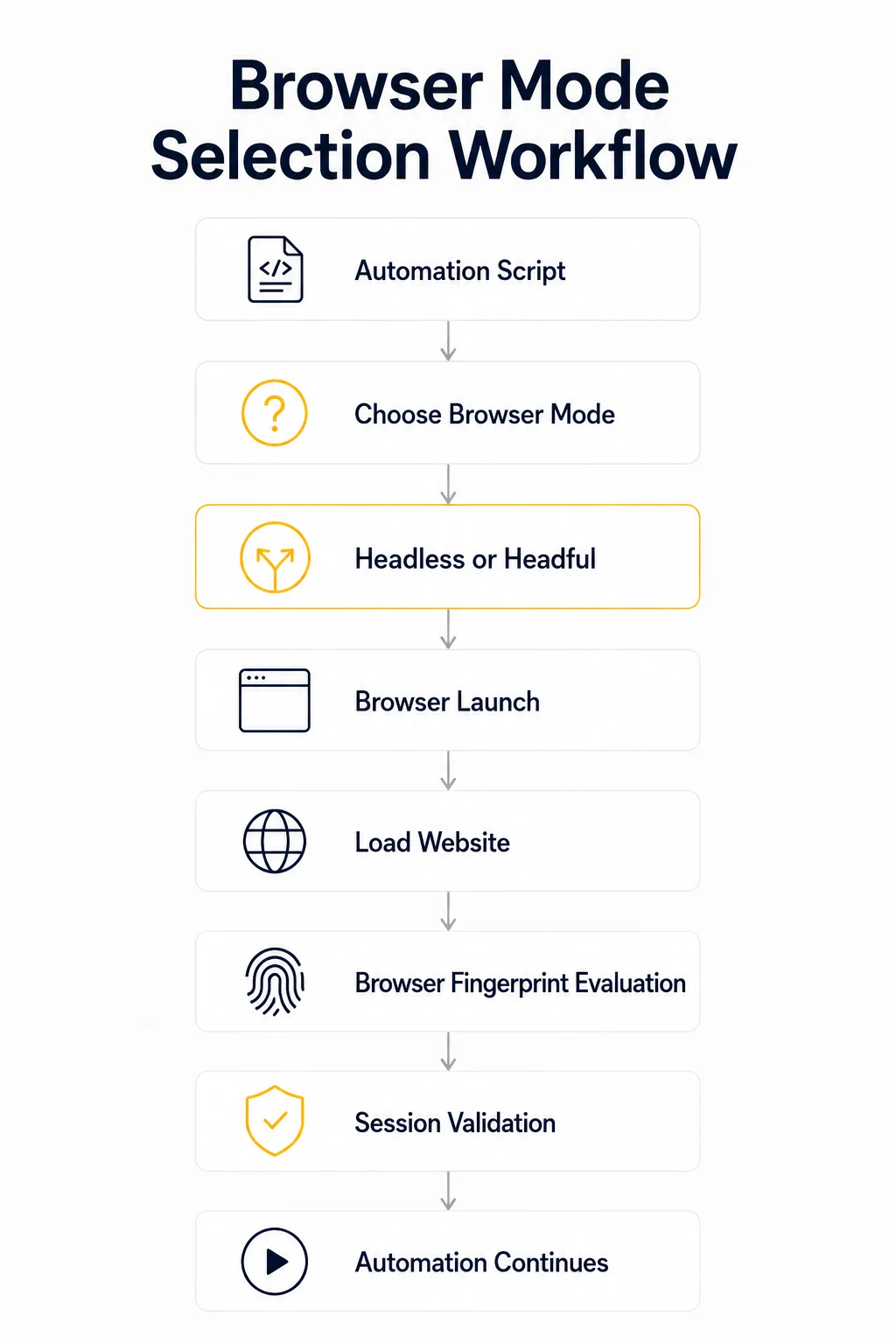
Headless Mode Does Not Automatically Mean Detection
A common misconception is:
Headless Browser
↓
Immediately Detected
Modern anti-bot systems don’t work that way.
A more realistic decision process looks like this:
Browser Trust Evaluation
Browser Launch
↓
Fingerprint Analysis
↓
Session Consistency
↓
Network Evaluation
↓
Behavior Analysis
↓
Risk Score
↓
Allow or Challenge
Headless mode contributes only one small piece of information.
If every other signal appears consistent, the browser may continue operating normally.
Conversely, a visible browser with an unrealistic fingerprint or suspicious behavior may still be challenged.
This shift explains why modern browser automation focuses less on hiding headless mode and more on building realistic, consistent browser environments.
Which Mode Should You Choose?
Choosing between headless and headful mode isn’t about finding the “best” browser.
It’s about selecting the right tool for your specific workflow.
Different automation tasks have different priorities.
Some focus on speed and scalability.
Others require visual debugging and user interaction.
Understanding these trade-offs helps you build more reliable automation pipelines.
Best Use Cases for Headless Browsers
Headless browsers excel when automation needs to run efficiently without human supervision.
Typical use cases include:
- large-scale web scraping;
- scheduled automation;
- API testing through browser interfaces;
- continuous integration (CI/CD);
- automated regression testing;
- monitoring dashboards;
- cloud browser infrastructure.
Because no browser window needs to be rendered, thousands of browser instances can run simultaneously on servers.
For long-running scraping projects, combining headless browsers with Residential Proxies or Static ISP Proxies often provides a stable and scalable solution.
Before troubleshooting failed requests, it’s also worth verifying your current endpoint with Proxy Checker to rule out proxy connectivity issues.
Best Use Cases for Headful Browsers
Headful browsers shine whenever developers need visibility into browser behavior.
Typical scenarios include:
- debugging automation scripts;
- creating new Playwright or Selenium tests;
- UI regression testing;
- investigating login problems;
- solving CAPTCHA issues;
- reproducing customer-reported bugs.
Watching the browser perform every action makes it much easier to identify where automation breaks.
Many teams write new automation scripts in headful mode before switching to headless execution once the workflow is stable.
Performance Comparison
Because headless browsers skip rendering a visible interface, they generally require fewer system resources.
The difference is usually measurable, although the exact numbers depend on the workload.
| Metric | Headless | Headful |
| Startup Speed | Faster | Slightly slower |
| Memory Usage | Lower | Higher |
| CPU Usage | Lower | Higher |
| GPU Usage | Lower | Higher |
| Visual Debugging | No | Yes |
| Parallel Execution | Excellent | Good |
For browser automation running hundreds or thousands of concurrent sessions, these resource savings become significant.
For day-to-day development, however, developer productivity often outweighs the small performance difference.
Playwright Examples
Switching between modes in Playwright requires changing only one option.
Headless Mode
const { chromium } = require('playwright');

const browser = await chromium.launch({

    headless: true

});
Headful Mode
const { chromium } = require('playwright');

const browser = await chromium.launch({

    headless: false

});
Everything else remains exactly the same.
The browser engine, APIs, and automation workflow are identical.
Selenium Examples
Modern Selenium supports both traditional and new Chromium headless modes.
Headless Chrome
from selenium import webdriver
from selenium.webdriver.chrome.options import Options

options = Options()

options.add_argument("--headless=new")

driver = webdriver.Chrome(options=options)
Visible Chrome
from selenium import webdriver

driver = webdriver.Chrome()
During development, many engineers prefer the visible browser.
Once the automation has been fully tested, the same workflow can often be executed in headless mode without additional changes.
Common Mistakes
Many automation issues are incorrectly blamed on headless mode.
In reality, the browser mode is often unrelated to the actual problem.
Some of the most common mistakes include:
Assuming Headless Browsers Are Always Detected
Modern Chromium has significantly narrowed the gap between headless and headful execution.
Detection usually depends on the complete browser environment rather than browser mode alone.
Ignoring Browser Fingerprints
Changing browser fingerprints between executions is far more likely to cause problems than simply using headless mode.
Using Fresh Browser Profiles Every Time
Launching a completely new browser profile for every automation run destroys session continuity.
Debugging in Headless Mode
Trying to troubleshoot automation without seeing the browser often makes simple issues much harder to diagnose.
When debugging:
- switch to headful mode;
- observe every browser action;
- inspect developer tools;
- confirm selectors visually;
- verify page navigation.
After everything works correctly, return to headless execution for production.
Production Tips
Reliable automation depends far more on consistency than on browser mode.
Develop Headful, Deploy Headless
A practical workflow looks like this:
Recommended Development Workflow
Write Automation
↓
Run Headful
↓
Debug Issues
↓
Validate Selectors
↓
Test Authentication
↓
Deploy Headless
This approach combines the debugging advantages of headful mode with the scalability of headless execution.
Keep Browser Versions Updated
Modern headless implementations receive frequent improvements.
Running outdated browser versions may expose unnecessary detection signals that no longer exist in current Chromium releases.
Preserve Browser State
Avoid logging in during every automation run.
Instead, preserve browser state whenever possible.
Playwright’s storage state and persistent browser profiles generally produce more stable automation than repeatedly recreating sessions.
Verify Your Network Environment
Before blaming browser mode for failed requests:
- check your public address using My IP;
- inspect geolocation with IP Lookup;
- validate proxy connectivity with Proxy Checker.
Network problems often resemble browser-related issues.
Code Disclaimer
The examples shown in this article demonstrate the basic differences between headless and headful browser execution.
Production environments typically require additional considerations, including:
- browser profile management;
- authentication persistence;
- proxy rotation strategies;
- retry mechanisms;
- secure credential storage;
- browser fingerprint consistency;
- comprehensive error handling.
These examples should be viewed as building blocks for reliable browser automation rather than complete production-ready implementations.
Glossary
Browser Automation
The process of controlling a web browser through software instead of manual interaction. Browser automation is commonly used for testing, web scraping, monitoring, and repetitive workflows.
Browser Fingerprint
A collection of browser and device characteristics used by websites to identify and distinguish browsers. Typical signals include screen resolution, GPU information, installed fonts, browser APIs, and operating system details.
Chromium
The open-source browser engine used by Google Chrome, Microsoft Edge, Brave, Opera, and many other modern browsers.
Headful Browser
A browser running with a visible graphical interface. Users can watch every action performed by the automation script.
Headless Browser
A browser running without displaying a graphical window while still rendering web pages and executing JavaScript.
Playwright
An open-source browser automation framework that supports Chromium, Firefox, and WebKit with modern APIs for testing and automation.
Selenium
One of the most widely used browser automation frameworks for web testing and browser control across multiple browsers.
Final Thoughts
The debate between headless and headful browsers is no longer about which one is “better.”
Instead, it’s about choosing the right execution mode for the task at hand.
Headless browsers offer better scalability, lower resource consumption, and seamless integration into production automation pipelines.
Headful browsers provide unmatched visibility during development, debugging, and interactive testing.
Perhaps the biggest misconception is that headless mode alone determines whether a browser can be detected.
Modern anti-bot systems evaluate a much broader picture that includes browser fingerprints, authentication consistency, session history, network reputation, and behavioral signals.
Developers who focus on building realistic browser environments rather than simply hiding headless mode generally achieve more stable and reliable automation.
Continue Learning
To deepen your understanding of browser automation and modern detection techniques, continue with these guides:
Web Scraping
Free Mango Tools
Before troubleshooting browser automation issues, these tools can help verify your environment:
- My IP – confirm the IP address your browser is using.
- IP Lookup – inspect IP location, ASN, and network information.
- DNS Leak Test – ensure your DNS requests match your expected network configuration.
Frequently asked questions
Here we answered the most frequently asked questions.
Is a headless browser always easier to detect?
No. This was often true several years ago, but modern Chromium has significantly reduced many of the differences between headless and headful execution. Today, websites typically evaluate many additional signals, including browser fingerprints, authentication state, network consistency, and behavioral patterns.
Does headless mode make browser automation faster?
Usually, yes. Without rendering a visible graphical interface, headless browsers generally consume less CPU, memory, and GPU resources. The performance difference depends on the workload but becomes increasingly noticeable at larger scales.
Which mode is better for web scraping?
For production scraping, headless mode is usually preferred because it scales more efficiently. However, headful mode remains extremely valuable while developing or debugging scraping scripts. If your scraping workflow requires stable authenticated sessions, combining browser automation with Residential Proxies or Static ISP Proxies can provide more consistent network behavior.
Which mode is better for testing?
Both. Headful mode simplifies debugging because developers can watch browser actions in real time. Headless mode is commonly used in CI/CD pipelines and automated regression testing once the scripts have been validated.
Does browser mode affect session persistence?
Not directly. Session persistence primarily depends on preserving cookies, authentication tokens, browser storage, and browser identity.
Can Playwright run in both modes?
Yes. Changing a single configuration option allows Playwright to launch either a headless or headful browser while using the same automation script.